Parameter for Direct Activation of the CO-PA Interface
ACTIVE_COPA_PARAM
// Allevo version 3.3 and later
The CO-PA interface can be directly started from the Allevo main menu by clicking the button „Transfer plan data“, thus calling the corresponding function module. See also constant SATxx_COPA for activating this function.
The constant ACTIVE_COPA_PARAM allows to further refine the activation options with additional control parameters. Currently, the following applications are provided for:
1. Not every planner has all authorizations required for booking in CO-PA. In such cases, it is useful to execute the interface via RFC call with only the user defined for the RFC destination is required to have the necessary authorizations (via type R/3 connection SM59 with firmly defined user and password; target system and client to be selected like in the current SAP system).
2.
If a high number of postings is done via the
CO-PA interface this may reduce the performance. In this case, it is
recommended to run the interface in the background: Allevo then does not
wait for the end of the program run.
The following settings are possible:
§ BACKGROUND must be set in the constant’s column Value from in order to execute the background task.
§ Any other entry in the column Value from is interpreted as RFC destination, previously defined via SM59 (otherwise an error prompt is shown when the program is started). Only one RFC destination per layout can be addressed.
§ A number combination of 0s and 1s can optionally be entered in the column Value to, determining which satellite is addressed.
o 0 or blank are the standard settings, i.e. the standard execution oft he interface
o 1 means background calling or activation via RFC destination
The combination 001, for example, means that the CO-PA interface is only activated for the table /KERN/IPPSAT03 via RFC destination (the corresponding RFC link must be entered in the column Value from).
Without an entry in the Value to column, all active satellites are posted via a RFC link.
NOTE: The satellites concerned must in addition be activated via the constants ACTIVE_SAT and SATxx_COPA. Background processing is done via SAP transaction.
New for Allevo version 3.4 and later: Execution in the background
Background execution via several satellites is done successively and no longer in parallel via SM58. This avoids that postings on one object block each other. The sequential processing in addition respects the individual order corresponding to constant ACTIVE_SAT_SORT.
|
Activating Extra Module “Flexible Processing” |
|
ACTIVE_FP
This constant is used to activate the Flexible Processing module (license required!) for the selected planning layout. This means that, by using the extra module, the postings (or read operations), that are to be made at the individually selected cost center, will automatically be initiated from Allevo. It is not necessary to separately start the module.
Activation follows the same process as the general activation of satellites in the constant ACTIVE_SAT, i.e. using a 99-digit combination of the numbers 0 and 1.
Column Value from activates the write function of the extra module; column Value to - the read function.
After the write mode has been set for a specific satellite table, the extra module will automatically make a reconciliation entry for the content of this table when the planning data is transferred to SAP.
In the read-only mode, an additional button appears to indicate that the Allevo Master has been opened for the selected cost center in SAP. This button is used to execute the read operation of the extra module for the cost center in process. The text of the button can be changed using the constant BUTTON_FP_READ.
What satellites should be used in the Flexible Processing can be easily determined via the wizard in the constant management (see button |Sat.Assistant|, a check in column FP or FPR). The number combinations are automatically also stored in the constant.
|
Note: |
Only those satellites which have previously been activated for the planning layout in the constant ACTIVE_SAT can be activated for the extra module. |
Please also see the user manual for the extra module “Flexible Processing”.
Parameter for Directly Starting the Module „Flexible Planning“
ACTIVE_FP_PARAM
// Allevo Version 3.3 and later
After calling the corresponding function module, the extra Allevo module Flexible Planning can directly be started in the Allevo main menu by clicking the button „Transfer plan data“ (see also constant ACTIVE_FP).
The constant ACTIVE_FP_PARAM is designed to further refine the start options with additional control parameters. Currently the following applications are provided for:
3. Not in all cases the planner has all authorizations required for posting via Flexible Planning (e.g. for activity outputs which require the authorization to post to the receiving cost center). In such cases it can be useful to execute the posting via an RFC call, which only requires the user defined for the RFC destination to have the necessary authorization (installation via type R/3 link SM59 with firmly defined user and password; target system and client to be selected like in the current SAP system).
4. If a high number of postings is done through Flexible Planning, this may reduce the posting performance. In this case, it is recommended to run the interface in the background: Allevo then does not wait for the end of the program run.
The following setttings are possible:
§ BACKGROUND must be set in the constant’s column Value from in order to execute the background task.
§ Any other entry in the column Value from is interpreted as RFC destsination, previously defined via SM59 (otherwise an error prompt is shown when the program is started). Only one RFC destination per layout can be addressed.
§ A number combination of 0s and 1s can optionally be entered in the column Value to, determining which satellite is addressed.
o 0 or blank are the standard settings, i.e. the standard execution of Flexible Planning
o 1 means background calling or activation via RFC destination
The combination 001, for example, means that the Flexible Planning is only activated for the table /KERN/IPPSAT03 via RFC destination (the correponding RFC link must be entered in the column Value from).
Without an entry in the Value to column, all active satellites are posted to via a RFC link.
If Flexible Planning is used to process data from several satellites, Allevo generates one order per each satellite in the background processing. These orders may be executed in parallel via SM58. This is not critical as long as the posting records/objects don’t bloc each other. When processing identical objects, only the last access to Flexible Planning may be active in the background.
NOTE: The satellites concerned must in addition be activated via the constants ACTIVE_SAT and SAT_FP. Background processing is only relevant for saving plan data. The constant SAVE_LOG can be helpful to control the processing via the SAP Application Log. The calls for background processing are effectuated via the SAP transaction SM58.
New for Allevo Version 3.4 and later: Execution in the background
Background execution via several satellites is done successively and no longer in parallel via SM58. This avoids that postings on one object block each other. The sequential processing in addition respects the individual order corresponding to constant ACTIVE_SAT_SORT.
|
Activating PROCED |
|
ACTIVE_PROCED
This constant activates ProCED called by Allevo.
In order to activate ProCED for the satellite 0, X must be entered as the constant's Value from.
For calling the remaining 99 satellites, a 99-digit combination of the numbers 0 and 1 is to be entered in column Value to. The digits in the combination of numbers indicate for which satellite ProCED is activated.
The combination 001…, for example, means that ProCED is called via the satellite /KERN/IPPSAT03.
What satellites should be used for ProCED can be easily determined via the SAT-Assistant in the constant management (see button |Assistant|, a check in column CED). The number combinations are automatically also saved in column Value to of the constant ACTIVE_PROCED.
|
Note: |
The Satellite Assistant included in the program menu leads you through the activation. Also constant ALLEVO_ACTIVE must be defined in constants on ProCED side (please see the ProCED manual). In addition, as a rule, all the satellites used must be active (ACTIVE_SAT). ProCED is, however, not executed with active constant SATxx_SELECT. |
|
Activating Satellites |
|
ACTIVE_SAT
This constant is used to activate satellite tables:
§ /KERN/IPPSAT01
§ /KERN/IPPSAT02
§ …
§ /KERN/IPPSAT98
§ /KERN/IPPSAT99
Satellites can be called by entering a 99-digit combination of the numbers 0 and 1 in column Value to. The digits in the combination of numbers determine which satellite table (in the above order) is to be activated.
0 means inactive, 1 means active.
The combination 00011... therefore indicates that the satellites /KERN/IPPSAT04 and /KERN/IPPSAT05 are active.
|
Note: |
The Satellite Assistant included in the program menu assists you with the activation. The satellite table must be activated twice: First, the satellites to be used must be activated in the *-constants for comparison with the scope of the license. Second, the satellites to be used for a specific planning layout must be activated in the constants of the relevant planning layout. A combination of up to 99 of the following signs · L · P · – can be entered in column Value to in order to define whether the tables activated in Value from are only to be read (L), planned (P), or both – read and planned (-). If no entry is made, the “reading and planning” option will be used for the activated tables. The combination ---LP---..., for example, indicates that “read-only” is set for /KERN/IPPSAT04 and “planning” for /KER/IPPSAT05. |
Order of Priority for Satellite Data Processing
ACTIVE_SAT_SORT
// Allevo Version 3.4 and later
By default, data from satellites is read/written in the order resulting from the number of the satellite (i.e. 01, 02, 03). The corresponding satellites must be activated using the constant ACTIVE_SAT.
In individual cases, however, another order may be requested, for example:
§ Flexible Planning allows processing of the data of multiple satellites (see constant SATELLITE_INCL).
§ BAdl is used to link customer specific data from different satellites. However, data of all relevant satellites must already be saved before activating the BAdl of the „last“ satellite.
In such cases of application, the constant ACTIVE_SAT_SORT allows defining an order of priority. A comma-separated list oft he numbers oft he relevant satellites (or individual satellite numbers) must be specified in the column Value from: these entries are processed first. Activated satellites that are not on the list are processed in the previous order.
EXAMPLE: Satellites 01, 02, 03, and 04 are activated. „03,02“ are entered in ACTIVE_SAT_SORT. The resulting processing order of satellites is therefore as follows: 03,02,01,04.
IMPORTANT: Sorting is currently only available fort he Allevo Inplace mode (not when being started from ABC).
NOTE: Allevo defines different points in time satellites are being addressed, for example before other reference data is read (see also constant READ_ORDER_SAT). This separation by points in time still hast he highest priority. Satellite 00 is therefore exempt from the change in order, since this satellite is always read at the earliest moment in time.
Activating the User Exit
ACTIVE_UE
WARNING! This constant is NOT used in Allevo 2.0 and later!
Function: Used in older program versions (Kern OPO)
This constant activates the user exit when
saving the planning. Activation is done by entering
the include name extension in the column Value from.
User exits can be used to create specific program extensions for individual users which are executed when the plan data is transferred to SAP.
EXAMPLE: The name of the include is /KERN/ZXIPPUE_DLR_KS001. DLR_KS001 must be entered in the column Value from.
NOTE: The include is available in the development class /KERN/IPPUE_DLR and is written in the /KERN/-name space.
Status Management with License Failure Warning
ACT_LICENSE_WARNING
// Allevo Version 3.3 and later
Function I: No warning for high numbers of activated objects
In general, new planning objects are added with status 1: these objects are not directly relevant for verification of the license (only from Status 3 on). However, the number of new objects indicates whether the licensed limit will be reached with planning going on. When saving, Allevo therefore also verifies the objects having Status 1 and, if needed, gives a warning and/or generates an entry in the error protocole. On this basis, controlling staff members receive a note that license limits will probably be reached (as soon as the status switches to 3; the warning is shown once a day, maximum).
In individual cases this pro-active Allevo function can be bothering: therefore, the warning message can be stopped by entering N in the column Value from.
EXAMPLE: In general, only the objects that are to be planned are entered in the Allevo status management. Then, the warning message is helpful. However, it can also be useful to enter all considered objects and let the planner decide which objects are to be worked on (only then, updating to the license relevant status 3 is done). In this case, the warning is not useful during the first recording.
Function II: Warning before reaching the license relevant number of objects
When saving new objects in the status management, Allevo verifies the number of existing entries under Status 3 and displays a warning as soon as the license limit is reached.
The warning can be shown BEFORE the license limit is reached (i.e. before reaching 100% license volume), by defining the desired percentage in Value to.
|
Displaying Planned Activity Quantity (line type M) |
|
ACT_SCHED_MV
* Allevo version 2.9.11 and later
The activity quantity that defines the object´s cost center/activity type for the cost allocation (range of services) is usually displayed via the combination of row definition M and column suffix_Q (e. g. CX_RR_Q or CY_RW_Q).
However, the planner of the services offered often orients himself on the quantity that had been generally planned by the partner. In KP26 it is referred to as ´planned activity quantity´.
The constant ACT_SCHED_MV is used to select the planned quantity and transport it via Allevo Master to the value-column_V (CY_R1_V). This function is only available for the line type M and in read-only mode.
The constant is activated by entering X in column Value from.
|
Planning Activity Quantities: Equivalence Numbers, Switching Scheme, Actual Activity Price Indicators |
|
AEQUZIFF_READ
If this constant is active, the information available on
§ equivalence numbers
§ switching scheme cost component splitting
§ pay scheme indicators of actual transfer prices
§ different activity types for actuals processing
is not overwritten while activity quantities or capacities are posted, but included in the planning (relevant for Line-Definition M an N).
Activation is carried out by X in column Value from.
(The data will be extracted from the SAP table COKL).
|
Allevo Specific Authorization Control |
|
AUTHORIZATION
// For Allevo 3.0 and later (extended in version 3.4)
Allevo-specific authorization control is available for all types of objects supported by Allevo (i.e. cost centers, orders and WBS elements). This authorization check is redundant, since Allevo respects all SAP authorizations anyway. Therefore, this function is only useful if no organizational aspect for authorizations is implemented or to be implemented on the SAP side, which is the case, for example, for Allevo-specific objects.
The constant AUTHORIZATION is set up as follows:
- X in column Value from activates the constant. This entry is equivalent to the figure 3. As an alternative, 2 can be entered for a previous version of authorization control (see note below).
- In the column Value to the table which contains the authorization rules must be specified: this is either the Allevo standard table /KERN/IPPAUTHSMP or, in the case of specific requirements, a table in the customer-specific name space (see examples in the manual “Allevo & SAP” manual).
If the constant is active, the function “Authorization concept” can be activated in the Allevo settings for setting up the allocation of fields appropriate for the verification of authorizations. When using the Allevo standard table /KERN/IPPAUTHSMP, Allevo can also use the default allocations (for details please see the manual).
The constant OWN_AUTH_TRACE in addition gives an overview of all authorization checks to be made.
NOTE: The authorization module has been substantially revised in Allevo version 3.0, in particular with regard to the use of placeholders such as * or ?. With the letter placeholder, for instance, a whole project or all subordinated WBS elements can be activated corresponding to the proportion in the name. A detailed description can be found in the Allevo manual. The revised authorization check is not compatible with all functions of previous versions. Please enter 2 in the column Value from to continue working with a previous version.
New for Allevo 3.3.4 and later: Extension for Profit Center
Authorization control is now also available for Profit Center.
New for Allevo 3.4 and later: Standard table for authorization check available
A standard table /KERN/IPPAUTHSMP with pre-defined field names and allocations is now included. Authorization checks no longer require a customer-specific table.
In addition, the authorization check now covers all object types supported by Allevo (including object and business process).
Allocations of constants and fields can now also be used for the *-layout.
A table defining authorization rules can now be used for several object types (FIELD_OBART must be allocated).
New for Allevo 3.4.22 and later: Authorization check with end of planning
Authorization checks are now run again when the planning is closed.
Shuttle with extended Authorization Check
AUTHORIZATION_SHUTTLE
Shuttle is a tool for the general use of satellite data. In general, the authorization for the respective transaction /ALLEVO/SHUTTLE is therefore only given to administrator roles. But even in this case, the user only gets access to a selection of satellites he/she has access to through an appropriate Allevo layout.
From Allevo 3.3 the shuttle can also be called using the button |satellite tables| on the start screen of any Allevo planning transaction, which requires the authorization ZIPP_SAT.
In individual cases, however, a further break down of authorizations can be useful on the object level, for example, to limit access for certain cost centers. This function must additionally be activated via the constant AUTHORIZATION_SHUTTLE in the *-layout (X in the column Value from).
NOTE: The authorization checks carried out for the planning object in the satellite’s field COOBJECT are the same as when being run via an Allevo planning layout, for example verification of the authorization object K_CSKS_PLA for cost centers. Reading and writing authorizations are required.
Please find further details in the manual „Allevo & SAP“, subject „Authorizations in SAP/Additional authorization checks “.
Authorization Check for Allevo Start Transaction
AUTH_PLAN_START
// For Allevo 3.3 and later
The constant AUTH_PLAN_START controls the authorizations for the initial object when MultiObject is started.
Background: When a planning transaction is started, Allevo verifies whether the user has the required authorization for planning the relevant objects. In the MultiObject mode, though, the initial object sometimes only has a presentational character: the real planning is done through the objects of another object type allocated, for example, the planning of all internal orders for a cost center without directly planning the cost center itself. In this specific case, the planner may not have the planning authorization for the initial object.
Individual authorization checks are controlled by the entries in the constant’s
column Value from. The following options are available:
§ D automatically switches Allevo to a reporting mode if no planning right is available for the current object (i.e. entry X). This option is available for all types of transaction, provided they are started through an individual object (i.e. not only for MultiObject).
§ N is only effective in MultiObject; the authorization check is completely skipped for the initial object here (even when uploading the offline file).
§ R, too, is only effective in MultiObject – this entry only verifies the reading authorization and NOT the planning authorization for the initial object. Reading authorization is sufficient to open the planning for any allocated objects.
The options N and R are also valid when using MultiObject Reporting.
NOTE: When plan data is written to SAP, Allevo explicitly verifies a second time for each object and cost element, whether a planning authorization is available (otherwise the post is not accepted). The above described options therefore ONLY apply for the verification of the initial object!
|
Status Management: Restricting Authorization ST5 |
|
AUTH_ST5_REDUCE
// Allevo version 2.29 and later
In the Allevo standard application a user of the authorization group ZIPP_ST5 can set (as well as reset) the planning status 5 (=checked) in the status management.
AUTH_ST5_REDUCE is used to prevent status 5 being reset by this authorization group (in this case ZIPP_ST6 is required).
The constant is activated by entering X in column Value from.
|
Using the SAP Business Document Service |
|
BDS_ENABLED
Setting X in column Value from, loads the Excel master template (Allevo Master) from the SAP BDS (Business Document Service).
In column Value to a symbolic file name can also be specified: with this name the Allevo Master must be found in the BDS (field “Description” of the document). The data can be uploaded to BDS via the SAP transaction OAOR or through Allevo-specific functions (for more details see the manual “Allevo & SAP”).
If the constant is activated but no entry is available in column Value to, Allevo automatically sets a symbolic file name using the current parameters in the planning layout. Parameters can be, for example: controlling area, object type, layout or cost center groups (possible if predefined in Allevo settings). The same is applicable for the constant FILE_TEMPLATE.
NOTE: If both constants are simultaneously active, the constant FILE_TEMPLATE has higher priority.
When loading the Allevo Master during the planning process, a local copy is created automatically for the further processing; therefore, the master should be saved in BDS in XLSM format (and not XLTM).
|
Customized Pop-Up When Closing Allevo |
|
BEENDEN_TEXT
// Allevo version 2.8 and later (extended in 3.3)
In the column Value from you can type the text which you want to appear in the pop-up window when closing the program. The pop-up allows the user to create a local copy of the Excel planning data before closing Allevo.
The pop-up window appears when one of the following icons is used to close down Allevo:
§ green arrow to the left (End F3)
§ yellow arrow up (End shift + F3)
§ red cross (Cancel F12)
If nothing is specified in the constant BEENDEN_TXT, the Allevo default message appears.
New in Allevo 3.0 and later: 2 text lines
A two-line text can be entered in column Value from. The special character / is used to separate the lines. This character should therefore not be used in the text.
In addition, the pop-up function can be changed through an entry in column Value to. A two-letter combination is used for that. The first letter defines which function will be activated after being confirmed by the user. The second letter regulates the default settings of the buttons.
S Save file (Excel data will be stored locally)
P Post planning data (in SAP) or Save comments (in Allevo Reporting)
I Show information (simple message dialogue asking if the program is truly to be finished)
N Deactivate pop-up
The default buttons can also be replaced by changing the second letter in column Value to:
J Yes (default)
N No
EXAMPLE: If “No” is to be set as default in the standard pop-up, “SN” must be entered in column Value to.
New in Allevo 3.3 and later: Multi-language text
If language key is added, the text can be used in several languages (e.g. BEENDEN_TEXT_EN). However, the control information for Value to provided above will still be taken from BEENDEN_TEXT.
NOTE: See also the constant DAT_LOK for a similar function (used to enable the data backup directly after reading the reference data).
|
Allevo Business Client (ABC): Saving Header Data |
|
BUFFER_DATA
In standard cases, the ABC mode is supposed to be based on a "stateful" RFC connection to the SAP system. Here, the header data remain in the main memory and do not need to be always re-read from the database or re-written there.
For testing purposes, it may be useful to activate the reading/writing functions.
The constant is activated by entering X in column Value from.
NOTE: The constant is not required for the standard mode (for test purposes only).
|
Optimizing Excel Operation for Allevo Multi |
|
BUFFER_MULTI
|
NOTE: |
The following considerations apply basically only to Excel format XLS, the standard file format until Office version 2003. Excel there has different limits with regard to processing worksheets and data. In our experience, the constant BUFFER_MULTI is no longer required when working with XLSM format. |
To create several worksheets in one Excel file means an additional load for the Excel memory. This load is maintained throughout the whole Excel session, slowing down the processing speed or even leading to a complete break-down of the process. The memory is only emptied when the Excel file is closed.
The capacity of the Excel memory (HEAP) depends on the Excel version, and on the Office environment used.
Depending on the number of worksheets created for a certain object group (e.g. cost centers) it is possible that the memory “overflows” and that processing is stopped (critical number). Experience shows that this critical number is reached from between 25 and 30 worksheets (depending on the size of the Allevo planning layout). This effect has nothing to do with the Allevo program itself but is related to the Office environment used.
Allevo is offering three processing variants that can be controlled via the BUFFER_MULTI constant. All these procedures are working with a periodical closing down and re-opening of the Excel file, which is the only way to empty the memory.
When you are using one of the following processing variants, please note that depending on the security level selected in Excel (via Excel - Macro - Security) the prompt for confirmation of the macro may appear several times in succession and must be confirmed accordingly when Allevo is being opened.
§
Intermediate
storage of the file when the actual MultiFile is being created: Value from
= I
Value to = 10
In this example, the Excel file is saved (closed) after object 10, and then
re-opened in the background.
§
Intermediate
storage and final storage of the file when the actual MultiFile is being
created: Value from = J Value to = 10
Intermediate storage is done after the 10th object. A final storage is done
when processing is completed for all objects.
§
Final
storage of the file when the actual MultiFile is being created: Value from
= Z
Value to = 10
Final storage is done as soon as Value to is exceeded. This method only
applies if the total number of objects per group does not exceed the critical
number.
NOTE: When using Allevo Multi please be aware of Excel’s (factual) capacity limits. The easiest way to cope with this problem is to limit the number of cost centers (best < 20) for each individual cost center group.
|
Labelling the Button: Save Comments |
|
BUTTON_COMMENT
This constant is used to specify the title of the |Save comments| button on the Allevo reporting screen (see entry in column Value from).
If X is entered in column Value to, the button is hidden when the Excel planning screen is opened
New for Allevo 2.8 and later: language-specific texts
In Allevo 2.8 and later, an additional feature to maintain language specific texts is available; the relevant name scheme is <BUT_xx_COMMENT> with xx standing for the selected language.
EXAMPLE: BUT_EN_COMMENT defines a button label text in English.
New for Allevo 3.0.10: Visibility
Alternatively, SAP-User-Names can be entered in the column Value to (separated by comma); in this case the button will only be available to these users.
|
Labelling the Button: Comment View |
|
BUTTON_COMVIEW
This constant is used to specify the title of the |Comment view| button in the Allevo reporting screen (see entry in the column Value from).
If X is entered in the column Value to, the button is hidden when the screen is opened.
New for Allevo 2.8 and later: Language-specific text
In Allevo 2.8 and later, an additional feature to maintain language specific texts is available; the relevant name scheme is <BUT_xx_COMVIEW> with xx standing for the selected language.
EXAMPLE: BUT_EN_COMVIEW defines a button label in English.
New for Allevo 3.0.10 and later: Visibility
Alternatively, SAP user names can be entered in the column Value to (separated by comma); in this case the button on the Excel planning screen will only be visible to these.
|
Supplementary Button CUST1 for Customer-Specific Functions |
|
BUTTON_CUST1
// Allevo version 2.9.24 and later (extended in version 3.3)
Customized functions, such as the creation of master data or the post-processing of existing plan data, can be integrated in the Allevo planning screen. To do so, there must be an appropriate function module available in the customer system. By default, this module is stored in the customer namespace and consists of an import and an export parameter in accordance with the following structure:
·
Import: /KERN/IPP_S_CUST_BUT_TO_FM
containing information about the layout and the current planning object, or the
list of all the objects in the MultiPage mode, respectively (in Allevo 3.3 and
later incl. desktop integration object and header data).
In version 3.2.11 and later, the information on whether the call is made via Allevo Inplace or via the Allevo Business Client (ABC) is available; in the letter case popup functions may not be called (only return messages through the BAPI return table).
·
Export: /KERN/IPP_S_CUST_BUT_FROM_FM
containing the message table in the format of BAPIRET2.
The subordinate parameter COMMAND serves as the return value for Allevo commands that are to be called automatically after (successful) implementation of a customer specific button (e.g. automatic acquisition of planning data).
·
Export: EV_SHOW_BUTTON (version 3.2.11 and
later)
controls whether the button is to be displayed, e.g. depending on the object
state or user specific.
This function is only available, if the module is entered in the column Value
to without any other Allevo commands.
An example function module is available under the name /KERN/IPP_BUT_CUST_TEMPL. It contains the relevant interfaces and has no function other than displaying a popup. The function module can be used for preliminary testing.
The entry in the column Value from specifies the label of the button |Cust.Button1|. The button is not displayed without having a label.
The name of the function module has to be entered in the column Value to. It will then be visible in the Allevo planning screen (e.g. the above-mentioned sample module). If the name of the function module that is being entered doesn’t exist in the system, an error message will appear when clicking on the CUST1 button.
A second constant BUTTON_CUST2 with analogous functions is available in order to allow definition and activation of two customer specific functions in the planning view.
NOTE: Availability of the above describe functions is limited when accessing via ABC – for example, activated functional modules may not contain any ABAP diaglogues/PopUps (please discuss all restrictions during the Allevo introductional project). With Version 3.2.11 and later, a query can be done in Badi whether activation was done via ABC; the module can so be executed in accordance with the respective mode (e.g. skip PopUp in ABC mode).
The constant is now available in all Allevo planning transactions (up to Allevo 2.9 only available with MultiObject).
New for Allevo 3.3 and later: Defining several functional modules
In the column Value to, several function modules and also Allevo commands can be entered (separated by comma). Defined functions will then be executed in the pre-set order.
EXAMPLE: The entry „PLANEN,ZDE_FB_TEST,EXIT2“ will automatically run the following functions:
- Allevo function „Transfer plan data“
- function module ZDE_FB_TEST
- Allevo function „Re-read statellite data“
Please contact the Kern Support Teym for a list of all Allevo commands available.
An additional feature for maintaining language specific texts is available; the relevant name scheme is <BUT_xx_CUST1>, with xx standing for the selected language.
EXAMPLE: BUT_EN_CUST1 defines English for the text. However, the name of the function module is still defined through BUTTON_CUST1.
The import parameter /KERN/IPP_S_CUST_BUT_TO_FM also transfers Allevo internal objects for header data and desktop integration (DOI): this allows reacting to the processing status in Excel (for example, in order to jump to a customer specific analysis, like in the single item screen). This function is not available when running the module via ABC.
To run the posting function of Allevo Actual, the function module /KERN/IPP_EMBED_INTERFACE is available, used as entry for the customer button. All necessary control parameters are defined via the constant EMBEDDED_INTERFACE (for further details please see the manual “Allevo Actual”).
|
Additional Button CUST2 for Customer-specific functions |
|
BUTTON_CUST2
// Allevo version 2.9.24 and later
For definition and application see the constant BUTTON_CUST1.
|
Labelling the button “Open file” |
|
BUTTON_DAT_OPEN
This constant is used to specify the title of the |Open file| button in the Allevo planning screen (see entry in column Value from).
If X is entered in column Value to, the button is hidden when the Excel planning screen is opened (only valid for the Excel planning screen, not for the start menu).
Extension to version 3.0: If A (=all) is entered in column Value to instead of X, the button will also be hidden from the Allevo start screen. Alternatively, SAP user names can be entered (separated by comma); in this case the button on the Excel planning screen will only be available for these users version 3.0.10 and later).
NOTE: The button is not defined in the current planning layout, but in the *-settings: If the constant BUTTON_DAT_OPEN is not available in the *-settings, the default name |Open file| is used
NOTE: The button is NOT defined in the current planning layout, but in the *-settings: If the constant BUTTON_DAT_OPEN is not available in the *-settings, the default name |Open file| is used.
New for Allevo 2.8 and later: language-specific text
In Allevo 2.8 and later, an additional feature of maintaining language specific
texts is available; the relevant name scheme is <BUT_xx_DAT_OPEN> with xx
standing for the selected language.
EXAMPLE: BUT_EN_DAT_OPEN defines a button label in English
New for Allevo 3.0. and later: visibility on the start screen
By entering A (= all) in the column Value to instead of X, the button will also be hidden on the Allevo start screen.
New for Allevo 3.0.10 and later: visibility to SAP users
Alternatively, SAP user names can be entered in the column Value to (separated by comma); in this case the button on the Excel planning screen will only be visible to these users.
|
Labelling the Button “Documentation” |
|
BUTTON_DOCU
// Allevo 3.0 and later
Allevo provides the option to define customized documentation (see the manual). It is activated using the button in the respective Allevo start screen or (version 3.0 and later) directly via a button in the Excel planning screen.
BUTTON_DOCU is used to specify the title of the |Documentation| button in the Allevo planning screen (see entry in column Value from).
If X is entered in column Value to, the button is hidden when the planning screen is opened.
New for Allevo 2.8 and later: Language-specific texts
In Allevo 2.8 and later, an additional feature to maintain language specific texts is available; the relevant name scheme is <BUT_xx_DOCU> with xx standing for the selected language.
EXAMPLE: BUT_EN_DOCU defines a button label text in English.
New for Allevo 3.0.10: Visibility
Alternatively, SAP-User-Names can be entered in the column Value to (separated by comma); in this case the button will only be available to these users.
|
Labelling the Button: Reading Data from the ‘Flexible Planning’ Module |
|
BUTTON_FP_READ
The text of the button can be changed here by an entry in column Value from.
The button for the “Flexible Planning” reading function only appears if it has been activated for the relevant planning layout in the constant ACTIVE_FP.
New for Allevo 2.8 and later: Language-specific texts
In Allevo 2.8 and later, an additional feature to maintain language specific texts is available; the relevant name scheme is <BUT_xx_FP_READ> with xx standing for the selected language.
EXAMPLE: BUT_EN_FP_READ defines a button label text in English.
New for Allevo 3.0.10: Visibility
Alternatively, SAP-User-Names can be entered in the column Value to (separated by comma); in this case the button will only be available to these users.
Labelling the Button „HRC Batch-Mode“
BUTTON_HRC_BATCH
// Allevo 3.3 and later
With the Allevo Business Client (ABC), a batch mode is made available to automatically actualize a variety of objects, such as cost centers (for example to calculate the impact of a price increase in the HRC).
Processing of the objects is controlled by the Allevo status:
§ Only objects having status 2 (= read) are processed
§ Every successfully processed object is automatically set to status 3 (= planned)
This approach enables processing of objects in blocs, and controllers can decide very individually which objects are to be planned automatically.
NOTE: This feature is very powerful since it allows automatic calculation and saving to SAP of plan data for a high variety of objects. All objects processed are given a new status. It is therefore recommended to create a separate layout for batch mode processing, in order to not influence the standard planning process.
The entry in the column Value from defines the labelling of the button on the ABC planning screen.
The button is only visible in ABC, if an additional X is set in the column Value to. Alternatively, SAP user names can be entered in the column Value to (separated by comma); in this case the button on the Excel planning screen will only be visible to these users.
NOTE: Analogously to the HRC concept, the constant is only relevant when activated via ABC (not in the in place application). Originally, this function was developed for the supplementary module HRC, but is can also be used in ABC standard.
Labelling the Button „Save HRC plan data “
BUTTON_HRC_SAVE
// For Allevo 3.3 and later
Allevo HRC saves data to SAP tables especially conceived for this application. The button „Save HRC plan data“ only transfers these data to the SAP system. The Allevo standard function „Write data to SAP“ (see constant BUTTON_PLANDAT), on the contrary, saves all data of the general CO planning.
The constant BUTTON_HRC_SAVE defines the labelling of the button in the Allevo planning screen (see entry in the column Value from).
The button is only displayed in the HRC, if X is additionally entered in the column Value to. Alternatively, SAP user names can be entered in the column Value to (separated by comma); in this case the button on the Excel planning screen will only be visible to these users.
NOTE: Analogously to the HRC concept, the constant is only relevant when activated via the Allevo Business Client (not in the in place application).
|
Labelling the Button “Line Item” |
|
BUTTON_LINEITEM
This constant is used to specify the title of the |Line item| button in the Allevo planning screen (see entry in column Value from).
If X is entered in column Value to, the button is hidden when the Excel planning screen is opened.
New for Allevo 2.8 and later: Language-specific text
In Allevo 2.8 and later, an additional feature to maintain language specific texts is available; the relevant name scheme is <BUT_xx_LINEITEM> with xx standing for the selected language.
EXAMPLE: BUT_EN_LINEITEM defines a button label in English.
New for Allevo 3.0.10 and later: Visibility
Alternatively, SAP user names can be entered in the column Value to (separated by comma); in this case the button on the Excel planning screen will only be visible to these.
|
Labelling the Button for Activity-Type-Dependent Planning Rules Display |
|
BUTTON_ LSVAR
The SAP tables which contain the set of rules for the activity-type-dependent planning can be displayed during the Allevo planning process via this function.
The button for starting the function from the Allevo planning screen appears only if the activity-type-dependent planning has been made through the constant LSVAR_VARIATOR with regard to the SAP set of rules. This constant can then be used to change the title of the button by a corresponding entry in the column Value from.
If X is entered in column Value to, the button is hidden when the Excel planning screen is opened.
New for Allevo 2.8 and later: Language-specific text
In Allevo 2.8 and later, an additional feature to maintain language specific texts is available; the relevant name scheme is <BUT_xx_LSVAR> with xx standing for the selected language.
EXAMPLE: BUT_EN_LSVAR defines a button label in English.
New for Allevo 3.0.10 and later: Visibility
Alternatively, SAP user names can be entered in the column Value to (separated by comma); in this case the button on the Excel planning screen will only be visible to these.
Customized functions, such as creation of master data, can be integrated in the Allevo-planning screen. For that an appropriate function module has to be available in the customer system. By default this module can be found in the customer namespace and consists of an import and an export parameter in accordance with the following structure:
·
Import: /KERN/IPP_S_CUST_BUT_TO_FM
with information about the layout and the current planning object, or the list
of all the objects in the multi-page mode respectively
·
Export: /KERN/IPP_S_CUST_BUT_FROM_FM
with the message table in the format of BAPIRET2 as well as the return table
for Allevo-Commands that are to be called automatically after (successful) realization
of a Customer-button (e.g. automatic acquisition of plan data).
If necessary, additional detailed information will be provided by KERN AG.
The name of the function module - if available - has to be entered in the Value to column of the value parameter BUTTON_CUST1. Thereby it will be visible in the Allevo-planning screen. If the name of the function module that is being entered does not exist in the system, an error message will appear when clicking on the Cust1-Button.
The entry in the Value from column defines the label of the button | Cust.Button1 | .
The title of the button | Cust.Button1 | is defined by the entry in the Value from column.
|
Note: |
An additional feature of maintaining language specific texts is available; the relevant name scheme is <BUT_xx_CUST1> with xx standing for the selected language. Example: BUT_EN_CUST1 defines a different text in English. The name of the function module is always defined through the BUTTON_CUST1 value parameter. In the earlier version 2.9 the value parameter BUTTON_CUST1 is only available in conjunction with MultiObject. |
Analogous to this, another value parameter BUTTON_CUST2 with the same functionality is available. Thus two customized functions can be defined and called in the planning screen.
|
Labelling the Button: ‘Write Data to SAP’ |
|
BUTTON_PLANDAT
This constant is used to specify the title of the |Write data to SAP| button in the Allevo planning screen (see entry in column Value from).
If X is entered in column Value to, the button is hidden when the planning screen is opened.
New for Allevo 2.8 and later: language-specific text
In Allevo 2.8 and later, an additional feature to maintain language specific texts is available; the relevant name scheme is <BUT_xx_PLANDAT> with xx standing for the selected language.
EXAMPLE: BUT_EN_PLANDAT defines a button label in English.
New for Allevo 3.0.10 and later: visibility
Alternatively, SAP user names can be entered in the column Value to (separated by comma); in this case the button on the Excel planning screen will only be visible to these.
|
Labelling the Button: ‘Close Planning’ |
|
BUTTON_PLAN_END
This constant is used to specify the title of the |Close planning| button in the Allevo planning screen (see entry in column Value from).
If X is entered in column Value to, the button is hidden when the Excel planning screen is opened. This function only applies to the planning aspects and not for starting the planning transaction!
NOTE: The button is NOT defined in the current planning layout, but in the *-settings: If the constant BUTTON_PLAN_END is not available in the *-settings, the default labels |Complete planning| or |Close planning| are used.
New for Allevo 2.8 and later: language-specific texts
In Allevo 2.8 and later, an additional feature to maintain language specific texts is available; the relevant name scheme is <BUT_xx_PLAN_END> with xx standing for the selected language.
EXAMPLE: BUT_EN_PLAN_END defines a button label text in English.
New for Allevo 3.0.10: Visibility
By entering A (= all) in the column Value to instead of X, the button will also be hidden on the Allevo start screen. Alternatively, SAP-User-Names can be entered in the column Value to (separated by comma); in this case the button will only be available to these users.
|
Labelling the Button ‘Update Planning Data’ |
|
BUTTON_PLAN_READ
This constant is used to specify the title of the |Update planning data| button in the Allevo planning screen (see entry in column Value from).
If X is entered in column Value to, the button is hidden when the Excel planning screen is opened.
NOTE: The button only appears starting from status 3 of the planning object, since no planning data is available for updating at an earlier stage.
Updating planning data does not mean that actual data is read out again. It may be necessary to update planning data if, for example, credits are to be shown in the Allevo Master after the activity quantities have been planned. The credits can only be determined after having evaluated the individual quantities for the respective planning activities with the prices defined in SAP.
New for Allevo 2.8 and later: language-specific text
In Allevo 2.8 and later, an additional feature of maintaining language specific
texts is available; the relevant name scheme is < BUT_xx_PLAN_READ > with xx standing for the selected language.
EXAMPLE: BUT_xx_PLAN_READ defines a button label in English
New for Allevo 3.0.10 and later: visibility to SAP users
Alternatively, SAP user names can be entered in the column Value to (separated by comma); in this case the button on the Excel planning screen will only be visible to these users.
|
Labelling the Button: ‘Read Data from SAP’ |
|

BUTTON_REFDAT
This constant is used to specify the title of the |Read data from SAP| button in the Allevo planning screen (see entry in column Value from).
If X is entered in column Value to, the button is hidden when the Excel planning screen is opened. Alternatively, SAP user names can be entered (separated by comma); in this case the button on the Excel planning screen will only be available for these users (version 3.0.10 and later).
|
Note: |
In Allevo 2.8 and later, an additional feature of maintaining language specific texts is available; the relevant name scheme is <BUT_xx_REFDAT> with xx standing for the selected language. Example: BUT_EN_REFDAT defines a different text in English. |
|
Labelling the button: ‘Read Satellites’ |
|
BUTTON_SAT_READ
This constant is used to specify the title of the |Read satellites| button in the Allevo planning screen (see entry in column Value from).
If X is entered in column Value to, the button is hidden when the Excel planning screen is opened. Alternatively, SAP user names can be entered (separated by comma); in this case the button on the Excel planning screen will only be available for these users (version 3.0.10 and later).
|
Note: |
In Allevo 2.8 and later, an additional feature of maintaining language specific texts is available; the relevant name scheme is <BUT_xx_SAT_READ> with xx standing for the selected language. Example: BUT_EN_SAT_READ defines a different text in English. |
|
Button for ‘Save as’ in Excel-Inplace |
|
BUTTON_SAT_SAVE
*Allevo version 3.0 and later
When exiting the Allevo planning screen, the user is by default asked whether the Excel data needs to be saved. This dialogue box can be hidden if required (see the constant END_TEXT).
Alternatively, a ‘save as’ button is available in order to locally save the Excel or PDF data with all the planning content. The constant has the following functions:
· The text to be displayed in the Allevo planning screen should be entered in column Value from.
· An entry in column Value to will be displayed in the Excel planning screen.
o An X allows exporting data in Excel format,
o A P activates PDF export with similar functions via generating offline-files (available in version 3.2 and later).
|
Note: |
Generation of a PDF file complies with the output of a printer. Therefore corresponding print areas have to be defined in Excel Master. The output itself is performed via Macro ‚Antloop.SaveAsPdf' (contained in Allevo Master version 3.2 and later). Complex outputs (e.g. spanning several areas of a page) can be displayed via custom specific Excel Marcos. |
If SAP user names are entered in column Value to (separated by comma), the button on the Excel planning screen will only be available for these users (version 3.0.10 and later).
|
Note: |
When saving the data, a default saving path is offered. This path is determined by FILE_DOWNLOAD or by symb. name ALLEVO_DOWNLOAD in the Allevo File Manager (valid for Inplace, not for ABC). |
|
Labelling the Button: ‘Save Satellites’ |
|
BUTTON_SAT_SAVE
This constant is used to specify the title of the |Save satellites| button in the Allevo planning screen (see entry in column Value from).
If X is entered in column Value to, the button is hidden when the Excel planning screen is opened. Alternatively, SAP user names can be entered (separated by comma); in this case the button on the Excel planning screen will only be available for these users (version 3.0.10 and later).
|
Note: |
In Allevo 2.8 and later, an additional feature of maintaining language specific texts is available; the relevant name scheme is <BUT_xx_SAT_SAVE> with xx standing for the selected language. Example: BUT_EN_SAT_SAVE defines a different text in English. |
|
Button for Hiding Status Information |
|
BUTTON_STATUS
*Allevo version 2.9.39 and later
In the Allevo planning screen of the MultiObject there is a button for displaying the current status (a read-only function). With the help of the constant BUTTON_STATUS this button can be displayed or hidden.
If X is entered in column Value to, the button is hidden when the Excel planning screen is opened. Alternatively, SAP user names can be entered (separated by comma); in this case the button on the Excel planning screen will only be available for these users (version 3.0.10 and later).
|
Offline Planning: Object Validity Verification |
|
CHECK_SHEET_ON_OPEN
*Allevo version 3.1 and later
In MultiPage mode it is possible to load data from offline files for several objects simultaneously. The relevant object is stored in Excel under CC_OBJECT; by default the object number can also be found in the name of the Excel sheet.
To check whether the object number has been changed as a central reference during the offline editing, Allevo compares the base data with the chosen selection. In previous versions of Allevo the object number could be additionally sought for in the name of the current Excel sheet. In the current Allevo version this is no longer required. This function can, however, be activated if needed. To do so, X must be entered in column Value from of the constant CHECK_SHEET_ON_OPEN.
|
Closing the Initial Object in MultiObject Planning |
|
CLOSE_OBJECT_MO
* Allevo version 2.9.17 and later
If the initial object in MultiObject is used for representative purposes only (meaning it is not intended for the planning itself) it will be impossible to fully execute the “Close planning” function.
By entering X in column Value from of the constant CLOSE_OBJECT_MO the function of closing the initial object in MultiObject planning can be forced.
|
Note: |
The constant STATUS_READ_ALL has a similar function in case the reading of all the objects including the automatic setting of the status is activated (=value 3). In this case it is not required to add the constant CLOSE_OBJECT_MO. |
|
Saving Allevo Files Locally |
|
DAT_LOK
As a rule, when exiting the Allevo planning screen a query appears in Excel asking whether the Allevo Master is to be saved as a backup along with the current data. This local backup can then of course be used for the further offline planning (for a later upload to SAP).
If this constant is activated (X in column Value from) the user is immediately asked when opening Allevo to locally save his Excel file. The proposed path is determined by the Allevo file management (e.g. via the symbolic name ALLEVO_DOWNLOAD).
Enter N to avoid a pop-up asking the user to save a local copy of his Excel file when closing the Excel planning screen.
|
Note: |
See the constant BEENDEN_TEXT in order to change the text of the pop-up that appears by default when leaving the Allevo planning screen. |
|
Working with XLSM Format |
|
DOC_EXTENSION
* This constant is no longer relevant for Allevo version 3.0 and later, as the Master template format is automatically determined and transferred to Excel.
For previous versions the activation of the constant DOC_EXTENSION is made via X in column Value from. The constant ensures that XML-based files (*.XLSM) generated in Excel 2007 are also available for usage when opening and saving planning file(s).
|
Note: |
OpenXML Microsoft® Office format is officially supported only in SAP GUI 7.10 patch level 16 and later. Due to multiple bug fixes in this area, it is nevertheless recommended that the Allevo document extension is applied starting from SAP GUI 7.20 only. The version of the front-end must therefore be installed on all client computers working with Allevo. |
|
Year/Version Change at Runtime |
|
DYNAMIC_COLDEFS
* this function is not active yet!
The information about the planning year and version is usually by default defined in SAP settings. With the constant DYNAMIC_COLDEFS this information can also be retrieved from the Allevo Master.
|
MOD with Pre-defined Cost Elements |
|
DYN_KSTAR_FIX
*Allevo version 2.9.29 and later
MOD – MultiObject Dynamics – is a special version of Allevo MultiObject through which the cost element structure of the selected object is dynamically transferred from SAP to Excel.
The constant DYN_KSTAR_FIX is used to replace the cost element selection via fixed entries. The selection line is also hidden from the Allevo start screen in this case (the line with cost elements ´from/to´ and ´cost element group`).
The constant is activated by X in column Value from.
The cost elements that should be used as fixed selection parameters have to be entered to column Value to separated by comma.
*Allevo version 3.1 and later
Numbers 1, 2 and 3 can be entered in column Value from:
1 – The list of cost elements, entered in column Value to, will be considered (equivalent to the entry of X, which can still be used)
2 – In this case the cost elements can additionally be limited (restricted) with regard to areas. I.e. the parameter From/to, in which an entry of an “-“ defines the area (so there must be cost elements in the system that would include an “-“). Single values and areas can be combined; the entries in column Value to must again be separated by comma. Examples for Value to: 420000-430000, 440100, 451000-460000
3 – In column Value to a cost element group can also be specified (only one group)
|
Note: |
See also the constant DYN_KSTAR_SAT for the general MOD activation. |
|
MOD with Pre-selected Cost Elements |
|
DYN_KSTAR_PRE
*Allevo version 3.0 and later
The classical MultiObject Mass (MOM) uses a rigid object- and cost element structure which must be maintained centrally in Excel or in the Satellite 0. In case of a dynamic cost element structure (MOD = MultiObject Dynamics) the relevant lines with cost elements are automatically generated (see constant DYN_KSTAR_SAT).
When the constant is activated, only the posted cost elements are transmitted to Allevo Master with MOD. Activation is made by X in column Value from.
|
Note: |
If the constant DYN_KSTAR_PRE is active, cost elements will be removed from the general list which will also have an effect on summation. Depending on the option selected in DYN_KSTAR_PRE it can thus lead to a deviation in sorting (this must be checked in each individual case). |
Alternatively, a sequence of five 1-values can be entered in column Value to in order to specify the relevant data. The meanings of the corresponding positions are:
§ 1. position: check COSS
§ 2. position: check COSP
§ 3. position: comments in /KERN/IPPCOMMENT
§ 4. position: check COKP
§ 5. position: check COKS
All the checks will be performed if the default value X is entered; if a number string 01000 is entered, only the data from COSP will be checked (primary costs).
|
Note: |
No planning data for the new cost elements can be included with this constant activated. If such option is desired, the standard constant PRE_SELECT should be used. The ProCED can also be activated in Allevo version 3.2 and later for the selection of the existing posting lines (use a corresponding entry in “Sat.Assistant”). The constant DYN_KSTAR_PRE is no longer active in this case. |
|
MOD Checking the Amount of Cost Element Lines |
|
DYN_KSTAR_ROWS
*Allevo version 3.0 and later
When using MOD (MultiObject Dynamics), a separate area in Allevo Master is provided for representing cost element lines in Excel. The relevant planning lines are generated automatically once the Allevo Master is called. There is always a risk that more lines than defined in the area will be transferred to Excel (see the "Allevo & Excel" manual).
In order not to exceed the permissible amount of lines in Excel, a warning message can be created with the help of the constant DYN_KSTAR_ROWS.
The number of max. allowed lines is entered in column Value from; this number corresponds to the amount of lines in the designated area of the Excel Allevo Master. Through this entry the constant is activated. If the allowed number of lines is exceeded, a message is displayed saying ´Permissible amount of lines exceeded. Please restrict your selection"- for instance, by changing the object selection.
|
Note: |
See also the constant DYN_STAGR_ROWS with a similar function for the statistical key figures transfer. |
|
MOD Activating Dynamic Cost Element Structure |
|
DYN_KSTAR_SAT
*Allevo version 2.8 and later (extended in version 3.2)
This constant is used to activate the dynamic cost element structure in Allevo-Master.
Background: The classical Allevo MOM uses a rigid object (KS, OR) and cost element structure which must be maintained centrally in Excel or in the Satellite 0. This may often result in a duplication of master data, since cost elements and object groups are already maintained in SAP.
The dynamic cost element structure, on the contrary, automatically generates the relevant lines and cost elements based on the group allocations defined in SAP.
Two structure variants are available:
§ by object group (cost element or order)
§ by cost element group (this structure variant is advantegous if individual cost elements are to be planned through different objects)
A separate satellite with a pre-defined fixed structure is needed for filling the Master with objects and cost elements (see the structure /KERN/IPP_S_DYN_KSTAR_SAT as a model for a required Append).
|
Note: |
The MOD is currently not yet available for projects/WBS elements, but only for cost centers, order and profit center (PC in versiob 3.1 and later). In a simplified form the MOD functions can also be established fo stat. key figures (see the constant DYN_STAGR_SAT). |
Value from column is used to specify the satellite to be used, Value to specifies the type of sorting.
1 sorting by objects
Display of objects as a leading characteristic in alphabetical order with one row for each cost element, (sub-) totals a cost element group (similar to Allevo Standard Master).
2 sorting by cost elements
Cost elements as a leading characteristic in alphabetical order; with one row for each object and subtotals for each object group.
New in version 3.1 and later
3 Like (1) but the order of the objects in accordance with the object groups, sub- and sum totals for each object group (on the cost element level).
4 Like (2) but the order of the cost elements in accordance with the cost element groups; No totals for object groups; instead sum totals via cost element groups.
5 Like (1) but the order of the objects in accordance with the object groups, in addition the totals for each cost element group as well as for object groups are shown
6 Like (2) but the order of the cost elements in accordance with the cost element groups; in addition the totals for each object groups as well as for all cost element groups are shown.
See the examples of the display formats below.
New in version 3.2 and later:
The ProCED can be activated in addition to the selected satellites (use „Sat.Assistant“ in the Allevo constant manager). There are two primary advantages of that:
· All other fields that are provided by ProCED via the Field-mapping can be used in the satellite table.
|
Note: |
On the Excel side a MOM template can be used adapting the following sections: § satellite section § customizing settings referring to pre-settings for reading and writing § by activating specific macros to create the intended line structure in Allevo-Master (included in Standard Master in version 3.1 and later). See also notes in Allevo Excel manual. |
· ProCED checks if the databases in SAP-system are already present in the provided booking combinations (similar to DYN_KSTAR_PRE).
Examples
Display format (1): planning for objects
The structure corresponds to the usual display in a MOM-Master; in case different objects are to be planned successively.
|
100002 |
Development-Project: Hyper Pumps |
403000 |
Hilfs- / Betriebsst. |
|
100002 |
Development-Project: Hyper Pumps |
410000 |
Verbr. Handelswaren |
|
100002 |
Development-Project: Hyper Pumps |
# |
Materialkosten |
|
100002 |
Development-Project: Hyper Pumps |
415000 |
Kosten Fremdbezug |
|
100002 |
Development-Project: Hyper Pumps |
# |
Fremdleistungen |
|
100002 |
Development-Project: Hyper Pumps |
## |
Sonstige Primäre Kosten |
|
100002 |
Development-Project: Hyper Pumps |
### |
Primärkosten |
|
100003 |
New Generation of Turbo-Pumps |
400000 |
Verbr. Rohstoffe 1 |
|
100003 |
New Generation of Turbo-Pumps |
400010 |
Verbr. Rohstoffe 2 |
Display format (5) with additional totals
The two last rows form totals on the level of object groups (in each case for the cost element group ‘primary costs’)
|
100004 |
Development Long-Life-Bulbs |
415000 |
Kosten Fremdbezug |
|
100004 |
Development Long-Life-Bulbs |
# |
Fremdleistungen |
|
100004 |
Development Long-Life-Bulbs |
## |
Sonstige Primäre Kosten |
|
100004 |
Development Long-Life-Bulbs |
### |
Primärkosten |
|
# |
Gruppe A Stufe 1 |
#### |
Primärkosten |
|
## |
Einstiegsgruppe |
##### |
Primärkosten |
Display format (2): planning for cost element
This structure is advantageous if individual cost elements are to be planned through different objects (in this case the columns could of course be also configurated in a different way)
|
100005 |
Long-Life-Bulbs (16V) |
400010 |
Verbr. Rohstoffe 2 |
|
# |
Gruppe B Stufe 1 |
# |
Verbr. Rohstoffe 2 |
|
100002 |
Development-Project: Hyper Pumps |
400010 |
Verbr. Rohstoffe 2 |
|
100003 |
New Generation of Turbo-Pumps |
400010 |
Verbr. Rohstoffe 2 |
|
100004 |
Development Long-Life-Bulbs |
400010 |
Verbr. Rohstoffe 2 |
|
# |
Gruppe A Stufe 1 |
# |
Verbr. Rohstoffe 2 |
|
## |
Einstiegsgruppe |
## |
Verbr. Rohstoffe 2 |
|
100002 |
Development-Project: Hyper Pumps |
403000 |
Hilfs- / Betriebsst. |
|
100003 |
New Generation of Turbo-Pumps |
403000 |
Hilfs- / Betriebsst. |
|
100004 |
Development Long-Life-Bulbs |
403000 |
Hilfs- / Betriebsst. |
|
# |
Gruppe A Stufe 1 |
# |
Hilfs- / Betriebsst. |
|
## |
Einstiegsgruppe |
## |
Hilfs- / Betriebsst. |
Display format (6) with additional sum totals
|
100002 |
Development-Project: Hyper Pumps |
415000 |
Kosten Fremdbezug |
|
100003 |
New Generation of Turbo-Pumps |
415000 |
Kosten Fremdbezug |
|
100004 |
Development Long-Life-Bulbs |
415000 |
Kosten Fremdbezug |
|
# |
Gruppe A Stufe 1 |
# |
Kosten Fremdbezug |
|
## |
Einstiegsgruppe |
## |
Kosten Fremdbezug |
|
# |
Einstiegsgruppe |
### |
Sonstige Primäre Kosten |
|
# |
Einstiegsgruppe |
#### |
Primärkosten |
|
MOD Reading Out Historic Data |
|
DYN_KSTAR_SAT_RANGE
The data of all the objects (e.g. cost centers) which are – based on the column definitions applied – currently stored in the system, is by default read out when MOD (MultiObject Dynamics) is started.
Additionally, a relevant time frame is created through those particular column definitions. A corresponding master record basing on the end-data and deletion indicator is also being reviewed.
In this case the data from the master records beyond that time frame are not transmitted to Excel and thus are no longer available for the planning. This check applies to object types KS and PC (not to OR!).
The constant DYN_KSTAR_SAT_RANGE allows managing the processing of historical objects individually (only for KS and PC). The possible options are:
§ A temporal read out of all the data by entering X in column Value from
§ Alternatively, an entry of a column definition containing the desired time frame.
|
Note: |
The constant DYN_KSTAR_SAT_RANGE will only be efficient if the basic MOD functions are activated through DYN_KSTAR_SAT. |
|
MOD Sorting Groups |
|
DYN_KSTAR_SAT_SORT
When using MOD (MultiObject Dynamics) a user can determine in which way the groups are sorted in the Allevo Master. Column Value from can take one of the following values:
§ 1 Sort ascending
§ 2 Sort descending
The sorting is conducted in accordance with the group name abbreviation.
If the constant DYN_KSTAR_SAT_SORT is not activated, the standard sorting will be maintained (this sorting is used when the groups are retrieved from the SAP database).
|
Note: |
The constant DYN_KSTAR_SAT_RANGE will only be efficient if the basic MOD functions are activated through DYN_KSTAR_SAT. |
|
MOD: Checking Objekt Status |
|
DYN_KSTAR_SAT_STATUS
* Allevo version 3.2 and later
The classical MultiObject Mass (MOM) uses a rigid object- and cost element structure which must be maintained centrally in Excel or in Satellite 0. The dynamic cost element structure (MOD = MultiObject Dynamics), on the contrary, automatically generates the relevant lines with cost elements.
Normally in this case Allevo constructs a combination of all objects and cost elements which have been entered in the initial screen. The constant DYN_KSTAR_SAT_STATUS serves the function of additionally taking the Allevo status into account. An entry in column Value from activates the constant. The two following options are available:
· X – all objects with a valid Allevo status are considered (Status 01 till 06).
· Alternatively, relevant status values can be specified (a list of values, divided by comma); for instance, 01,02,03 for transferring to Excel only those objects which are still available for the planning.
|
Note: |
See also the constant DYN_KSTAR_SAT for general MOD activation. |
|
MOD Special Characters on the Summation Level |
|
DYN_SAT_CHAR
*Allevo version 3.1 and later
In the Allevo Master the summation lines of each group are by default marked with a special character: currently # is used, whereas in previous versions it was the special character *. Depending on the level of grouping, several special characters can be used in a sequence.
Such summation lines are automatically transferred to Excel when MOD is active. Use column Value from of the constant DYN_SAT_CHAR in order to define the desired special character.
If the constant is not set, Allevo will use the # character by default.
|
Note: |
When using the Allevo Master of previous versions (till 2.9.) apply the character * if required. |
* new in Allevo version 3.2.8 and later
In Allevo 3.2 and later MOD can function together with ProCED: in this case it can be useful to work without group totals at all. To do so, the constant DYN_SAT_CHAR must be set in the actual layout, and N must be specified in column Value from (rows with group totals will be completely removed if ProCED is active for the relevant satellites at the same time).
|
MOD Statistical Key Figures Groups |
|
DYN_STAGR_GRP
*Allevo version 3.0 and later
If it is required to transmit statistical key figures when using MOD (see the constant DYN_STAGR_SAT), there is no opportunity by default to shorten the list of key figures that are to be transferred to Excel.
The constant DYN_STAGR_GRP is used to limit the reading out of data to a particular key figure group.
Activate the constant by entering the name of the corresponding group in column Value from.
|
Note: |
A separate area is provided for displaying statistical figures in Excel. Relevant planning rows are generated in Excel automatically. To avoid occasionally exceeding the permissible amount of rows in Excel, a warning message can be created (use the constant DYN_STAGR_ROWS). |
|
MOD max. Amount of Rows when Transferring Statistical Key Figures |
|
DYN_STAGR_ROWS
*Allevo version 3.0 and later
When using MOD (MultiObject Dynamics), a separate area in the Allevo Master is provided for transferring statistical key figures to Excel (see the constant DYN_STAGR_SAT). The relevant planning rows are generated automatically once the Allevo Master is called. There is always a risk that more rows than defined in the area will be transferred to Excel.
In order not to exceed the permissible amount of rows in Excel, a warning message can be created with the help of the constant DYN_ STAGR _ROWS.
The number of max. allowed lines is entered in column Value from; this number corresponds to the amount of rows in the designated area of the Excel Allevo Master. Through this entry the constant is activated. If the allowed number of rows is exceeded, a message will be displayed saying ´Permissible amount of rows exceeded. Please restrict your selection"- for example, by changing the object selection.
|
Note: |
See also the constant DYN_KSTAR_ROWS with a similar function for the cost element transfer. |
|
MOD Activating the Transfer of Statistical Key Figures |
|
DYN_STAGR_SAT
*Allevo version 3.0 and later
MOD – MultiObject Dynamics – is a special version of Allevo MultiObject through which the cost element structure of the selected object is dynamically transferred from SAP to Excel (see constant DYN_KSTAR_SAT).
With the activated constant DYN_STAGR_SAT the statistical key figures are additionally transmitted to Excel. This data transfer is only possible with MultiObject Dynamics for cost elements. Hence the constant DYN_KSTAR_SAT hast to be simultaneously active, otherwise there will be no effect of DYN_STAGR_SAT.
The transfer of data back to the Allevo Master is possible with the help of the satellite table which is to be defined in the constant. To activate the constant, enter the number of a corresponding satellite in column Value from. Specify the sorting type in column Value to – sort by object (=1), or by key figures (=2).
|
Note: |
In contrast to MultiObject Dynamics for cost elements, this constant does not offer an opportunity to control the amount of statistical key figures that are to be transferred to Excel. It is therefore advised to use additionally the constant DYN_STAGR_GRP in order to specify a particular group of statistical key figures that are to be transferred. A separate area is provided for displaying statistical figures in Excel. Relevant planning lines are generated in Excel automatically. To avoid occasionally exceeding the permissible amount of lines in Excel, a warning message can be created (use the constant DYN_STAGR_ROWS). |
|
Dynamic X: Reading CO Recipients |
|
DYN_X
*Allevo version 2.6.1 and later (limitations in function for version 3.0 and later, see below)
The dynamic range X covers the recipient objects for the activity relations of the sending cost center. CO objects of the cost center, order and WBS element type are listed in detail as a recipient activity. This is a read-only feature. It is not possible in SAP to plan the settlement stating the sender.
The constant DYN_X controls the reading of the recipient CO object. Entering „–“ in column Value from deactivates the reading.
|
Note: |
Generally, the dynamic ranges are activated by the corresponding row definition in the Allevo Master. If these are not available in the Master, the dynamic range is inactive even if „–“ is not set for the constant. |
If V is specified as Value to, monthly recipient object values are read instead of quantities.
Limitations in function for version 3.0 and later. Relevant for a new month planning for more than 2 years.
· With „–“ in column Value from the reading of the data for the dynamic range X remains deactivated.
· ´V´ in column Value to is however no more efficient since the distinction between quantities and values is now performed via column definitions in month columns.
|
Note: |
The constant DNY_X only refers to the dynamical range X. Reading of Y and Z range is controlled by the constants DYN_Y or DYN_Z. |
|
Dynamic X: Aggregation to Partner Object Type OR |
|
DYN_X_AGGR
* Allevo version 3.2 and later
Depending on the customizing of the SAP document update, individual records can be created per order (here considered in relation to OR as partner object type) in the table COSS. Consequently, a very long list appears in the dynamic range (DYN_X) of Allevo which can be difficult to use as the basis for further planning .
In this case, it may be useful to aggregate the rows with OR - partner objects via order groups.
The constant is activated by entering X in column Value from. In column Value to at least one order group must be specified (or more, in a form of a comma-separated list).
Effects:
· If the constant is activated, Allevo generates one row only in the dynamic range X for each of the orders of a group.
· Abbreviation OG appears in column CY_KEYRTYPE instead of OR.
· The name of the respective group appears in column CY_KEYR.
· The rows with order numbers which are not assigned to any groups are further on listed separately; the same applies to the rows without any order numbers, which do already contain aggregated values.
|
Note: |
For this function it must be ensured that an order is also deposited in one of the groups in use (group maintenance via transaction KOH2). |
|
Dynamic X with Aggregated Allocation Relationships |
|
DYN_X_EXT
*Allevo version 2.9.39 and later
The dynamic range X embraces the receiver objects for the activity relationships between the sending cost centers. The CO objects of the cost center type, order and WBS elements are listed in detail as a receiver service. This characteristic has an exclusively reading function.
The constant DYN_X_EXT allows conducting planning for the allocated relationships basing on the aggregated values (e.g. via an activity type stored in Excel). The following functions are available here:
§ In case of multiple allocations, only the initial object is selected. Intermediate steps are ignored during the reading.
§ A pre-aggregation takes place, e.g. in form of a total-count for each cost element. Further aggregations can then be carried out on the Excel page.
The constant is activated if an entry is made in the first four positions of the column Value from. The initial object is then selected, and the further intermediate allocation steps excluded. Several aggregation possibilities are available:
§
0 or empty
No aggregation
§
1
Aggregation across all cost elements; the cost element is ignored and not
transferred to Excel.
§
2
Aggregation on the sender cost center level; the sender cost center is ignored
and not transferred to Excel (relevant in 1:n only)
§
3
Aggregation on the sender activity type level; the sender activity type is
ignored and not transferred to Excel.
§
4
Aggregation on the receiver activity type level; the
receiver activity type is ignored and not transferred to Excel.
|
Note: |
The constant DNY_X_EXT relates only to the dynamic range X. The reading of ranges Y and Z is regulated through DYN_Y or DYN_Z respectively. |
|
Dynamic X: Replace CO recipient by PC |
|
DYN_X_PC
The dynamic range X allows reading the recipient objects for the activity relations of the sending cost center. CO objects of the cost center, order and WBS element type are listed in detail as a recipient activity. This is a read-only feature. In SAP it is not possible to plan the settlement stating the sender.
The DYN_X_PC constant now allows to "exchange" the receiving CO object against the profit center specified in the master data of the CO object.
Entry X in column Value from to activate the constant.
The following entries are now possible for Value to:
§
blank
The
dynamic list only shows the profit center. All recipient relations to be read
are aggregated via this profit center.
§ 1
The
dynamic list shows the profit center and the activity type. No aggregation is
made (see note).
§ 2
The
dynamic list shows the profit center and the activity type. Aggregation is made
according to both criteria.
|
Note: |
Variant 1 may result in a multiple occurrence of a specific combination of activity type and profit center, since several CO objects may have been allocated to the relevant profit center. This feature is available in Allevo 2.6 and later. |
|
Dynamic Y: Reading Sender Objects |
|
DYN_Y
*Allevo version 2.6.1 and later (limitations in function for version 3.0 and later, see below)
The dynamic range Y covers the sender objects for the secondary order settlement.
The constant DYN_Y controls the reading of these sender objects. Entering "-" as Value from deactivates the reading.
|
Note: |
Generally, the dynamic ranges are activated by the corresponding line definition in the Allevo Master. If these are not available in the Master, the dynamic range is inactive, even if "-" is not set for the constant. |
If V is entered in column Value to, the Allevo Master shows values instead of quantities in the months' columns.
|
Warning: |
The planning of input activities is a planning of quantities. If planning by line is also carried out, the values shown in the monthly columns are interpreted as quantities. |
Limitations in function for version 3.0 and later. Relevant for new month planning for more than 2 years.
· With “–“ in column Value from the reading of data for the dynamic range X remains deactivated.
· Entry of ´V´ in column Value to however is no more efficient since the distinction between quantities and values is now performed via column definitions in months´ columns.
|
Note: |
The constant DNY_Y only refers to the dynamical range Y. Reading of ranges X and Z is controlled by the constants DYN_X or DYN_Z respectively. |
|
Dynamic Z: Reading Initial Objects |
|
DYN_Z
*Allevo version 2.6.1 and later (limitations in function for version 3.0 and later, see below)
The dynamical range Z covers the initial objects for the internal activity allocation.
The constant DYN_Z controls the reading of these initial objects. Entering "-" in column Value from deactivates the reading.
|
Note: |
Generally, the dynamic ranges are activated by the corresponding line definition in the Allevo Master. If these are not available in the Master, the dynamic range is inactive, even if "-" is not set for the constant. |
If V is entered in column Value to, the Allevo Master shows values instead of quantities in the months' columns.
|
Warning: |
The planning of input activities is a planning of quantities. If planning by line is also carried out, the values shown in the monthly columns are interpreted as quantities. |
Limitations in function for version 3.0 and later. Relevant for new month planning for more than 2 years.
· With „–“ in column Value from the reading of data for the dynamic range X remains deactivated.
· Entry of ´V´ in column Value to however is no more efficient since the distinction between quantities and values is now performed via column definitions in months´ columns.
|
Note: |
The constant DNY_Z only refers to the dynamical range Z. Reading the ranges X and Y is controlled by the constants DYN_X or DYN_Y respectively. |
|
Determining Exchange Rate for Type and Date |
|
EXCH_RATE_PARAM
*Allevo version 3.1 and later
For each planning object an exchange rate in a corresponding areas currency is provided by Allevo.
In order to determine this exchange rate, a course type and a date are required: by default, Allevo takes over the data in the way they are stored in a current planning version (see transaction OKEQN). If no value date is entered, Allevo uses the current date.
Alternatively, both parameters can be predefined by the constant EXCH_RATE_PARAM:
· The course type for the data is specified in column Value from.
· The date is entered in column Value to (8-digit format yyyymmdd: e.g. B. 20141224).
|
Note: |
See below the relevant parameters in the Allevo Master: GLOBAL_CONTROLLINGAREACURRENCY (controlling area currency) CC_CURROBJECT (object currency) CC_CURRATE (exchange rate of an object in a corresponding area currency) |
|
Constants |
|
FESTWERTE_ALLGEMEIN
The |Settings| menu is used to define various basic program settings. You can determine, for example, whether certain planning functions are to be used or how the workflow is managed.
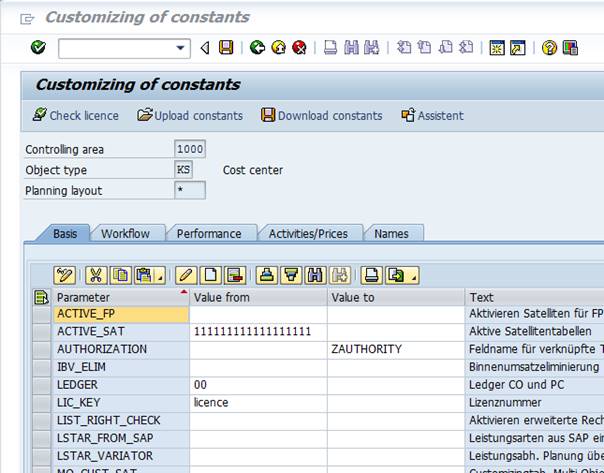
The |Settings| menu is only accessible to the Administrator authorization. The settings are applied depending on the controlling area and the object type (cost center, order or WBS element), and, if necessary, on the planning layout – as shown in the upper section of the menu.
If no planning layout is defined in the menu, we are talking about general values or *-constants (in the following figure on the left; on the right you can find the constants for the layout DEMO).
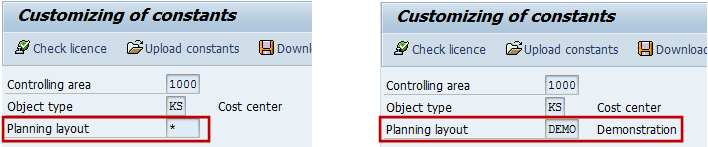
The list of constants is subdivided into five tabs, which allocate the individual constants to the following subject groups:
|
Basis |
Basic settings, such as the definition of a license key and general activation of the satellites used. |
|
Workflow |
Settings which control the workflow during the planning process |
|
Performance |
Settings for increased performance when using Allevo Multi |
|
Activities/Prices |
Settings for the display of prices |
|
Names |
Defining names of buttons and satellites |
|
All |
Alphabetic list of all the constants active for the actual layout. The list also contains constants from the *-layout which are relevant during the program execution (highlighted in gray). |
The Basis tab shows four constants that are required to be always available as *-constants:
§ license number (LIC_KEY)
§ general activation of satellites (ACTIVE_SAT)
§ general activation of RFC destination (RFC_DEST)
§ activation of the advanced verification of authorizations (LIST_RIGHT_CHECK)
If no constants are defined for the relevant planning layout, reference is automatically made to the constants defined in the *-settings. If on the contrary the constants are defined for both levels, the constants for the relevant planning layout are prevailing (except for the above four constants).
When Allevo is installed for the first time, use the |Upload constants| button to upload the constants from a text file which is supplied with the system. This includes the basic settings for range definitions. The |Download constants| menu is used to save the constants as a textile, for example, for transfer to another SAP system.
|
Name of the Automatically Created Backup File |
|
FILE_BACKUP
*Allevo version 3.0 and later
In Allevo after each planning process it is possible to create a copy of the planning data in a pre-defined directory folder.
Depending on the configuration, it can be e.g. a backup of the latest planning version or a daily backup. This is determined by the assigned name.
Appropriate file names have to be entered in file management in order to activate this function. The relevant constants are:
§ Default symb. name: ALLEVO_BACKUP
§ Constant: FILE_BACKUP
The constant FILE_BACKUP defines the symbolic name under which the backup file will be created. The constant is activated by entering X in column Value from. A respective symbolic name is to be entered in column Value to (can be regulated via the button |File.Assistant| in the settings dialogue of the constant).
If a backup path is the same for all users, the symbolic name ALLEVO_HELP can alternatively be applied via the button |File.Assistant|. In this case a separate layout-dependent entry in the constant is not required.
By default, a central network directory is used for backup. In order to avoid overwriting existing files, the file name should be defined with placeholders. See below the example of how a daily backup is created:
Z:\Public\Backup\ALLEVO_<OBART>_<LAYOUT>_<OBJECT>_<YEAR><MONTH><DAY>
With this configuration the latest versions of the planning data for each object type (e.g. KS) and object number (e.g. cost center) remain preserved.
|
Note: |
If the constant is activated but no name is entered in column Value to, Allevo uses the general naming conventions for the search (see the Allevo SAP manual). In earlier versions of Allevo the backup path was to be defined by the SAP Customizing transaction FILE. Entries from there remain in use if no file name can be determined via the constants or the default value described here. |
|
Default Path For File Download |
|
FILE_DOWNLOAD
* Allevo version 3.0 and later
With the button |Documentation| it is possible to store customer specific documentation in Allevo planning transactions. If necessary, it can be stored depending on the object type or a particular layout. When using Allevo, file management can be used to open relevant files over a network. Alternatively, the BDS is also available.
The constant FILE_DOCU defines the symbolic path and file names, under which relevant files in the network are to be found. An X in column Value from activates the constant. The relevant path is to be entered in column Value to (can be regulated via the button |File.Assistant| in the settings dialogue of the constant). See below the example of a valid path name:
Z:\Public\Test\Docu_<LANGUAGE>.DOC
In this example the documentation has a language specific functionality, i.e. the corresponding data has to exist for any used language.
If the path to user documentation is the same for all users, the symbolic name ALLEVO_DOCU can alternatively be applied via the button |File.Assistant|. In this case a separate entry in the constant is not required.
|
Note: |
If the constant FILE_DOCU is activated, a valid symbolic file name is to be entered in column Value to. No naming convention for the automatic file search is stored (as it normally is when accessing the BDS e.g.) If a valid file name cannot be determined through ALLEVO_DOCU, Allevo searches a relevant document in the BDS. A special solution exists for such access: it allows to store documents individually (e.g. depending on the layout) or generally (see also the Allevo SAP manual). |
|
Default Path for File Download |
|
FILE_DOWNLOAD
* Allevo version 3.0 and later
When the planner leaves the Excel user interface, a query appears by default asking whether and where the actual file has to be saved. The default value for the directory as well as the relevant file name can be defined through the following constants:
§ Default symb. name: ALLEVO_DOWNLOAD
§ Constant: FILE_DOWNLOAD
The constant FILE_DOWNLOAD defines the symbolic path- and file name, under which the backup file will be created. The constant is activated by entering X in column Value from. A respective symbolic name is to be entered in column Value to (can be regulated via the button |File.Assistant| in the settings dialogue of the constant).
If a backup path is the same for all users, the symbolic name ALLEVO_HELP can alternatively be applied via the button |File.Assistant|. In this case a separate entry in the constant is not required.
The information about the physical path- and file name will be automatically divided by Allevo into a directory path and a default value for the file name. E.g.:
Z:\Public\Download\Allevo_<OBJECT>_<YEAR><MONTH><DAY>
Z:\Public\Download\<OBART>\Allevo_<OBJECT>
Thus, in the first example the same directory will be always proposed; in second case with an additional subdirectory in accordance with the object type. The determined path must be always presented in the system; otherwise the SAP default path is used.
In both examples the object number (e.g. cost center) is stated in the file name; in first case it is additionally differentiated according to date.
|
Note: |
The path- and file name always refer to the default value. Thus, in the selection dialogue a user can always enter another directory or a name. |
|
Note: |
If the constant is activated but no name is entered in column Value to, Allevo uses the general naming conventions for the search. The following schema is applied: ZIPP_(OBART)_DOWNLOAD_(KOKRS)_(LAYOUT) In earlier versions of Allevo the backup path was to be defined by the SAP Customizing-transaction FILE. Entries from there remain in use if no file name can be determined via the constants or the default value described here. |
|
Directory for Help Files |
|
FILE_HELP
* Allevo version 3.0 and later
Allevo disposes of a F1 Help (CHM file) in two languages, where all constants are explained in detail. The two following files are delivered for that:
§ IPPHILFE_DE.chm
§ IPPHILFE_EN.chm
The constant FILE_HELP defines the symbolic path- and file name, under which the relevant help file is to be found in the network. The constant is activated by entering X in column Value from. A respective symbolic file name is to be entered in column Value to (can be regulated via the button |File.Assistant| in the settings dialogue of the constant).
Below is an example of a valid path (in a language dependent help):
Z:\Public\Test\help\ipphilfe_<LANGUAGE>.chm
If the path of the help file is the same for all users, the symbolic name ALLEVO_HELP can alternatively be applied via the button |File.Assistant|. In this case a separate entry in the constant is not required.
|
Note: |
In earlier versions of Allevo the path of the help file was to be defined by the SAP Customizing transaction FILE. This entry will continue to be used if no regulations were applied via the constant and the data assistant correspondingly. |
|
Directories and Files in Offline Planning |
|
FILE_OFFLINE
* Allevo version 3.0 and later
To start the program in the offline module, the path- and file names which will be used for storing the Excel files during up- and downloading must be defined. Those are to be regulated in the Allevo file management (button |File.Assistant| in the settings dialogue of the constant). The relevant control constants are:
§ Default symb. name: ALLEVO_OFFLINE
§ Constant: FILE_OFFLINE
The constant has to be activated, and a valid symbolic file name has to be assigned in the planning layout that should be used for the execution of the offline functions.
To activate the constant FILE_OFFLINE, enter X in column Value from. The respective symbolic name is to be specified in column Value to (can be regulated via the button |File.Assistant|).
If the constant is not active, offline transactions run a check on whether the generally valid symbolic name ALLEVO_OFFLINE is typed in in |File.Assistant|.
The following three directory paths have to be defined for the symbolic name (in |File.Assistant| the path type refers to the corresponding characteristic):
1. In the download directory all the Excel files necessary for planning are stored. They include all the reference files required for the planning.
2. In the upload directory all the files that are to be imported into the SAP system after completing the offline planning have to be stored.
3. In the copy directory all the files that were successfully transferred into SAP are stored via the import transaction (the files are moved here from the upload-directory).
When defining the file names, use placeholders in order to ensure each file has a unique title (e. g. by using an object number).
For more information see the corresponding chapter in the manual.
|
Note: |
In earlier versions of Allevo the backup path was to be defined by the SAP transaction FILE. Entries from there remain in use if no file name can be determined via the constants or default value described here. For more details see the earlier versions of the Allevo manual. |
|
Allevo Master in Network |
|
FILE_TEMPLATE
* Allevo version 3.0 and later
With this constant it is possible to control under which name the Allevo Master is stored in the network (in case there is no access through the BDS, see additionally BDS_ENABLED). The following constants are relevant:
§ Default symb. name: ALLEVO_TEMPLATE
§ Constant: FILE_TEMPLATE
The constant FILE_TEMPLATE defines a symbolic name for the Allevo Master file. Enter X in column Value from to activate the constant. A respective symbolic name is to be entered in column Value to (can be regulated via the button |Data.Assistant|).
If a single Allevo Master is used for all the planning tasks, a symbolic file name ALLEVO_TEMPLATE can alternatively be defined via the button |File.Assistant|. In this case a separate entry in the constant is not required.
|
Note: |
If the constant FILE_TEMPLATE is activated but no name is entered in column Value to, Allevo uses the general naming conventions for the search. The following schema is applied: ZIPP_(OBART)_(KOKRS)_(LAYOUT) In earlier versions of Allevo the file path was to be defined by the SAP Customizing transaction FILE. Entries from there remain in use if no file name can be determined via the constants or default value described here. For more details see the earlier versions of the Allevo manual. |
When saving the Allevo Master via the file management, Excel template format should be used, i.e. *.XLTM. This ensures that when launching the Allevo planning one temporary copy is always created on the user´s desktop.
If it is preferred to work with XLSM, the file should be write-protected. The same recommendation applies to working with ABC.
|
Flexible Access to Planning Version |
|
FLEX_VERSION
* Allevo version 3.2 and later
Normally the Allevo planning transaction is started with the planning version stored in the column definition CX_WW.
In exceptional cases it may, however, make sense to start the transaction with another planning version and/or offer the user a list of possible versions to select from. The constant FLEX_VERSION controls therefore the representation and the function of the “planning version” field on the initial screen of the Allevo planning transaction (e.g. /KERN/IPPKS).
To activate the constant a number with one of the following meanings is to be entered in column Value from:
1 The “planning version” field is hidden when starting the planning.
2 All the stored versions related to a particular planning year are listed for selection. The given value is copied to CX_WW.
3 The version can be selected through Combobox. The selection is either to be done from all active versions in SAP or through the entries of column Value to.
4 Like 2, but the given value is copied to CX_RR
5 Like 3, but the given value is copied to CX_RR
6 Like 2, but the given value is copied to CX_WW and CX_RR
7 Like 3, but the given value is copied to CX_WW and CX_RR
An empty entry in column Value from shows, as by default, the version from CX_WW with no possibility of modification.
In modes 3, 5 and 7 a list of versions that are to be offered for selection can be entered, separated by comma. No check is made on the validity of a version. The value entered in CX_WW must be also included in this list.
|
Note: |
A flexible access by year/version with regard to customer requirements can be individually directed via BADI (e.g. when year/version should be dependent on additional customer specific logic). The related BADI is executed continuously; in this case the constant does not need to be set (Event EXIT_INIT). |
|
Note: |
When using this constant, the planning year is usually set in other column definitions (by means of relative references). With BADI a customer specific solution is also available for this purpose (event START_PLAN). See also the constant FLEX_YEAR for flexible selection of the planning year. |
|
Flexible Access to Planning Year |
|
FLEX_YEAR
* Allevo version 3.2 and later
Normally the Allevo planning transaction is started with the main planning year stored in column definition CX_WW.
In exceptional cases it may, however, make sense to start the transaction with another year and/or offer the user a list of available years to select from. The constant FLEX_YEAR controls therefore the representation and the function of the “planning year” field on the initial screen of the Allevo planning transaction (e.g. /KERN/IPPKS).
To activate the constant, a number with one of the following meanings is to be entered in column Value from:
8 The “planning year” field is hidden when starting the planning transaction.
9 Any entry of a planning year is possible without review of the content. The given value is copied to CX_WW.
10 The planning year can be selected through Combobox. The content is to be entered in column Value from. The given value is copied to CX_WW.
11 Like 2, but the given value is copied to CX_RR
12 Like 3, but the given value is copied to CX_RR
13 Like 2, but the given value is copied to CX_WW and CX_RR
14 Like 3, but the given value is copied to CX_WW and CX_RR
An empty entry in column Value from shows, as by default, the planning year from CX_WW with no possibility of modification.
In modes 3, 5 and 7 a list of years that are to be offered for selection can be entered, separated by comma. No check is made on the validity of years. The value entered in CX_WW must be also included in this list.
|
Note: |
When using this constant, the planning year is usually set in other column definitions (by means of relative references). See also the constant FLEX_VERSION for flexible selection of the planning version with appropriate BADI extensions to version access. |
|
Reading Satellites with Open File |
|
FOPEN_READSAT
* Allevo version 2.7 and later
By default, satellites are read together with the reference data. The READ_ORDER_SAT constant controls whether the satellite content is to be read before or after reading the cost element values.
The constant FOPEN_READSAT then activates the function of reading the satellites when the file is opened, i.e. independent of reading the reference data. This is particularly useful when working with |Open file| or with the present Allevo planning file correspondingly. It is now possible to read the satellite without having to read the reference data, a time-consuming task, when the content of the satellite is required for controlling the transfer of the planning data to SAP.
|
Note: |
See also the constant RE_READ_ON_OPEN for rereading of all the reference data when opening the relevant Allevo planning file. |
|
Display Screen in Allevo Inplace |
|
FULL_SCREEN
* Allevo version 3.1 and later (extended in 3.2)
Usually SAP Office Integration uses only one restricted screen area for displaying Excel. The display can be expanded so that the maximum of the screen area is used (in particular horizontal). The constant is activated by entering X in column Value from.
In Allevo version 3.1 the constant has only the following restricted functionality: if Allevo is started in the Inplace Mode, a line containing information on the currently opened file (name and status of the current object) appears at the bottom of the window. If necessary, this information can be hidden for a better readability. This expanded display mode is activated through the constant FULL_SCREEN.
|
Note: |
The constant is not valid when using the Allevo Business Client (ABC) |
|
Report/report-interface: Comment to the Group |
|
GROUP_COMMENT
* Allevo version 3.0 and later
The report/report-interface uses variants KOMMENTAR and KOMMENTAR2 for displaying the comments. With the first variant the data is displayed basing on the cost element; in the second case no reference is made to the cost element (therefore, a list of all the comments appears).
The comments contained in cost element groups directly can also appear if the constant GROUP_COMMENT is defined (KOMMENTAR has to be selected as a variant).
An entry in column Value from activates the constant. The following options are available for the read-out of the comments:
§ S = display comments to the selected group
§ G = display comments to the selected group AND the subordinate groups
§ L = display comments to the group and to the corresponding cost elements from the first stage (i.e. not from the subordinate groups)
§ A = display comments to the group and all subordinate elements and groups
|
Note: |
Due to specific structure of the report/report-interface, comments can only be displayed for those cost element groups for which the 1:n-function is defined in the Allevo planning layout.
|
|
Consolidation of Satellite Data |
|
GRP_READ_SATxx
* Allevo version 3.0 and later (extended in version 3.1)
In different functions of Allevo a selection of several objects simultaneously is possible; e.g. when choosing a group in the Allevo Master tree, or when selecting an object with a multiple selection feature (for MOD). In this case the data of all the related objects will be read from SAP.
With the constant GRP_READ_SATxx the read-out of the satellite data for all the selected objects (and not only for a representative object as it is in the standard case) is activated. Dynamic aggregation can be additionally performed for these satellite data: it can be then defined through the constant which columns should be used as characteristics for the aggregation and which columns should be summed. This aggregation is particularly useful if there are big groups and if there is a number of data records to be transferred.
The constant is activated by entering X in column Value from: all the satellite data that are stored in the objects of the group are then read-out.
Alternatively, a list of satellite table fields can be specified in column Value to (separated by comma): these fields constitute the characteristics of the further aggregation.
The fields for which a sum must be calculated (depending on the combination of characteristics) can be entered in column Value to. When defining the SAT table, a numeric type must be prescribed to the fields (i.e. type P or I). If this requirement is not followed, Allevo sums all the fields of the type P (= decimals), as long as the characteristics are specified in column Value to.
|
Note : |
The fields without aggregation retrain the content of the last line with the actual combination of characteristics. |
If the constant is active, the satellite data of different objects appear, if needed, in one satellite area in the Allevo Master. It can be useful for displaying the satellite columns with the object number in the Allevo Master (possible in Master version 3.0) if required. In Excel the lines always appear sorted by the object number.
* new in Allevo version 3.1 and later
If the constant is active, the satellite data of all the chosen objects will be read-out when using the MultiObject Dynamics (MOD). Without the aggregation option it is also possible to change and save the data in SAP (incl. creating and deleting). It is crucial though in this case that the column is correctly filled with the object number on the Excel-page (it will be then transferred to SAP).
|
Note: |
The line number will be saved in accordance with the object, year and version. It is especially important for the layouts where the constant GRP_READ_SATxx is not activated. The constant GRP_READ_SATxx cannot be used together with SATxxSELECT, since both influence the parameter of the selection by objects in different ways (see also notes in the constant SATxxSELECT). MOD functions for object types KS, OR and PC; the constant GRP_READ_SATxx can also be used here. |
|
Disabling the Required Matching of Selected Values |
|
HEADER_NO_ERROR
When the planning is called, an existing Allevo Excel file containing the offline planning data can be opened in Allevo (|Open File| button).
In this case Allevo is verifying whether the selected values (e.g. object number and planning year) are matching the values on which the Excel file is based. If there are any inconsistencies an error prompt “Planning object of the file does not match the selection data” appears. This is to prevent accidentally choosing a wrong Excel file for the planning (e.g. the previous year or another plan version).
In exceptional cases it can still be sensible to include a file containing an inconsistent value. If the constant HEADER_NO_ERROR is activated, the user is asked by Allevo whether the chosen file is being uploaded deliberately. If the query is confirmed, the header data on the Excel page will be replaced with the actual settings of the SAP page. Then the reference and planning data can be read-out and copied as usual.
Deviations are permitted in planning year and version (column definition CX_WW) as well as in the until-period (CX_RR). Cross-object reading will still be prevented (it is NOT possible to upload data of the cost center xxx to the cost center yyy).
Enter X in column Value from to activate the constant.
Specify the authorization group in column Value to in order to define to whom the upload is permitted. E.g. the entry ZIPP_ADM only authorizes the Allevo administrator to overwrite the old Excel selection data. If no entry is made, all users are allowed to upload a file, as described above.
|
Note: |
The selection data used to create the Excel file are saved in Excel in the fields bearing the following name definitions CC_OBECT, CC_YEAR, CC_VERSION, CC_PERITO. With the Allevo Multi, this is done for every worksheet created. |
|
Note: |
In earlier versions of Allevo (before Allevo 3.2) the specifications could only be made for authorization groups ZIPP_ADM, ZIPP_STA und ZIPP_PLA. |
|
Elimination of Internal Business Volumes |
|
IBV_ELIM
The elimination of internal business volumes is activated by entering X in column Value from.
When selecting data, all data records for which the sender and the recipient of the allocation are the selected elements, are eliminated for the line definitions F, G, I and J (secondary costs, reading by cost element).
All the data records in which the sender and the recipient of the allocation perform as selected elements, are eliminated for the line definitions F, G, I and J (secondary costs, reading by cost element) during the selection process.
|
Note: |
In some cases of the internal business volume (especially when allocating activity through order settlement) a special situation is represented by credit posting in that by the time of posting the final partner object is not yet known, and is only defined once the settlement is completed. Moreover, the cost elements for the debit- and credit posting fall apart No information about the partner is thus contained in the data record of the credit posting. It will only be generated by SAP at the time of the settlement via an additional posting through an individual value type. In order to eliminate the internal business volume for the credit, value types 8 (correction rate internal business volume plan) and 9 (correction rate internal business volume actual) for the column definitions as well as for the above mentioned row definitions must be activated. |
|
Note: |
For column definitions and the above line definitions, the value types 8 (corrective record internal business volumes plan) and 9 (corrective record internal business volumes actual) must be activated. |
|
Index for Reading Data from COSP and COSS |
|
INDEX_COS
Allevo automatically refers to index 1 of the tables COSP and COSS when reading the data. If the partner object or the initial object is a part of the selection, index 0 is used by default.
By entering 0 in column Value from of this constant it can be defined that index 0 is used for selections without the partner or the initial object.
If 1 is specified in column Value to, index 1 must be used for selections comprising the partner or the initial object.
|
Note: |
INDEX_COS will be ignored if the constant SELECT_TURBO for accelerated reading is simultaneously active. |
|
Ungroup Cost Element Group via Buffer Table |
|
KAGRP_BUFFER
* Allevo version 2.9.36 and later
Allevo uses SAP standard cost element groups for combining several cost
elements in one row. Depending on
the particular application, the corresponding data will be detected upon the
cost elements contained in the list. This list must be regularly created in the
system. Ungrouping of the cost element groups via SAP standard functions can
take some time if the groups are too big, or if there are too many of them.
This can affect the overall Allevo performance.
The constant KAGRP_BUFFER allows to store the used groups with the contained cost elements in a special Allevo table (buffer table). In this case, with the next call the list will be read directly from out there.
Enter X in column Value from to activate the constant.
Subsequently, Allevo uses the following tables for the temporal storage:
§ /KERN/IPPSETHEAD with the previously ungrouped cost element groups (incl. date/last update time)
§ /KERN/IPPSETDATA with the cost elements per group
|
Note: |
Before each read-out of the data from the buffer tables, Allevo checks for the date of the last updates in the SAP group definition. If the date there is newer than in a buffer table, the content of the more up-to-date groups will be automatically taken. |
|
Ignoring KL Objects |
|
KL_OBJECT_OFF
If X is specified in column Value from, Allevo ignores the reading of KL objects (cost center/activity type).
This setting is used to accelerate processing, e.g. if only the primary cost level is used, or the data are read from profit centers only.
|
Reading Orders Allocated to Cost Centers |
|
KOSTL_WITH_OR
This constant can be used to control whether the orders allocated to a cost center are to be included when reading the data. As a precondition, a cost center must be set as the responsible cost center in the master data of the order (field KOSTV in Table AUFK; field AUF-KOSTL for Allevo 2.9.25 and later).
|
Note: |
Alternatively, in Allevo 2.9.25 and later it is possible to run the read-out through another field; e.g. through the field AKSTL = cost center of request. This advanced function is controlled via the constant KOSTL_WITH_OR_EX. |
The constant KOSTL_WITH_OR is activated by an entry in an object class (e.g. OC for overhead expenses or IV for invest, field SCOPE) in column Value from of the constant. Multiple object classes are separated by comma (without blank space). This way, it is possible to limit reading to orders of specific object classes. The data will be linked to the relational operator OR when reading the file.
In column Value to additional restrictions can be set for the order type (AUART). Multiple entries are again separated by commas.
|
Note: |
In SE16 SAP frequently shows GKOST instead of OC or INVEST instead of IV (depending on the display selected). The relevant SCOPE, however, is CHAR 2. |
|
Reading Orders Allocated to Cost Centers (2) |
|
KOSTL_WITH_OR_EX
* Allevo version 2.9.25 and later
In Allevo with the help of the general constant KOSTL_WITH_OR it is possible to include orders allocated to a cost center when reading the data (depending on the object class and the order type; see description of the constant). Still orders can be read through the constant KOSTL_WITH_OR only if the actual cost center is set as the responsible cost center in the master data of the order (field KOSTV in table AUFK).
With the alternative constant KOSTL_WITH_OR_EX other allocations can be read-out in line with the responsible cost center. This offers additional variability for processing orders.
The field of the order table AUFK containing the cost center should be entered in column Value from of the constant. The valid field names are e.g.: CYCLE, AKSTL, KOSTL and KOSTV. Any other valid fields can be chosen for the selection though.
|
Note: |
The above described constant KOSTL_WITH_OR_EX is only efficient for processing the record data if the constant KOSTL_WITH_OR is simultaneously active. |
|
Reading WBS Elements Allocated to Cost Centers |
|
KOSTL_WITH_PR
This constant can be used to control whether the WBS elements allocated to a cost center are to be included when reading the data. As a precondition, the cost center must be set as the responsible cost center in the master data of the WBS element.
It is activated by an entry in the object class (e.g. OC for overhead expenses or IV for investments) in column Value from of the constant. Multiple object classes are separated by comma (without blank space). This way, it is possible to limit reading to WBS elements of specific object classes (see field PRPS-SCOPE).
|
Note: |
In SE16 SAP frequently shows GKOST instead of OC or INVEST instead of IV (depending on the display selected). The relevant field SCOPE, however, is CHAR 2. |
|
Ledger in Cost Center Planning and Profit Center Integration |
|
LEDGER
The constant is used if there is a necessity to apply an individual ledger when reading the data during the cost center planning or in the course of profit center integration.
By default, Allevo uses the ledger 00 for cost center planning when reading the data. The ledger can be changed by an entry in column Value from of the constant.
When the Row definition P is applied in the profit center integration, or when a call is made with the object type PC, Allevo reads the data independent of the ledger. Via a relevant entry in column Value to the read-out can be restricted to one or several ledgers in the profit center accounting (e.g. 8A). If several ledgers are to be read simultaneously, they must be entered divided by comma.
|
Note: |
* New for Allevo version 3.0.7 and later When the Row definition P is applied in the profit center integration, ledger 8A is used by default; for new general ledger with the data being read-out from the table FAGLFLEXT ledger 0L is used (there were no default settings for this Row definition before version 3.0.7). |
|
Allevo License Key |
|
LIC_KEY
Licensing is effected via license key, which must be entered in the so-called *- constants (standard planning layout) in the constant LIC_KEY (column Value from). This key is furthermore dependent on the installation number of the SAP system on which Allevo was installed.
The license key comprises the license release for the purchased number of controlling areas, cost centers (or orders, WBS elements) and any additional modules per controlling area. Only the absolute number of elements is counted for cost centers and controlling areas. The allocation of cost centers (orders, WBS elements) to controlling areas is unimportant.
An object (cost center, order, WBS element) will only be counted with regard to the license if it has reached status 2 within the framework of the status administration.
|
Line Item Display |
|
LINEITEM
* Allevo version 2.7 and later
The Allevo line item display shows two tables by default. The upper table shows the line items the way they appear in SAP for the relevant cost element. The lower table shows the line items which lead to the value shown in Allevo. Since line and column definitions may be restrictive regarding value types, operations or credit/debit indicators, these tables may not be identical.
Displaying both tables can be quite useful for analytical purposes. However, it might be appropriate to only display one of the two tables. This can be controlled via the constant LINEITEM.
If Value from of this constant is 1, only SAP line items are shown during the display; if the constant is 2, only Allevo line items appear. For any other values or in case of no-values, both tables are displayed.
* Allevo version 2.9.34 and later
In Allevo 2.9 and later it is possible to switch directly from the list of line items to the appropriate details of a corresponding document (e.g. by using transaction KSB5 for display). The relevant document fields which are available for such a switch are indicated by an underscore analogous to hyperlinks.
In order not to call the detail display for particular cost elements (e.g. for confidential employee data) a corresponding entry must be made in column Value to:
▪ One or several cost element groups can be entered. If the actual cost element is found in one of those groups, the reference is blocked in the detail display.
▪ If X is entered, the switch is generally blocked in the detail display.
|
Activating the Advanced Verification of Authorizations |
|
LIST_RIGHT_CHECK
The advanced verification of authorizations (see the “Allevo & SAP” manual for details) is activated by entering X in column Value from.
Activation for status management.
Only those objects (cost centers, orders) will be displayed in the status management screen, for which the user possesses a CO-report authorization (SAP ReportPainter). This restriction, however, is not possible for WBS elements.
Activation for satellites maintenance (administration menu).
Only those objects (cost centers, orders, WBS elements) will be listed in the satellites, for which the planner possesses the planning authorization.
If the maintenance menu is used to upload new data records, processing is refused for all the objects for which no authorization is available.
|
Planning Year and Version for Reading the Satellites |
|
LSAT
With the constant LSAT it is possible to limit the planning year for the reading of satellites.
The following entries are possible here:
§ Value from: planning year from
§ Value to: planning version
|
Note: |
This constant should no longer be used because the settings are automatically applied to all satellites except 00. |
|
|
LSTAR_FROM_SAP
In the case that activity types are to be planned for a specific cost center, Allevo allows the user to read out the available activity types from the system when the cost center is opened.
The basis is the availability of a price for a specific activity type of the cost center, in line with the combination projected for the relevant planning year and version. This means that if activity prices (or preliminary prices) have been planned, an activity type will be read out for the cost center.
Enter X the column Value from of the constant LSTAR_FROM_SAP to activate this option. Once the cost center is opened for planning from the Allevo start screen, the activity types and the corresponding texts will be entered in the lines defined with M in the Allevo Master.
In transaction KSMO the activity types are read out for the representative object (this function is available in Allevo 3.0.5 and later).
|
Note: |
For this reason, at least as many lines as the maximum number possible for a cost center should be configured for the activity planning in the Allevo Master. The activity types are listed in alphabetic order. The CY_KEYSA column (sender activity type; normally necessary for activity input planning only) in the Allevo Master shows the activity price indicator of the relevant price. In the case that planning by rules has been activated for the relevant cost center - activity type combination, X is added to the activity price indicator (a definition must be provided in the IPP_Lstars table, which is a part of the planning by rules). This can be useful if prices with an activity price indicator 3 (manual planning) need to be planned with Allevo. |
|
Activating Rules for Activity Type Related Planning |
|
LSTAR_VARIATOR
Activating activity type-related planning on the basis of a rule type
In order to activate the activity type related planning on the basis of a rule type, enter X in column Value from of the constant. This rule setting comprises three levels.
The rules themselves are defined in the “rules for activity related planning” section of the Allevo settings. The Excel file stored there contains three tables corresponding to the three levels of the rule setting:
§ Component 1 (table “Activity Type”): Defines the activity types to be planned for the relevant cost center.
§ Component 2 (table “Share”): Defines the division of costs or statistical key figures to the previously defined activity types.
§ Component 3 (table “FixVar”): Defines at which proportion costs are divided into constant and variable shares.
If this option is activated, a possible formula-based distribution of costs and statistical key figures in the Allevo Master becomes ineffective. These settings in the Allevo Master will be ignored in this case. Instead, the globally planned values for costs and statistical key figure volumes are distributed to the activity types of the cost center on the basis of the rules defined in SAP.
|
Note: |
The activation will be valid for all planning years and for the monthly planning. |
For more details, please refer to the chapter “Activity related planning for cost centers’ in the Allevo SAP manual.
Enable planner's access to the rules
It is possible to give the planner an access to the rules while he is working in the Allevo Excel file. The access can be authorized in relation with the three components (see above) and can be defined as a read-only or a read/write access.
For this purpose, a three-digit code, composed of the numbers 0, 1 or 2 must be entered in column Value from.
§ Figure 0 = no view
§ Figure 1 = read-only access
§ Figure 2 = read/write access
The first digit stands for component 1, the second for component 2, and the third for component 3.
If, for example, the code 112 is written in column Value from, this means that the planner is authorized to view the components 1 and 2 and even modify component 3. During the planning process, the planner is now able to modify or specify the distribution rules “fixed/variable” for his cost center as a function of the types of costs and activities.
Note: |
The planner views only those rules which have previously been created for the selected planning layout. It is possible that the rules are maintained as default values under a *-layout or a *-cost center. These rules are not visible. Any entry made by the planner is saved as a function of a relevant planning layout and cost center. It would therefore replace the default rules defined by *. |
|
Reading out Global Parameters from SAP Master Records |
|
MAP_FIELDxx
* Allevo version 2.9 and later (extended in 3.2)
Global parameters (Global information) is the information that is read out from the SAP System once the planning is started in the Allevo Master. A whole set of standard information that can be activated in the Master can be found here (see the “Excel & SAP” handbook, e.g. controlling area, transaction codes etc.).
With the help of the constant MAP_FIELDxx it is possible to transfer up to 10 additional master record fields from SAP to Allevo (xx = sequential numbering; MAP_FIELD1 to MAP_FIELD10).
The table name of a relevant SAP master file is to be entered in column Value from of the constant. A distinction is made here in tables with master data and tables with text elements. In case of orders and WBS elements it is also possible to read out the master record of a responsible cost center. Thus, depending on the object type, the data from the following tables are available:
|
Cost center |
Data of master record CSKS, CSKT |
|
Order |
Data of master record AUFK |
|
Profit-center |
Data of master record CEPC, CEPCT |
|
WBS-element |
Data of master record PRPS |
Basing on the object type, the name of the master record table is usually already known. Thus, the following entries are also alternatively possible here in column Value from:
§ ELEMENT: refers to data in relevant master record table
§ TEXT: refers to data from text table (if possible, at KS and PC)
In the case of common entries it is also possible to add ‘_EXT’ in order to transfer the content into the external display (in analogy to project number). "ELEMENT_EXT" or "TEXT_EXT" are to be used in this case, correspondingly.
For technically interested users: the field content is
written through the ABAP statement " WRITE" in the target field .
The table field to be read must be specified in column Value to. If table- or field name is given incorrectly, the whole entry will be ignored. No error message follows.
In line with the object specific master record tables, a general ‘table name’ EXTRAS can be specified in column Value from in order to present the Allevo specific information (e.g. the name of a group when working with 1:N objects). The fields that are available in this case for entering in column Value to are predetermined in in ABAP dictionary as a structure /KERN/IPP_S_EXTRAS (see TA SE11: for group 1:N the field name is e.g. GROUP_1N).
For technically interested users: the structure /KERN/IPP_S_EXTRAS starts with two fields and increases over time.
|
Note: |
In the Allevo Master the field content can be retrieved through CC_CUSTINFO01 to CC_CUSTINFO10; or through GLOBAL_CUSTINFO1 to GLOBAL_CUSTINFO10 for the representative object. |
|
Document Type in Line Item Report |
|
MATERIAL_DOCTYPE
When creating a line-item report, MSEG is accessed in the SAP table depending on the application. There it is possible to read out the detailed information such as purchasing document number, or material number (e.g. for goods receipt postings). Mostly it concerns the line items of the document type WE (goods receipts with reference to purchase orders).
Through the constant MATERIAL_DOCTYPE it is possible to activate other document types for the read-out of the MSEG-table. The constant is activated by specifying the desired document type in column Value from. Multiple entries are divided by comma (without blank space).
|
Note: |
As experience shows, the constant will only be relevant in such exceptional cases when e.g. special goods receipt postings are made with a document type different from WE. |
|
Configuring Log Display |
|
MESSAGE_LEVEL
The Allevo-log usually displays warnings and error messages that occur e.g. during the transfer of planning data. The constant MESSAGE_LEVEL defines how detailed this log should be (filter for displaying logs).
The constant is activated by a 6-digit entry in column Value from. Three blocks can be constructed, each containing two control information messages. The first position defines at which level those information messages should be displayed. The second position defines when.
1.
Position: E,W,...
Irrelevant messages are excluded from the list of messages prior to display. Thus,
e.g. only errors will be shown (E), or errors and warnings (W). During offline planning
also only relevant levels are transferred in log.
2. Position: N,E,W,...
Information is displayed only if a message of a mentioned type occurs. It is thus displayed: never (N), when the data contains errors (E), or when there are errors and warnings (W). Without an entry all the information is displayed.
Each of the 3 mentioned blocks represent the settings for:
· Single session (position 1/2),
· MultiPage/MultiObjekt (position 3/4) and
· Transferring messages from FP (position 5/6).
Example: the entry ‘WEWEWE’ means that a log will appear only in case of errors. Still, all the warnings will be displayed to facilitate the analysis.
|
Note: |
See also the constant NO_MULTI_LIST in order to hide the object list when calling the MultiPage mode. |
|
Deactivating Warning Messages |
|
MO_CLOSED
* Allevo version 2.7 and later
The constant MO_CLOSED deactivates the warning prompt for completed elements in the Allevo MultiObject.
If column Value from of this constant shows an X, warning messages for objects with the (Allevo) status ”completed” are hidden, i.e. they are not displayed after the reference data are read.
|
Activating MultiFile as a Standard Variant for Transaction /KERN/IPPKSM |
|
MULTIFILE
* valid till Allevo version 2.9
Via transaction /KERN/IPPKSM Allevo is started in the MultiPage mode: this function generates e.g. one worksheet per cost center within one cost center group and calls the Excel planning file in the dialogue mode.
If the constant MULTIFILE is set, files are instead generated in the background that serves as a base for offline planning (thus, Excel will not be called as a dialogue anymore). The function generates one Excel file for each cost center (or order), and automatically saves it in a folder in the network. For that an appropriate download path must be set via SAP transaction FILE.
The use of the MultiFile is recommended if SAP access is not available to planners, and the planning is to be carried out in Excel instead.
The constant is activated by entering X in column Value from.
Solution for version 3.1 and later
In current versions of Allevo the described function is completely covered by the Allevo transactions for offline planning (e.g. transaction /KERN/IPP_OFFL_GEN; for further details see the manual).
|
Accessing ProCED through Allevo Multi |
|
MULTI_PROCED
* Allevo version 3.0 and later
The Allevo-special module ProCED is by default called via the Allevo MultiObject transaction. However, since a MultiObject Master may also be present in the MultiPage mode, it is also possible to access ProCED from this point. To do so, an X must be entered in column Value from of the constant MULTI_PROCED.
|
MultiPage and Closed Objects |
|
MULTI_WITHCLOSED
* Allevo version 3.1 and later
Background: it is not always guaranteed that all the objects of a selection have the same status when starting the MultiPage. It can even happen e.g. that one cost center in the selection area has already been closed, while others are still available for the planning.
|
Note: |
This can also be an intended behavior, e.g. if the planning is carried out in successive steps and then one cost center from step (1) is only aimed to serve as a reference in the further step (2). |
In standard cases Allevo allows the planning only if all the selected objects have a valid planning status (i.e. status 1 to 3). If not, Allevo switches to the reporting mode: the button “transfer planning data” is then automatically hidden.
However, if the constant MULTI_WITHCLOSED is activated (X in column Value from), the planning mode remains open: the status is then checked for each object (e.g. cost center) before the planning data transfer is started. No planning data are transferred for closed objects; a corresponding entry appears in the Allevo execution log (see the constant NO_MULTI_LIST for completely suppressing the message if required).
|
Reading Data on Object Group |
|
MULTI_WITH_GROUPS
* Allevo version 3.0.11 and later (extended in 3.1)
Normally Allevo reads its data from the SAP system following the object number indicated, for instance, in the header of the Excel page. With this constant here it is possible to read all the data on the group in total by indicating the group abbreviation on the Excel page. The constant also ensures that the groups are not interpreted as object numbers by mistake (the risk of reading the false data).
The constant MULTI_WITH_GROUPS is activated by an entry in column Value from. The following two options are available:
1 if the abbreviation specified in Excel is found as a group in SAP, the data on the group are read; otherwise, Allevo interprets the abbreviation as an object number.
2 in this case the group must be stored in the Allevo 1:n table. Only then the data on the group are read.
Important for reading the satellite data: the first element of the group is automatically used as the representative object. If it is required to read the satellites for all the objects of a group, the constant GRP_READ_SATxx can be used.
|
Note: |
The constant MULTI_WITH_GROUPS was originally created for application in MultiPage; especially in the MultiPage version of MO for the case when different object types are processed on different Excel pages. In version 3.1 and later the constant is also applicable in MOM. It can be useful when a group is selected via a tree, for instance in reporting functions. Then all the data on the group directly are automatically read. |
|
Company Code When Reading Profit Center Data |
|
NO_COMPANYCODE
* Allevo version 3.0.7 and later
For performance reasons, the reading of data in the profit center integration is performed via a company code (extracted from the currently valid profit center). If at least one profit center inside of a cost center group is not allocated specifically to a company code, the BUKRS list of the valid KOKRS is used.
To ensure compatibility with the earlier versions of Allevo (where the reading was performed without company code) it is possible to deactivate this logic with the constant NO_COMPANYCODE (X in column Value from).
|
Comments to cost element groups when saving cost elements |
|
NO_GROUPCOMMENT
* Allevo-version 3.0 and later
By default the comments to 1/n-planning are stored in cost elements groups and are read-out from there as well.
With the constant NO_GROUPCOMMENT activated it is possible to save the comments in the corresponding planning cost element (as a representative object) instead.
Activation through X in column Value from.
|
Authorization Check when Reading Cost Elements |
|
NO_KSTAR_CHECK
Allevo version 2.7 and later checks for each cost element requested by Excel, if the user is authorized to read the data. Depending on the type of implementation of the authorization check at the customer, this feature may have a negative impact on performance.
For this reason, the authorization check can be deactivated through the constant NO_KSTAR_CHECK (release 2.7.15 and later). If the constant is set (X in column Value from), the authorization check of cost elements is skipped.
|
Authorization Check when Reading Cost Elements without Output List |
|
NO_KSTAR_LIST
* Allevo version 2.9.22 and later
By default, for every cost element Allevo checks whether the authorization for planning is maintained. Those cost elements for which no authorization exists are subsequently listed for verification.
However, if a large amount of cost elements is stored in the Allevo Master, the list of the discarded planned cost elements can appear to be too long. For that reason there is an opportunity to prevent the generation of this list (with the help of the constant NO_KSTAR_LIST). The authorization check will still be performed (unless the constant NO_KSTAR_CHECK is set).
The constant NO_KSTAR_LIST is activated through special entries in column Value from. The following options are available:
X = the list of objects without authorization will not be provided
S = summary in one line: ‘Authorization missing for one or several planning objects’.
|
Note: |
See also the constant NO_MO_COOBJ_LIST with a similar functionality for the results of authorization check when reading objects in MO. |
|
Saving Additional Data Without Layout |
|
NO_LAYOUT_FOR_FIELDS
* Allevo version 3.1 and later
In earlier versions of Allevo satellite tables can be used to save additional data on objects (e.g. auxiliary calculations). To do so it is naturally required that an appropriate structure is established in satellites.
In Allevo version 3.1 and later for this purpose any area on the Excel page can be alternatively defined (as a structured Excel table), with its content being automatically saved in SAP when transferring the planning data. During the next reading the data will of course be transferred to Excel again.
By default, the data on the layout and on the object are saved. Optionally, the data can be written and read without a reference to the layout: this requires an entry of an X in column Value from of the constant NO_LAYOUT_FOR_FIELDS.
|
Note: |
The data are saved in the Allevo table /KERN/IPPFIELDS. The Excel table must be named ‘ZZObjectFields’ (in IPP-sheet); no further customizing is required for this function in the SAP system. |
|
No Prim./Sec. Distinction in Line Items |
|
NO_LINEITEM_BUSTRANS
* Allevo version 3.0.4 and later
Starting from the above-mentioned version, Allevo attempts to restrict the line item display in accordance with the selected row definition. Therefore, the relevant operations are included in the selection condition while reading the line items. The operations are specified in table TJ01.
Primary and secondary costs in particular can be thus separated from each other during the reading. This restriction/separation can be cancelled through the constant NO_LINEITEM_BUSTRANS.
The constant is activated by entering X in column Value to.
|
Note: |
With the constant activated, Allevo acts as in previous versions. |
|
Authorization Check when Reading Objects (MultiObject) without Output List |
|
NO_MO_COOBJ_LIST
* Allevo version 2.9.22 and later (extended in version 3.2)
By default, in the MultiObject mode Allevo checks whether the authorization for processing the planning objects is maintained. Those cost elements for which no authorization exists are subsequently listed for verification.
However, if a large amount of objects is stored in the Allevo Master, the list of the discarded objects can appear to be too long. For that reason there is an opportunity to prevent the generation of this list (with the help of the constant NO_KSTAR_LIST). The authorization check will still be performed.
The constant NO_KSTAR_LIST is activated through special entries in column Value from. The following options are available here:
X = the list of objects without authorization will not be provided
S = summary in one line: ‘Authorization missing for one or several planning objects’.
|
Note: |
See also the constant NO_KSTAR_LIST with similar functionality for the results of authorization check when reading cost elements. |
|
Eliminating the Cost Center Protocol (Multi) |
|
NO_MULTI_LIST
If the Multi is used, Allevo shows a list of objects for which an Excel worksheet has been generated, once the planning file has been created.
This list also contains the objects of the group selected or the from-to-range selected, which have not received an Excel worksheet (e.g. due to an invalid Allevo status or lack of authorization).
The display of the protocol can be hidden by entering X in column Value from.
|
Note: |
See also the constant MESSAGE_LEVEL for managing the output of other error messages (e.g. after planning). |
|
Preventing Rounding of Numbers to 2 decimal places |
|
NO_ROUNDING
* Allevo version 3.0 and later
By default, the numbers in Allevo value fields are rounded to decimals with two positions after the decimal point (when planning year and monthly values). This rounding can be prevented with the help of the constant NO_ROUNDING. Activation by entering X in column Value from.
|
Deactivating Data Check in Satellites |
|
NO_SATFIELD_CHECK
* Allevo version 2.9 and later
By default, some tests are performed before the reading of satellites in order to make sure the data can be saved correctly. This is done to avoid that incorrect field definitions trigger error messages on the VBA page. E.g. that the length of a decimal area must exceed the number of decimal places.
The constant NO_SATFIELD_CHECK deactivated the data check in the satellites. Thus, the generation of messages on the SAP page is forced. This can be particularly useful if a detailed error analysis is required.
The constant is activated by entering X in column Value from.
|
Eliminating Zero Delta Planning |
|
NO_ZERO_DELTA
As a rule, only absolute plan values are recorded with Allevo. When posting via BAPI, SAP determines the difference to the previously posted value and posts it as delta records in the individual plan items. If Allevo transfers the same value several times to BAPI, SAP writes several delta records having the value zero.
In order to avoid the writing of superfluous records the constant NO_ZERO_DELTA can be activated in Allevo. Before the posting is made the value to be planned (or the quantity to be planned) must be compared to the value already contained in SAP. Posting via BAPI is only made if a discrepancy is found.
If the constant is activated (X in column Value from), the planning is only made if the plan value changed compared to the previously planned value (if any).
|
Note: |
Activating this constant can cause the postings to require more time since each cost element bearing a plan value is checked for delta records with the value zero. However, the opposite can happen, i.e. the posting can be accelerated: e.g. if additional queries or statistical posting are set up behind the SAP booking functions in Customizing. NO_ZERO_DELTA in combination with rule planning is only possible in Allevo version 3.0.5 and later (see also LSTAR_VARIATOR). |
Exceptions:
The planning of zero records cannot be eliminated for the following procedures:
§ Activity type dependent planning by rules is activated (activation by the constant LSTAR_VARIATOR).
§ Delta planning active (activation through column definition).
§ Planning of activities and prices
§ Differences between the period to be planned and the validity of the cost center (e.g. the cost center is valid from January to August, but January through December are to be planned).
New for Allevo-version 2.9.10 and later:
With an entry in column Value to the constant NO_ZERO_DELTA can be restricted to particular row definitions (must be listed divided by comma). The row definitions have to be defined correctly; e.g. if the constant should be activated for the row definition A1 (and not for A), then the entry has to be made in column Value to of A1.
New for Allevo-version 3.1 and later:
The constant is now also available in Allevo FP.
New for Allevo-version 3.2 and later:
Instead of X, a P with the same meaning as X (P=positive – a list of row definitions) can be entered in column Value from.
Alternatively, a negative list is also provided now by the constant: in this case Value to contains those row definitions for which NO_ZERO_DELTA should not be applied. Entry N in column Value from to activate this function.
|
Display Objects in Tree Structure (VBA Tree) |
|
OBJ_SEL_IN_EXCEL
* from Allevo version 3.0 (only available up to Allevo Master 3.5)
Important: the VBA Tree functions are no longer supported from Allevo Master 3.5.
Allevo now offers the Inplace Panel on the side of SAP as an alternative and including extended features. Here, an object hierarchy is i.a. displayed in the ALV tree. See constant OBJ_SEL_IN_PANEL or documentation in the Allevo SAP manual (both constants may not be active simultaneously).
However, you may also call an Allevo Master from previous versions with VBA Tree under reduced compatibility; the constant documentation is therefore still available here.
------------------------------------------------------------------------------------------------------------------------------
Allevo allows for selection of planning objects on the side of Excel by displaying a tree structure containing relevant objects (e.g. cost centers or groups). Constant OBJ_SEL_IN_EXCEL ensures that relevant objects are transferred to Excel in a list, which will then be available for selection in the tree.
This tree display is possible for planning features (Single and MO) as well as in Allevo Reporting: to use it in MO mode, observe the constant MULTI_WITH_GROUPS.
Activate the constant by X in column Value from. Once the constant is active, the Allevo start screen will be extended by a group and multiple selection for objects for Single and MO (for MultiPage application see notes below).
Object selection via the tree contains all elements resulting from a group or multiple selection in SAP. In the standard case, groups assigned to a planning object will not be resolved (via Allevo 1:N function), since this function implies summing up values from subordinate levels anyway. You may change this behavior by an entry in column Value to. The following entries are available:
· X : the complete structure below a 1:N group will be transferred as well
· G : below the 1:N group, only gropus will be transferred (no single values)
· Number between 1 and 9: below 1:N group, all entries will be transferred up to the entered level, no matter if group or single value (so, for 1 the group and single values of the first level, for 2 the next level and so on).
Transfer to Excel is performed no matter if the Allevo planning status is set; for the display in Excel, however, the user may distinguish by a colored selection (green or grey). If an object is called without planning status or authorization, the Allevo Master automatically switches to the Reporting mode. It is then no longer possible to adopt plan data. Furthermore, no data will be displayed in case that reading authorization is missing.
When switching between objects, the Allevo VBA program code automatically checks if entries have been made in the meantime and displays a warning on unsaved data if necessary (check is performed on the basis of style sheet KERNWRITE).
|
Note: |
Selection via Tree is available in ABC and in the Inplace application (here only in 32 bit version of Excel). To use the tree in Inplace applications, a macro for the tree display must be active in the section “Custom Button“ of the Allevo Master. Corresponding parameters: - SheetName : Name of the Allevo
planning sheet (e.g. “Allevo“). These specifications serve to find an additional icon in the Allevo ribbon. When calling the Allevo planning screen, the tree is immediately displayed and may be called again via the ribbon icon at any time. You may adjust texts on the tree interface, e.g. titles and texts of buttons (to be entered in table ZZCustomizingFormsBase).
|
If the tree display is active, reference should of course only be transferred to Excel after explicit selection of an object in Excel by the user. Constant READ_ON_OPEN should therefore NOT be active, as otherwise the first object or the first group will automatically be read.
|
Note: |
Whenever constant OBJ_SEL_IN_EXCEL is active, the corresponding data will be transferred to the Excel working sheet as CustomXMLPart (e.g. concerning the hierarchy of a group). This information may be used via the tree (as described above). Alternatively, also a customized logic may be stored on the side of Excel to, for example, support the selection of a sheet in MultiPage mode or create additional sheets with information on group level. may be stored. |
|
ALV Tree with Display of Object Hierarchy in the Inplace Panel |
|
OBJ_SEL_IN_PANEL
* from Allevo version 3.5
Usually, the Allevo Master is started via an Allevo transaction in the SAP system (e.g. /ALLEVO/KS) and Excel is in that way included in the Inplace mode. A panel to, for example, make a different object selection is available in this processing view in current Allevo versions (e.g. switch to cost center).
This Inplace panel may display two contents:
· List of entries currently stored in the Allevo agenda (roughly distinguished by tasks and favorites).
· An ALV Tree with display in an hierarchical object list. Upon double-clicking on a row in the tree, the stored Allevo Master will be loaded (initialized).
For this tree display, constant OBJ_SEL_IN_PANEL must be active now (by X in column Value from). As soon as the constant is active, the Allevo start screen will be extended by a group and multiple selection for objects in the Single and MO mode. Entries here determine the tree contents that the user may select single objects from (for Multipage application see note below).
In the standard case, groups of the hierarchy that a planning object is assigned to (via Allevo 1:N function) will not be resolved since values are being summed up from subordinate levels anyway in this function. This behavior may be changed by an entry in column Value to. The following entries are available:
· X to transfer the entire structure below a 1:N – group as well
· G: below the 1:N group, only groups are transferred (no single values)
· Number between 1 and 9: below the 1:N group, all entries are transferred up to the entered level, no matter if group or single value (for 1 groups and single values of the first level, for 2 the next two levels and so).
The Allevo planning status is displayed using a colored flag. Upon calling an object without planning status or authorization, Allevo automatically switches to the Reporting mode (button for „Adopt Plan Data“ is hidden). If there is no reading authorization, no data will be displayed.
|
Note: |
The feature of selection via hierarchical object list was realized directly in Excel in previous versions and controlled via constant OBJ_SEL_IN_EXCEL. This feature („VBA-Tree“) is no longer available from Allevo Master 3.5. |
|
Allevo Tree with Change to Object Type KS |
|
OBJ_TREE_WITH_OR
* from Allevo version 3.4
Background: Allevo allows to select plan data on the side of Excel by displaying a tree structure containing the relevant objects (e.g. cost centers). Constant OBJ_SEL_IN_EXCEL activates this feature on the side of SAP, so that relevant objects that shall be available for selection in the tree are transferred to Excel.
The hierarchy displayed in the tree may also contain objects of a different object type. This enables to, for example, start planning via cost centers and see (and call) assigned orders or WBS elements in the tree.
This order assignment is activated via constant OBJ_TREE_WITH_OR (entry X in column Value from). Individual requirements may also be met via a customer-specific Badi if needed.
The standard assignment is based on all objects of an active status entered in a layout of the same name. Example:
· Access is obtained via KS with layout PL01.
· Via constant OBJ_SEL_IN_EXCEL, Allevo identifies all cost centers for the starting group.
· Via constant OBJ_TREE_WITH_OR, Allevo additionally reads all orders that are entered in the OR layout of the same name and that have one of the relevant cost centers assigned.
· The orders found in this way are arranged below the respective cost center in the tree.
|
Note: |
See also constants OBJ_TREE_WITH_KS for assigned cost centers and OBJ_TREE_WITH_PR for assigned WBS elements. The single constants may also be active simultaneously; e.g. to call cost centers AND orders of a profit center. . |
|
Allevo Tree with Change to Object Type OR |
|
OBJ_TREE_WITH_OR
* from Allevo version 3.4
Background: Allevo allows to select plan data on the side of Excel by displaying a tree structure containing the relevant objects (e.g. cost centers). Constant OBJ_SEL_IN_EXCEL activates this feature on the side of SAP, so that relevant objects that shall be available for selection in the tree are transferred to Excel.
The hierarchy displayed in the tree may also contain objects of a different object type. This enables to, for example, start planning via cost centers and see (and call) assigned orders or WBS elements in the tree.
This order assignment is activated via constant OBJ_TREE_WITH_OR (entry X in column Value from). Individual requirements may also be met via a customer-specific Badi if needed.
The standard assignment is based on all objects of an active status entered in a layout with the same name. Example:
· Access is obtained via KS with layout PL01.
· Via constant OBJ_SEL_IN_EXCEL, Allevo identifies all cost centers for starting group.
· Via constant OBJ_TREE_WITH_OR, Allevo additionally reads all orders that are entered in the OR layout of the same name and that have one of the relevant cost centers assigned.
· The orders found in this way are arranged below the respective cost center in the tree
|
Note: |
See also constants OBJ_TREE_WITH_KS for assigned cost centers and OBJ_TREE_WITH_PR for assigned WBS elements. The single constants may also be active simultaneously; e.g. to call cost centers AND orders of a profit center. |
See also Allevo SAP manual, section „Change of Object Type (tree for all object types)”.
|
Allevo Tree with Change to Object Type PR |
|
OBJ_TREE_WITH_PR
* from Allevo version 3.4
Background: Allevo allows to select plan data on the side of Excel by displaying a tree structure containing the relevant objects (e.g. cost centers). Constant OBJ_SEL_IN_EXCEL activates this feature on the side of SAP, so that relevant objects that shall be available for selection in the tree are transferred to Excel.
The hierarchy displayed in the tree may also contain objects of a different object type. This enables to, for example, start planning via cost centers and see (and call) assigned orders or WBS elements in the tree.
This assignment of WBS elements is activated via constant OBJ_TREE_WITH_PR (entry X in column Value from).
For further details see constantt OBJ_TREE_WITH_OR.
|
Execute Supplementary Program after Generation of Offline Data |
|
OFFLINE_GEN_PROGRAM
* from Allevo version 3.2.8
In single cases, it may be useful to launch further actions after the Excel files have been generated in the Allevo offline process (e.g. forwarding the generated files).
A suitable program can be integrated with the constant OFFLINE_GEN_PROGRAM. Important: in this case, it is a Windows program that must be installed on the local work center (it is thus not about an ABAP program in the SAP system).
The program name (incl. path specification) must be entered in column Value from.
Optional parameters, which are transferred when starting the program, may be specified in column Value to.
The entry may also contain place holders as they are common for symb. file names of Allevo file management (e.g. to transfer group IDs).
|
Note: |
The constant only applies for the automatic generation of offline files (after processing all files). When saving a file via BUTTON_SAVE_AS in Excel planning view, OFFLINE_GEN_PROGRAM will not be considered. See also OFFLINE_PLAN_PROGRAM for calling an additional processing before importing offline files. |
|
Execute Supplementary Program before Reading Plan Data in the Offline Process |
|
OFFLINE_PLAN_PROGRAM
* from Allevo version 3.2.8
In single cases it may be useful to launch further actions after the Excel files have been generated in the Allevo offline process (e.g. forwarding the generated files).
A suitable program can be integrated with the constant OFFLINE_GEN_PROGRAM. Important: in this case it is a Windows program, that must be installed on the local workstation (it is thus not about an SAP / ABAP program).
The program name (incl. path specification) must be entered in column Value from.
Optional parameters, which are transferred when starting the program, must be specified in column Value to.
Allevo does not start reading the offline files until the called program is finished.
|
Note: |
The constant only applies for the automatic upload of offline files. When uploading a file in Excel planning view, OFFLINE_PLAN_PROGRAM is not considered. See also OFFLINE_GEN_PROGRAM for calling an additional processing after generation of offline files. |
|
Extended Reading Function for WBS Elements |
|
ONETON_IMZO
* from Allevo version 2.7.3
The constant ONETON_IMZO is used to set that all WBS elements assigned to the same investment program position (1/n) are to be considered when reading reference data of the respective WBS element.
Activation is made by X in column Value from. A list of the business years to be included (separated by comma) can be stored in column Value to, if the business year of approval is not defined by CX_WW.
|
Note: |
Allocation is verified in the IMZO table. The constant PSP_WITH_OBJECTS may be combined with ONETON_IMZO, i.e. the orders subordinate to the selected WBS elements are considered when reading data. |
|
1:n Group with Cross-Object Call of ProCED
|
|
ONETON_PROCED
* from Allevo version 3.2.7
The Allevo additional module ProCED can also read posting elements beyond object bounds via constant READ_ASSIGNED_xx; e.g. all internal orders for current cost centers (in this case, ProCED is started with a cost center, the internal orders are then determined via the provided selection variant).
If the constant ONETON_PROCED is active, ProCED is called not only for the current object, but functions for the group which is deposited in 1:n.
The constant is activated by X in column Value from.
Die Aktivierung erfolgt durch ein X in der Spalte Wert von.
|
Note: |
Depending on the size of the 1:n group, a very big amount of posting combinations must be determined in ProCED and transferred to Allevo. This can affect the performance. |
|
1/n Relation in Allevo Reporting |
|
ONETON_REPORTING
* from Allevo-Version 2.7.9
Normally, Allevo reads only values posted directly with an object when calling via a reporting transaction. Reading via groups may optionally be activated via constant ONETON_REPORTING: in that way, the Allevo 1/n functionality is available also for reporting (e.g. summation across cost center group is performed if there is a repr. cost center entered).
This is especially useful when planning is started from a group, with every group member, in turn representing further sub-groups, receiving an own worksheet.
Activate this constant by X in column Value from.
|
Note: |
When a group and a "group on one worksheet" is used in the report start dialog, this constant is ignored since the groups' total is already shown on the sheet. |
|
Display Authorization Trace |
|
OWN_AUTH_TRACE
* from Allevo version 3.0
Allevo possesses its own authorization check, which is applied e.g. if SAP authorizations cannot be sufficiently limited or if the administration of the access authorization is to be performed by the Controlling. This authorization control is activated in the corresponding Allevo planning layout using the constant AUTHORIZATION (see also notes there).
Given the complexity of the Allevo authorization check, an overview of the checks that are to be performed can be very useful. The constant OWN_AUTH_TRACE activates one such authorization trace: for one, several or all users. A protocol is then generated and displayed once the planning transaction is launched (button |Execute planning|).
The constant OWN_AUTH_TRACE is activated by entering X in column Value from: the trace then applies to all users; alternatively, if an SAP user name is specified, the trace applies only to this user (or several names if required, separated by comma).
The constant may NOT be active when calling from the ABC.
|
Note: |
When applying the trace function in the Allevo MultiPage, the check is performed for the start object and for each individual page: thus, several logs appear sequentially. Further details on the authorization check (including the example of the trace) can be found in the Allevo manual. The trace is only accessible for the version of the authorization check introduced in Allevo 3.0 (entry 3 in column Value from of the constant AUTHORIZATION). |
|
Restrict Row Definition J according to Partner Objects |
|
PARTNER_FROM_TO
Applies to cost centers only!
The row definition J enables reading secondary costs and amounts for the cost element. This constant allows to determine that only credits with certain partner objects shall be read.
The partner objects are defined via an entry of a from-to range, i.e. the smallest value must be entered in column Value from, the highest in Value to.
The object key must be entered in accordance with SAP:
§ Cost centers: KS10000000410000 or KL10000000410000STD
§ Orders: OR000000601020
§ WBS elements: PR00000107
The entry OR000000601020 in column Value from and OR000000601990 in column Value to thus reads all orders in the range 0601020 to 601990.
|
PC-Integration Divided into Debit and Credit |
|
PC_BEKNZ
* from Allevo version 3.0.5
If profit center integration is activated via constant PC_INT, Allevo reads both credit and debit postings via the row definition P. The credit-/debit indicator stored in Customizing of the row definition is ignored during the reading.
|
Note: |
The S/H-logic of the PC invoice does not correspond to the logic in Controlling. Thus, the reduction in a planning value (e.g. primary costs) will be understood as a credit posting. This can lead to deviation in the balance representation in Allevo. |
In order to still achieve a separate display of debit- and credit postings across two rows in Allevo, the constant PC_BEKNZ must be additionally activated. Corresponding row definitions must of course be also available (e.g. PH and PS).
The constant PC_BEKNZ is activated by X in column Value from: a credit-/debit indicator specified in the corresponding row definition is then also considered during data selection (table GLPCT/FAGLFLEXT, field DRCRK).
|
Note: |
The constant applies for object types with PC integration (KS, OR). |
* from Allevo version 3.1
The credit-/debit indicator can now be applied also for object type PC: the corresponding dialog box referring to the row definition (with Allevo settings) can still only be read if the constant is active.
|
Activate Profit Center Integration |
|
PC_INT
* from Allevo version 2.5 (extended in 3.4)
Constant PC_INT must be active for reading both CO data (e.g. for the cost center) and data for the profit center within a Master. This applies especially for the use of profit center integration via row definition P (see also section “Profit Center integration” in the Allevo SAP manual). The corresponding profit center is adopted automatically from the master record of the current CO object (or several PC, if 1:N assignments are stored in the leading CO object). The current Allevo version supports this feature for CO objects “Cost center“, “Order“ and “WBS element”.
· An X in column Value from activates the constant
· Enter the currency type that shall be used to read data in column Value to. The following entries are possible with field groups from GLPCT and FAGLFLEXT:
HSL = Company code currency or local currency for New GL
KSL = Profit center local currency or group currency for New GL
OSL = New HB fourth currency (adjusted by currency fluctuations)
Without any entry in column Value to, Allevo reads data from field group HSL.
The constant PC_INT must be active also when reading data on the PC in the MultiObject mode from a version different than is stored in the respective column definitions (e.g. start via cost center but additional postings to PC). Then, an individual version for reading PC actual data may be adopted via the additional constant PC_INT_VERSION.
|
Note: |
To display debit and credit postings separately, see constant PC_BEKNZ. See also PC_READTABLE for the activation of the reading function on the new general ledger. |
* new from Allevo version 2.8
Support of PC integration for orders (the assignment is read via field PRCTR in the master record on the order, table AUFK).
* new from Allevo version 3.4
Support of PC integration for WBS elements (the assignment is read via field PRCTR in the WBS master record, table PRPS).
|
Profit Center Integration with Version Synchronization of Actual Data |
|
PC_INT_VERSION
* from Allevo version 2.8
If profit center accounting is performed using the new general ledger, actual data (record type 0 and 2) are by default stored in version 1 version (table FAGLFLEXT).
Consequently, there is a difference in the actual data version, when profit center integration is used from another object type (e.g. cost center). While actual data of the cost center are used in version 0, the profit center actual data are used in version 1.
A version conflict arises when determining Allevo column definitions if data are now combined during reading in the Allevo Master, i.e. some cost elements from cost center accounting and other cost elements from profit center accounting.
Allevo therefore normally uses version 1 to read data form table FAGLFLEXT. If actual data are however available in another version, this different version can be specified in the constant PC_INT_VERSION under Value from.
|
Note: |
This constant is only relevant when using profit center integration for a different object type. Constant PC_INT must also be activated and contain the ledger information in Value to. A further requirement is the reference to the SAP table FAGLFELXT for constant PC_READTABLE, here in column Value from. |
|
Activate Profit Center Planning with New General Ledger |
|
PC_NGLA_PLANNING
The constant PC_NGLA_PLANNING activates posting using the new ledger in Allevo. See the manual “Allevo Profit Center” for further details (especially on technical requirements).
In this case, posting to SAP is made via BAPI_FAGL_PLANNING_POST. The call from Allevo is performed by the interface module /KERN/IPPPLANNING_PC_FAGL.
The constant is activated by entering X in column Value from.
To read reference data from table FAGLFLEXT, also the constant PC_READTABLE must be active. Actual data are then read via version “01”.
|
Note: |
The constant LEDGER must contain the value “0L” (or as well multiple entries when using the general and side ledger). |
|
Source for PC Reference Data (e.g. Data on NGL) |
|
PC_READTABLE
* from Allevo version 2.7.3 (extended to 3.4.23)
If the new general ledger is already used for profit center accounting, summary records are no longer saved in the table GPLCT but in FAGFLEXT.
Entry FAGFLEXT in column Value from activates access to this SAP table.
|
Note: |
Reading statistical key figures using the new general ledger is not yet possible (the reading function might possibly switch back to GLPCT). |
Since, depending on the system implementation, the currency fields of FAGFLEXT are not always filled, the currency type in the Allevo column definition must always be entered correctly. The following rules apply:
· T = transaction currency reads from the TSL fields,
· O = object currency reads from the HSL fields (local currency, referred to as “company code currency” in GLPCT),
· In all other cases (especially also with C = controlling area currency) the KSL fields are read (group currency which is referred to as “Profit Center local currency” in GLPCT).
An entry in column Value to can activate further functions; depending on the table that data are read from. So far, the following is realized:
· Entry “B“ activates reading via a company code in the new general ledger, irrespective of the current profit center (as with balance report, for details see below).
· Optionally: name of a database field that shall be used upon selection via a business transaction (see details in the following note).
|
Note: |
The constant may also be used to access other tables within profit center accounting (e.g. also to read data from a customized table). However, these tables must use the same field names as in GLPCT for the relevant data records (such as profit center, business year, record type, transaction, credit-/debit indicator, partner profit center, value fields etc.). Amounts, however, are not read then. When using the PC integration (row definition P), column Value to has a very specific meaning: · If a table field name is entered here, Allevo will select data per transaction using this field instead of the original database field (instead of field ACTIV of GLPCT). The transaction entered in Allevo may in this case acquire a completely different meaning. Example: instead of a transaction, the ID of an order type is included via the Allevo column definition and selection is performed via the customized field ZZAUART. · If different row definitions are available (P1, P2…) with different IDs during transaction, a very specific display is possible in Excel (with one row per transaction ID). |
* new from version 3.2
If posting to the new general ledger is activated via PC_NGLA_PLANNING, the constant does not necessarily need to be active here. Allevo will then by default use the table FAGLFLEXT for reading.
* new from version 3.4
If reading for the new general ledger is active (table FAGLEFLEXT), it is possible to read data for a balance report, i.e. output of values cumulated for the company code. A representative profit center or Allevo object assigned to the respective company code serves for starting.
Activate the balance report by entry B (= balance report) in Column Value to; at the same time, FAGLFLEXT must be entered for Value from. The constant PRE_SELECT considers both the table FAGLFLEXT as well as reading across the entire company code.
From Allevo 3.4.23, reading from table GLT0 for the classical ledger is supported as well: entry in column Value from is sufficient (constant PRE_SELECT should not be active in this case).
|
Company Code Selection in Reporting (Profit Center) |
|
PC_REP_COMP_SEL
Normally, the Allevo start screen for profit center accounting contains also a specification on the relevant company code. In case that one profit center is assigned to several company codes, a superordinate evaluation of data may be useful. For this purpose, it is possible to activate the display panel of the company code within Allevo reporting for data entry. The function key F4 then displays the company codes for the current controlling area.
With the constant PC_REP_COMP_SEL activated, an entry of * adds the display of the sum over all the company codes.
The constant is activated via X in column Value from.
|
Note: |
The summation across several company codes only leads to useful results if the controlling area currency is also taken in consideration, or the company code currency is the same everywhere. See also constant NO_COMPANYCODE as alternative for reading without a predefined company code. |
|
Planning Primary Costs through Separate Program Execution |
|
PLANPRIMCOST_PRG
* from Allevo version 2.9.18 for annual
values
* from Allevo version 3.2.3 also for period valuese
High integration level in Allevo sometimes results in wrong output caused by sequentially performed planning steps during the Allevo planning process. This happens because the sequentially performed BAPIs are not designed for this direct sequence. The reason might be the internal caches that are not updated in a correct way. The current constant allows running the BAPI of the primary cost posting in a separate program context (the so called “roll area”) each time the program is called. Thus, the BAPI is forced to attend to new values instead of relying on the previous BAPI’s caches. (We are not talking of a database cache here but of a cache in a function group which is used by the BAPI. The database cache - if available – remains in use in future).
The following application scenarios are known to date:
· In activity type dependent cost element planning, the distribution key (VS) is transferred from Allevo (VS11, analog to LSTR) and is also displayed in KP06; still, the distribution itself is not triggered that way. If the key is then manually reset in KP06 to a different value and then again to the initial one, the distribution will be performed as well. A program error in SAP-BAPI for the primary cost planning actually takes place here.
· If a project is started via BAPI (e.g. in a BAdI in Allevo) and planned with values within the same Allevo step, the planning BAPI can find the wrong project structure in the cache. This leads to an error when rolling up the planned values (e.g. a run-time error if the WBS element from the higher layer is not found; the resulting exception is not intercepted by SAP so that it cannot intercept Allevo otherwise as well).
To avoid this error, Allevo provides a special workaround. This workaround can be activated via the constant PLANPRIMCOST_PRG by entering X in column Value from.
|
Note: |
The constant relocates the call parameters of the BAPI to a separate environment in order to reset the internal variables of the BAPI. Otherwise, no limitations are triggered by the workaround. |
|
Planning Secondary Costs through Separate Program Execution |
|
PLANSECCOST_PRG
* from Allevo version 3.2.3
High integration level in Allevo sometimes results in wrong output caused by sequentially performed planning steps during the Allevo planning process. This happens because the sequentially performed BAPIs are not designed for this direct sequence. The reason might be the internal caches that are not updated in a correct way. The current constant allows running the BAPI of the primary cost posting in a separate program context (the so called “roll area”) each time the program is called. Thus, the BAPI is forced to attend to new values instead of relying on the previous BAPI’s caches. (We are not talking of a database cache here but of a cache in a function group which is used by the BAPI. The database cache - if available – remains in use in future).
The following application scenarios are known to date:
· When creating a project per BAPI (e.g. a BAdI in Allevo) and planning values for this project within the same Allevo step, it may happen that the planning BAPI will find an incorrect project structure in the cache. This, in turn, leads to an error when rolling up the planning values (e.g. runtime error, since the above-located WBS element is not found; the exception occurring in this case is not intercepted by SAP; thus, Allevo cannot intercept it in another way either).
To avoid these errors, Allevo offers a special workaround. The activation of this workaround is made via the constant PLANSECCOST_PRG with an X in column Value from.
|
Note: |
The constant transfers the program call of the BAPI to another environment in order to reset the BAPI’s internal variables. Apart from that, no restrictions are caused by the workaround. See also the constant PLANPRIMCOST_PRG. |
|
Planning Statistical Key Figures through Separate Program Execution |
|
PLANSTAGR_PRG
* from Allevo version 3.2.3
High integration level in Allevo sometimes results in wrong output caused by sequentially performed planning steps during the Allevo planning process. This happens because the sequentially performed BAPIs are not designed for this direct sequence. The reason might be the internal caches that are not updated in a correct way. The current constant allows running the BAPI of the primary cost posting in a separate program context (the so called “roll area”) each time the program is called. Thus, the BAPI is forced to attend to new values instead of relying on the previous BAPI’s caches. (We are not talking of a database cache here but of a cache in a function group which is used by the BAPI. The database cache - if available – remains in use in future).
The following application scenarios are known to date:
· When creating a project per BAPI (e.g. a BAdI in Allevo) and planning values for this project within the same Allevo step, it may happen that the planning BAPI will find an incorrect project structure in the cache. This, in turn, leads to an error when rolling up the planning values (e.g. runtime error, since the above-located WBS element is not found; the exception occurring in this case is not intercepted by SAP, Allevo cannot intercept it in another way either).
To avoid these errors, Allevo offers a special workaround. The activation of this workaround is made via the constant PLANSTAGR_PRG with an X in column Value from.
|
Note: |
The constant transfers the program call of the BAPI to another environment in order to reset the BAPI’s internal variables. Apart from that, no restrictions are caused by the workaround. See also the constant PLANPRIMCOST_PRG. |
|
Transfer Equivalence Number on the Activity Type |
|
PLAN_AEQUZIFF
* from Allevo version 3.1
This constant may be used to transfer the equivalence number from Excel to SAP during activity-dependent planning (row definition M and N). A V field of the column definition is used.
The constant therefore defines the field of the interface between SAP and Excel used for the transfer of the equivalence number. Both following entries in column Value from are possible:
1: Field VALUEV1 is used (suffix “V” of the column definition)
2: Field VALUEV2 is used (suffix “V1” of the column definition)
For periods, the COLTYPE “EN” can be used to plan monthly in Allevo.
|
Note: |
If the constant is not set, or the equivalence number has a value of 0, Allevo behaves during posting in a way defined in the constant AEQUZIFF_READ. See also constant FD_EQUI_NO in FP. |
|
Distribution Key for Rule Planning |
|
PLAN_DISKEY
* from Allevo version 2.9.28
In the Allevo Standard, the distribution key in rule planning is either transferred from the stored rules (see |Settings – Rules for activity type dependent planning|, table /KERN/IPPFIXVAR) or is automatically defined as 1 (if not specified in the rules).
The constant allows transferring a distribution key (for fixed and variable rates) from the Allevo Master (e.g. in case the key is year-dependent, or when available distribution keys should be copied).
The constant is generally activated by entering X in column Value from. Alternatively, a specific column definition may be entered here (the constant thus impacts only one individual plan-column definition).
Determining a fixed distribution key:
§ If the fixed distribution key is set in Excel, this key is transferred.
§ If the key is not set in Excel, the previous distribution key is read to KL object (primary/secondary).
§ If no key can be read, 2 is automatically used.
The determination of the variable distribution key runs similar, with the only difference that the fixed OR the variable key is used by Excel. The variable key has the priority; only if it is not set, the fixed key will be used. When using the key from SAP, ONLY the variable key is employed.
|
Note: |
The definition of the distribution keys stored in rule planning has still has a higher priority than the specifications in the constant PLAN_DISKEY. |
|
Distribution Keys for Cost Centers |
|
PLAN_DK_FIXVAR
* from Allevo version 3.0
When planning secondary costs for orders and WBS elements, the distribution key for fixed and variable costs must be transferred to the BAPI.
The fixed distribution key for cost centers can also be transferred on the variable key via the constant PLAN_DK_FIXVAR.
The constant is activated by entering X in column Value from.
|
BAPI Test Mode Before Planning |
|
PLAN_TESTRUN
* from Allevo-Version 3.0
If the constant PLAN_TESTRUN is active, the related SAP BAPI is first called in test mode before planning. If any errors occur, the whole planning activity will be canceled, and a corresponding program message will be displayed.
The constant is activated via X in column Value from.
|
Note: |
The test mode increases the duration of the planning activity in SAP BAPI. This should be considered when carrying out the performance analysis. |
|
Preselection in Allevo Reading Function |
|
PRE_SELECT
* from Allevo version 2.9.36 (extended in 3.3)
The Allevo Master offers, with its row- and column structure, offers almost unlimited possibilities to display data relevant for planning. Basically each cell in the Master can possess its own individual properties. Consequently, the corresponding contents must also be read from the SAP data base individually; this in turn may affect the performance.
The constant PRE_SELECT functions similarly to the Allevo module ProCED. Before the individual data records are read, the system checks for which cost elements entries exist in the data base. Here, the tables COSS, COSP and, if required, COKS, COKP and /KERN/IPPCOMMENT are checked (in Allevo 3.0.8 and later also when reading the data for the profit center). The following complex reading functions are executed only if postings exist in the selected time period.
The constant is activated via a corresponding entry in column Value from:
§ Y = preselection active
§ N = preselection not active
If the constant is not activated (empty column Value from), the following specifications are applied (Allevo version 3.0 and later):
§ Allevo Single and MultiPage: preselection active
§ Allevo MultiObject (MO): preselection is not performed since an equivalent function is often performed by ProCED.
The constant has an impact on row definitions A, B, C, D, E, F, H, I, J and K (from Allevo 3.0.8 also on row definition P): in version 3.1.6 the preselection is also performed for period values (in earlier versions only for years).
In exceptional cases, it may be useful to exclude one or several row definitions from the preselection. For this purpose, an N must be entered in column Value from of the constant. The row definition(s) to be excluded must be specified in column Value to.
|
Note: |
The constant induces performance optimization primarily if a big number of cost elements and cost element groups are stored in the Master, since otherwise Allevo has to fetch the data from each single row-/column definition from the data base. For prevention of the large-scale selection conditions, the constant SELECT_SEQ_COUNT can be additionally used (from Allevo version 3.1; see documentation there). |
* new from Allevo version 3.3
From version 3.3 onward, the function of PRE_SELECT may also be used to adjust cost elements stored in the Allevo Master to real postings in the system when executing the planning (see the additional constant CHECK_KSTAR_GRP for this application).
* new from Allevo version 3.4
The constant may now be used also in combination with Allevo own tables (see functions for constant USE_ALLEVO_TABLES or object type KX).
|
Activate Parameter Transfer to ProCED |
|
PROCED_PARAM
* from Allevo version 3.4
This constant activates the transfer of Allevo parameters to ProCED.
A range containing years and versions from the Allevo column definition is thus being created and transferred to ProCED. The parameter applies for all reading columns (actual and plan).
Goal: If the time range across column definition changes in Allevo (e.g. upon turn of the year), you do not need to additionally adjust year/version in the ProCED scheme. Double maintenance is omitted.
Activate this constant by entry X in column Value from.
|
Note: |
This parameter is of course only effective when using ACTIVE_PROCED. |
|
Allevo Multi with Progress Indicator as PopUp |
|
PROGRESS_POPUP
* from Allevo version 3.4
Allevo uses the standard progress indicator during data transfer between SAP and Excel in order to show the processing status. However, the overview is lost especially in the MultiPage mode, since only sections of processing are being updated (per page). This results in the progress indicator being pushed into the background (disappearing for the user) due to the activation of single Excel sheets.
For this reason, Allevo can also use a PopUp with progress bars to display the processing status: this includes two texts specifying the current editing function and the progress bar. The constant PROGRESS_POPUP controls the display via entry in column Value from:
§ Entry N deactivates the PopUp
§ 1 shows a simple progress bar created via ASCII signs (without graphic features),
§ 2 shows a graphic progress bar,
§ 3 is the presetting and shows the progress bar with 100 detail steps (similar to thermometer).
|
Note: |
In the MultiPage and MultiObject mode, the PopUp is active by default. In the Single mode, it is not intended. The progress bar appears only in the reading function (not during adoption of plan data). |
|
Progress Display: Time Interval |
|
PROGRESS_TIME
* from Allevo version 3.0
During data transfer between SAP and Excel, Allevo uses the standard progress indicator, which is normally updated once every second. This time interval (in seconds) can be changed via the constant PROGRESS_TIME. Examples:
§ 2 in column Value from results in an update of the interval to once every two seconds
§ -1 is a special case and leads to an update whenever data are changed
|
Note: |
The last option may also be useful for the Allevo MultiPage mode, since it is actually the respective current object being displayed in the progress indicator when reading reference data. Depending on the SAP system, the display on the screen may be very brief and hardly recognizable (each communication with Excel deletes the display again). |
|
Hide Selection Field for Projects (MultiObject) |
|
PROJ_HIDE_FIELD
* from Allevo version 3.0 (extended to 3.3)
With object type PR, Allevo shows the entry fields for project definition and WBS element when starting via the Single or MultiObject transaction (e.g. transaction /ALLEVO/PRMO). In special application cases (e.g. in connection with ProCED), entering a group may additionally be useful.
Using constant PROJ_HIDE_FIELD, you may individually determine, which of the three fields shall be displayed. Control is performed by a number in column Value from according to the following scheme:
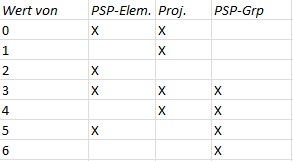
Example: entry 1 in Value from determines that only the project definition may be entered (Allevo will automatically use the corresponding representative WBS element).
X for Value from works in the same way as 2: only the field for the WBS element is ready to be entered. If the constant is not active, both the WBS element and the project definition are available for an entry (presetting).
Additional function: Suppress PopUp on the representative WBS element
Background: when starting Allevo via a project, Allevo automatically identifies a representative object (WBS element) for planning or also for reading satellites. A corresponding PopUp will point this out.
Entry NP (= No PopUp) in column Value to serves to suppress this PopUp (effective from Allevo version 3.3).
|
Note: |
The constant only applies for the PR Single and MultiObject Transaction. |
|
Cumulated Actual Costs of WBS elements |
|
PSP_ACT_CUMULATE
* from Allevo version 2.9.13 (extended for 3.4.33)
Background: when working with projects or WBS elements, Allevo offers several special features regarding the aggregation of data within the project hierarchy (see also section „Special features of 1:n settings for projects“ in the Allevo SAP manual). On the level of a WBS element however, only actual and plan values recorded directly for the WBS element are normally being displayed. Constant PSP_ACT_CUMULATE helps to create a sum total for each WBS, including the values of all subordinate WBS elements. Activation is performed by X in column Value from.
In addition, the project hierarchy level up to which the accumulation should operate, can be entered in column Value to. In this case, costs of all subordinate levels are adopted; they are therefore available only on the levels specified. The superordinate levels only contain values that had been directly assigned there.
Alternatively, an entry P allows to sum up all values in the project and assign them to the current WBS element. This serves especially to display total project values if there is no root element available in the project („Value to“ is of no importance in this case).
In case of WBS elements with contents originating from accumulation, the line item list also includes the positions of the subordinate levels.
|
Note: |
A constant of the same name is also available in ProCED. This additionally allows to restrict a list containing the WBS elements used in Allevo MultiObject to one level from the start (the same level must of course be entered there in order to achieve a correct cost representation). |
New from version 3.4.33
Specification of the level on the project hierarchy via „Value to“
New from version 3.4.33
Read via P including all values found for the project that the current WBS is assigned to.
|
Settings of Allevo Multi for Projects |
|
PSP_MULTI
Planning a whole project, i.e. WBS elements of a project, strongly depends on the project structure. It is therefore conceivable that each individual WBS element might need to be planned.
Often, however, only those WBS elements are planned whose master record show the corresponding planning indicator, or that are available on a certain project stage. These WBS elements are then representative for subordinate levels of WBS elements receiving actual postings.
In other words, there are three factors of project structure often determining project planning:
1. Level of the WBS element
2. Representative planning of a hierarchical node (1/n)
3. Planning indicator of the master record
These three factors must be indicated in the start screen of the transaction /KERN/IPPPRM (MultiPage for projects):
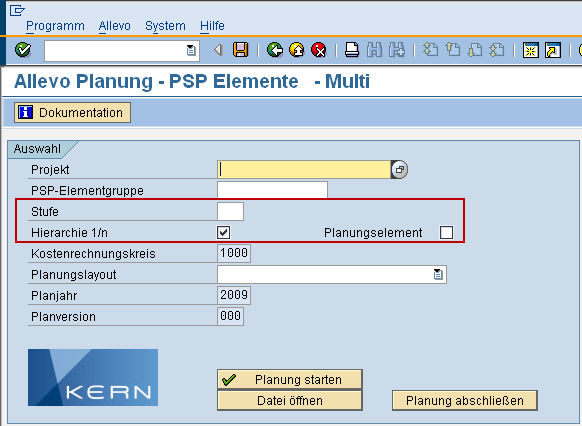
The level is used to define that only Excel sheets for WBS elements of this selected project level are created.
If the flag Hierarchy 1/n is set, all WBS elements subordinate to the respectively selected element are summed up during reading of data (see example).
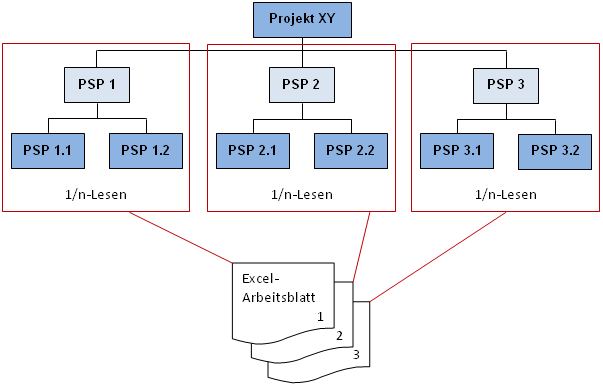
If the flag Planning element is additionally set, only those WBS elements marked as planning elements in the master record are included.
The constant PSP_MULTI can now control the presets of these three factors in the selection screen.
|
Note: |
Presets via this constant are also considered when executing the Reporting (transaction /KERN/IPPPRREP). The specification on the level, however, is no longer relevant here, once the button “Group on one sheet” is set in the Reporting, since the level is only required to resolve objects in the MultiPage mode. From Allevo version 3.0, the settings also apply in offline planning (transactions /KERN/IPP_OFFL_GEN and /KERN/IPP_OFFL_IMP). |
Value from column contains a three-digit combination of numbers, with:
· the first digit indicating the factor hierarchy 1/n,
· the second the planning element and
· the third digit the level.
The first two digits may only contain the values 0 or 1. 0 means the field is left empty; 1 means a flag is set. The third digit, defining the level, may have values from 1 to 9.
The numbers 102 in column Value from therefore results in the following presets:
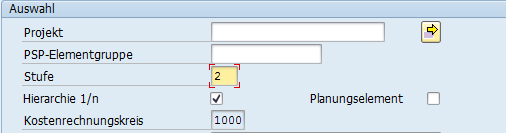
In column Value to of the constant, you may now define whether the planner may overwrite the presets. This is done following the same systematic of a three-digit number of the values 0 and 1. 0 stands for non-editable, 1 for editable.
In addition, W or E may be entered for the fourth digit (e.g. 102E):
§ for W, a warning appears if the level is empty and the 1/n Flag is set.
§ In the case of E, the 1/n flag is generally not considered when reading data (from Allevo version 2.7.14).
|
Note: |
Problems can arise if the field Level is empty in the start screen of /KERN/IPPPRM but the 1/n flag is set. In this case, accumulation is additionally done on the first element even if the project is completely cancelled. |
If this level is not constant but depending on the respective project structure, the constant PSP_MULTI_LEVEL may be useful.
|
Project Level in Allevo Multi |
|
PSP_MULTI_LEVEL
* from Allevo version 3.0.7
With the constant PSP_MULTI, several parameters relevant for project planning in Allevo Multi may be set. Among other things, also a level may be specified here so that only Excel work sheets for the WBS elements of the selected project level are created.
If this level is not constant but depending on the respective project structure, the constant PSP_MULTI_LEVEL may be useful. In this case, the level is read using any table of the project (e.g. also append field of table PROJ).
The name of the table must be entered in column Value from (e.g. PROJ), and the name of the corresponding field of the database table in column Value to. The actual project number is always used during reading. A numeric value must be set in the corresponding field.
|
Note: |
The level specification in Value from may be used in the constant PSP_MULTI in this case. Thus, e.g. 10 must be entered instead of 102 (2 for the level). Otherwise, the constant PSP_MULTI_LEVEL remains ineffective. If an invalid table- or field name is entered, the constant is ignored (no error message is displayed). The level remains 0. |
|
Read WBS Elements and Assigend Objects |
|
PSP_WITH_OBJECTS
* from Allevo version 2.7.2
This constant controls whether the objects assigned to the WBS elements (orders incl. networks and procedures) are included in reading. The following options are available for Value from:
§
Blank
Orders (including networks) and network procedures are not included.
§
1
Orders (including networks) are included.
§
2
Orders (including networks) and network procedures are included.
§
3
Only network procedures are included.
§
4
Only orders (including networks) from SAP table AUFK are read, meaning that the
WBS element is assigned on the basis of the order master record and not of the
order position.
If orders are also read, the affiliation of the order to the WBS element is determined from the order master record (AUFK)) and the order position (AUPO) (not for status 4).
This functionality may also be used in combination with the function 1/n.
In single cases, it may be useful to include only certain columns when reading data (e.g. to ignore current plan columns during reading). The value category assigned to the column definition is the corresponding characteristic. An entry in column Value to on the constant controls selection:
· For entry 1, all column definitions containing actual data are excluded,
· for 2, plan data are excluded.
· Without an entry, all columns are read.
From Allevo 3.4, a button in the settings on the column group serves to handle plan columns in this way exclusively.
|
Note: |
Starting from Allevo version 3.0, constant PSP_WITH_OBJECT_OR may be used in order to further limit relevant orders. Additionally, this constant allows for restriction via order type or order category. |
|
Note: |
Constant PSP_WITH_OBJECTS may also be used in combination with the constant ONETON_IMZO (investment management), i.e. the orders assigned to WBS elements are also included during reading of data. |
|
Read WBS Elements with Orders |
|
PSP_WITH_OBJECTS_OR
* from Allevo version 3.0.4
This constant may only be used in combination with PSP_WITH_OBJECTS: here, you may control whether the objects assigned to WBS elements (orders incl. networks and procedures) are considered during reading.
The constant PSP_WITH_OBJECTS_OR may be used in order to further limit relevant orders using order type or order category.
In column Value from, an order category may be specified: multiple entries should be separated by comma (filtering is performed depending on the application type via the table fields AUFK-AUTYP and AFPO-DAUTY).
In column Value to, order types may be specified: multiple entries should be separated by comma (filtering is performed depending on the application type via the table fields AUFK-AUART, AFPO-DAUAT).
|
Rule Planning on the Basis of Reference Data |
|
READ_ADP
* Available from Allevo version 3.2
Within activity-dependent planning, Allevo supports two methods of allocating costs to activity types: the direct method with the allocation in the Allevo Master and the “rule planning” in which the costing rules are defined. Usually, these rules are stored in the Allevo settings (see explanations in the Allevo SAP manual).
Instead of administering the rules explicitly in the Allevo settings, data available in SAP summary record tables may also be used as reference and the necessary rules may be deduced from it. Such reference data could be e.g. old data from previous postings, or also data on a plan version that is managed for this purpose specifically (also applies to distribution key of years to periods).
The constant READ_ADP controls this function. An entry in column Value from regulates the priority of dealing with the reference data:
· 1 (=primary): in this case, available rules from Allevo settings are replaced. The rules thus only apply if no SAP data are available.
· 2 (= secondary): in this case, reversely the rules from the Allevo settings have the priority; the data are read from SAP tables only if no rule is specified in Allevo for a relevant cost center.
:
As long as no entry is made in column Value to, the year and version characteristics are copied from the corresponding posting line. Alternatively, the characteristics can be predefined in column Value to as follows:
· Year and version are entered directly (separated by comma), e.g. “2013,5“ to use year 2013 and version 5 for reading.
· -1 can be also entered instead of the year date: then, Allevo automatically reads the previous year with regard to the current planning year. In addition, you may optionally predefine the version (example: “-1.3“ would be read over the previous year with version 3).
|
Note: |
The following tables are used by Allevo for reading reference data: Primary costs from COSP; distribution key (years in periods) from COKP Secondary costs from COSS, distribution key from COKS (only of the original object) Stat. Key figures from COSR; distribution key from COKS. |
|
Reread Satellite Data after Planning |
|
READ_AFTER_PLAN_SAT
* from Allevo version 3.0.10
Constant READ_ON_OPEN may be used to set that planning data are reread from the SAP data base once the function “Transfer planning data” is performed (an entry in column Value to is required).
Constant READ_AFTER_PLAN_SAT serves to define data from the satellites shall additionally be updated.
An X in column Value from activates the constant.
|
Note: |
Using button “Write satellite“, data of a satellite may be backed up independently of the planning function. If the constant READ_AFTER_PLAN_SAT is set, the function “Read satellite“ will automatically be executed in order to ensure that data in the Excel sheet are kept up-to-date. This is useful e.g. if data are modified via the BADI functions during saving. This sub-function for automatic reading of satellites is not dependent on the settings in READ_ON_OPEN. |
|
Read Blocks |
|
READ_BLOCKS
* from Allevo version 2.7
This constant is to be set only in particular performance cases. It allows reading out in blocks, as well as transferring big amounts of data from SAP to Excel.
The number of lines which should be transferred to Excel during the process is to be entered in column Value from. Normally, all the read lines are transferred „en bloc“. If the amount of the specified lines is smaller than the amount of the lines that shall be transferred, the amount of read data will be disassembled into blocks. The transfer is thus performed in blocks. As a result, the amount of data to be transferred via the SAP-Excel interface will be reduced, and performance will be improved for systems with little working memory.
However, an opposite effect can also occur. If the Excel interface is called too often, the overhead emerges slowing down Allevo.
If this constant is set, an attempt will be additionally made in MOM not to let the amount of data available in SAP exceed substantially the size of the transferred blocks. This also reduces the data load on the SAP server.
|
Year and Version when Reading Plan Comments |
|
READ_COMMENT_SEQ
* from Allevo version 3.1
Several options of the Allevo column definitions control the reading of plan columns, since these comments are usually entered with a column definition different than in subsequent evaluation. Year and version may be predefined, as well as reference to a different column definition and possibly also a dependence on the status (see entries in section “Comments“ in the master record of the column definition“.
If reference to the column definition is created in the section „Comments“ of the column definition, comments are usually read with the available specifications on year and version. In exceptional cases, a different logic may be desired, which is controlled by this constant.
|
Application Case: |
In the start screen of Allevo Reporting, the year is being changed dynamically, usually via entry on the column definition CX_RR. Other column definitions adopt this year with relative reference; then also comments shall be read for this. |
Activate the constant READ_COMMENT_SEQ by entering X in column Value from. Then, year and version will be identified for reading comments in the following sequence (the example here on the year used for reading):
- The field “Year” in the section comment of the column definition has highest priority (possibly also depending on the status).
- If nothing is found here and the constant is active, Allevo will use the year from the current column definition (possibly with relative reference as well).
- Only in the last step, the year of the column definition used for entering the comment will be used.
|
Read Distribution Key |
|
READ_DISKEY
Constant for reading the distribution key planned last
By default, a suffix of the corresponding column definition defines the distribution key of year to periods (suffix _DKF and _DKV with regard to Fix or Variable, in Allevo versions earlier than 3.0, it was column key CY_DISKEY).
Constant READ_DISKEY serves to alternatively use a distribution curve for this purpose, stored already on the posting element in SAP. A newly entered annual value will then be distributed to periods as specified there by the previous plan values. Activate this constant by entering the following values in column Value from:
§ X or V activates reading the distribution key for values.
§ Q activates reading the distribution for quantities.
Table COKP, fields FCMEF and FCMEV are used for reading (distribution key Fix or Variable). If plan data are not yet available here, Allevo will automatically use the default distribution key 2, in this case leading to an equal distribution.
|
Note: |
Constant DISKEY_READ_ALL may be used to alternatively read the “Total“ distribution key instead of the “Fix“ key. |
New from Allevo version 3.0:
If constant READ_DISKEY is active and the fields for „Sending cost center“ as well as „Sending activity type“ are filled, the fix (!) distribution keys will be read from COKS for row definitions C,D,E,F,G,H,I,J,K and O (otherwise from COKP as before).
In 1/n planning via cost element groups, the distribution key is automatically read via the corresponding planning cost type.
|
Read Total Distribution Key |
|
READ_DISKEY_ALL
* from Allevo version 2.9.37
Constant for reading the distribution key planned last
The constant READ_DISKEY_ALL identifies the “Total“ distribution key (COKP-FCWKG and COKS-FCMEG) and in that way complements the constant READ_DISKEY. Transfer to Excel is performed using column CY_DISKEY.
Activate the constant DISKEY_READ_ALL by X in column Value from.
|
Note: |
During planning, still only “fix“ and “variable“ are being transferred. If the total distribution key stays the same, this constant should NOT be used. |
|
Supplement Master Data on the Planning Object |
|
READ_ELEMENT_DATA
* from Allevo version 3.4
Background: Constant MAP_FIELDxx offers the possibility in Allevo to transfer information from SAP master records to Excel (xx = consecutive numbering, the ten fields MAP_FIELD1 to MAP_FIELD10 are specifically available). This information is by default transferred to the starting object or in the MultiPage mode for the main project on each sheet. The information has so far been missing with Allevo offering a list of objects for planning in the MultiObject mode. This may, however, be useful in many cases.
|
Example: |
When planning via multiple cost centers, the allocated functional area shall be displayed in each Excel planning row (field FUNC_AREA of table CSKS). |
Constant READ_ELEMENT_DATA provides all features MAP_FIELDxx also for objects in the MultiObject mode. Transfer is performed using comment columns (similar as for constant READ_ELEMENT_TEXTS for the transfer of texts). The corresponding column definition (years) must be stored in the Allevo settings.
Activate constant READ_ELEMENT_DATA by entering this column definition in column Value from (list separated by comma in case that several information shall be transferred). Simultaneously, the desired contents must be defined in MAP_FIELD1, MAP_FIELD2 and so on. The first column definition transfers the content of MAP_FIELD1 the second references to MAP_FIELD2 and so on. Example:
· Constant MAP_FIELD1 is prepared for reading an information from CSKS (see corresponding F1 documentation).
· Column definition CY_R9 is created for the current layout (possibly with option „Read only comment“) and entered in constant READ_ELEMENT_DATA.
· CY_R9_N is used in the Allevo Master to obtain the desired information for each cost center.
|
Note: |
As long as there is an information available comprehensively, Allevo considers also changes of the object type. Example on the functional area of the cost center: CSKS-FUNC_AREA shall be transferred as information. Apart from cost centers, also orders are included on the side of Excel: Allevo identifies the corresponding cost center for each order and from that the functional area. |
|
Adopt Names for Cost Elements / Objects from SAP |
|
READ_ELEMENT_TEXTS
* from Allevo version 3.1 (extended in 3.4)
The name of a cost element or activity type is usually stored in the Allevo Master. Alternatively, the constant READ_ELEMENT_TEXTS allows to dynamically adopt the name from SAP. The constant is mostly useful in the dynamical area of the Allevo Master, since there may be no names of cost elements entered permanently in the Master.
Transfer of texts to objects is additionally possible from 3.4.
The belonging texts should for this purpose be maintained in the SAP system in the language of login (possibly, EN will be used as default language). When using the constant, double maintenance of master data is omitted in the SAP system and in the Allevo Master.
Names are transferred as done also in planning comments: a column definition (for years) providing the text on the side of SAP must therefore be stored in the system. The texts are consequently updated simultaneously with reference data.
Activate the constant by entering the intended column definitions:
· Entry of the column definition in Value from for constant READ_ELEMENT_TEXTS activates the reading of texts on cost element or activity types.
· Entry of a column definition in field Value to activates the reading of names for objects (e.g. for cost centers). This feature is especially useful when calling the work in the Allevo MultiObject mode.
Example: Column definition CY_R9 is created for the desired layout; possibly with option “Read only comments“ to deactivate non-relevant characteristics. The column definition is stored for the constant in column „Value from“; in the Allevo Master, CY_R9_N must then be entered in the header of column „Element Description“. A row definition allowing to read comments must additionally be entered (at least T, possibly also in rows where group names shall be read).
|
Note: |
Constant READ_ELEMENT_TEXTS may not be used in combination with MOD (see documentation on constant DYN_KSTAR_SAT). Here, texts are already being adopted from SAP for all posting combinations anyway, incl. texts for the involved groups. From Allevo 3.3 onward, there is the additional constant READ_PARTNER_TEXTS to display descriptive texts on partners (senders and/or receivers; see corresponding documentation): partner texts are again useful applicable especially for dynamic rows. |
* New from Allevo-Version 3.4
The transfer may now also be used in the Allevo MO.
It is also possible to read texts on groups, if the group ID can be recognized as such: thus defined as 1:n group or defined via entry 2 for constant READ_GROUPS_FROM_SAP. The group ID must be present in the same column as would otherwise be the single posting element (e.g. cost element group in column CY_KEY, possibly instead of the usual sigma sign such as ###).
T may also be used as row definition.
|
Restrict Selection of Reference Data via Additional Feature (2) with Empty Field Content |
|
READ_EXCLUDING_FIELD
* from Allevo version 3.4
In single cases, it is necessary to restrict data selection in a way that only data records with empty field contents are included. Example: only direct postings to profit centers shall be included but not data records caused by direct postings from cost centers.
Constant READ_EXCLUDING_FIELD allows to query the prescribed fields for empty contents when selecting summary records; (e.g. query „RCNTR = empty“, to exclude postings with a cost center entered as origin object).
Activate the constant by entering the field name in column Value from. Multiple field names are possible as comma-separated list (then, only data records with all mentioned fields empty are read).
The relevant row definition may additionally be stored in column Value to; multiple entries are possible as comma-separated list. Without any specification, restriction during reading applies to all row definitions.
|
Note: |
The constant is currently only realized for profit center planning (not for stat. key figures). See also constant READ_WITH_KEYR for restrictions when reading reference data; then, specific additional features are predefined by Excel. |
|
Adopt Group Assignments from SAP Settings (as Alternative to Allevo 1:n Features) |
|
READ_GROUPS_FROM_SAP
* only effective for Allevo 3.3 (extended in 3.4)
Allevo allows to address groups directly in the Allevo Master in order to perform planning oriented towards a group (e.g. by indicating the relevant IDs). For this purpose, Allevo of course needs to recognize whether the current entry on the cost element or on the object is actually a cost element or object or if it is rather a group.
This is primarily controlled by functions of so called „representative cost elements“ or „representative objects“ (see e.g. section “Cost element groups / 1:n setting” in the Allevo SAP manual).
Similar functions can be found in the SAP settings on the Reporting; e.g. in transaction KAH3 to resolve the cost element hierarchy (there, display context menu on the desired cost element group under „Report settings“).This constant permits Allevo to read also this SAP assignment in order to avoid double maintenance. The following rule applies:
· Entries in the 1:n settings have priority and are therefore generally understood as group.
· To interpret the original SAP assignments, the constant READ_GROUPS_FROM_SAP must additionally be set with the following settings.
Cost element groups
An entry in column Value from for READ_GROUPS_FROM_SAP controls the transfer of cost element groups; possible options:
· If „1“ is entered, an ID from Excel is only understood as cost element group provided that a representative cost element is stored in the SAP Reporting.
· If „2“ is entered, all IDs containing an SAP master record as cost element group are accepted. However, this function is only useful in Allevo Reporting, plan data always require a representative cost element.
· With no entry in „Value from“, only the Allevo 1:n entries are understood as group.
Object groups (e.g. cost center groups)
From Allevo 3.4 onward, it is also possible to adopt groups for objects via column Value to. Here, only the entry „1“ is allowed: this means that only groups with an entry as representative object are accepted in SAP Reporting.
The feature is available for reading reference data, the display of line items and for the structure of the object list in the Tree. When starting via a representative object, all data concerning the stored group are automatically read (WITHOUT a request). The constant may affect the behavior of MULTI_WITH_GROUPS („2“ acts as „1“).
Instead of reading the SAP groups automatically, SAP assignments may also be adopted to the Allevo tables manually (see corresponding button „From SAP“ the respective maintenance dialog on 1:n settings).
|
Note: |
Allevo reads the entries from the settings for SAP reports in the respective planning transaction (or also Reporting). If an Excel entry points to a valid group, this will be treated in the same manner as a group with the usual Allevo 1:n settings. This applies to reading, planning and line items; there are still restrictions for the report-report-interface and possibly for the application of MOD and BAdIs. |
* New from version 3.4
Entry in column Value to controls the adoption of data for object groups (e.g. for the cost center group).
|
Adopt Activity Types from Allevo Master |
|
READ_LSTARTABLE
* from Allevo-Version 3.0
Relevant activity types may be transferred from Excel to SAP via the CYA_X range (CYA_0 to CYA_20) in the Allevo Master.
|
Note: |
See also the section on performance dependent planning in the Allevo Excel manual. The application of CYA_X ranges is relevant if, e.g., the constant LSTAR_FROM_SAP is inactive, and no LAP rules are in action. |
In single cases, it may be useful to store these activity types in satellites and fill in the CYA_X range from there. However, you then need to make sure that the sequence during data transfer from this range to SAP is correct: i.e. import satellite data to the CYA_X ranges of the Excel Master first and transfer data to SAP only then. Prior to the reading of reference data, the relevant activity types must each time be imported from Excel again.
Constant READ_LSTARTABLE ensures the correct sequence is followed during the transfer and is activated by X in column Value from.
|
Note: |
In the standard case (without active constant), the activity types of the first cost center would for example be used when applying the MultiPage mode. |
|
MultiPage: Temporary Storing Selection Characteristics |
|
READ_MULTI_AREAS
This constant serves to accelerate Allevo Multi under certain conditions.
In the MultiPage mode, Allevo creates a worksheet for each object (e.g. cost center). When reading reference data from SAP, each worksheet is processed individually. Consequently, the information about cost elements, activity types etc. are transferred for each worksheet from Excel to SAP (so that data selection can be performed in SAP).
This process is somewhat time consuming but nevertheless necessary if, for instance, the details on cost elements are generated individually for each worksheet (e.g. depending on a cost center). In this case, the selection information for each worksheet must also be transferred to SAP.
However, if the structure of the Master is equal for all objects, it is sufficient to transfer this consistent selection information to SAP only once (for the first worksheet only), and store it temporarily for the following worksheet: this means the structure of the first worksheet will always be used for the following worksheets.
An entry X in column Value from activates temporary storing.
You may additionally enter row definitions that shall apply as exceptions in column Value to: the corresponding Excel rows will therefore transfer each work sheet again.
Example: Column Vale from = X
Column Value to = M, C
(etc. selection, separation by comma)
|
Note:
|
In the MultiObject mode of Allevo, the Setclass and object information is usually defined in the Allevo Master and then transferred to SAP. This function must NOT be applied in combination with constant READ_MULTI_AREAS. From version 3.2, Allevo automatically switches off the constant once this typical MultiObject constellation is recognized. |
|
Read Reference Data when Opening Allevo |
|
READ_ON_OPEN
This constant determines whether reference data are automatically read, and when. Two basic functions may be adjusted:
The entry X in column Value from specifies that reference data are directly transferred to Excel when opening Allevo planning.
The entry should therefore be set in most application cases, since planning without reference data hardly makes any sense. Exception: Constant READ_ON_OPEN should not be set if the Tree is activated (see also constant OBJ_SEL_IN_EXCEL).
Entry X in column Value to automatically updates data of single columns in the Allevo Master once plan data have been transferred to SAP. This applies only to columns with column definitions holding an update type.
In previous Allevo versions, this function was only available for annual columns. From Allevo 3.0.5, also period columns are updated.
|
Note: |
Updating after saving planning data via Value to may be useful, for example, for planning activity inputs. The planned quantities are transferred to SAP and evaluated on the basis of the prices defined there. After being updated, the Allevo Master also shows the activity allocation value. For this update after saving planning data, an update type must be specified for at least one column definition. Otherwise, an error message “No column definition available” appears. If the function of combining and reading actual data is activated for period planning via the constant YEAR1_PERIOD (Value to), CX_RR must correlate with the refresh-type of CM_R1 (otherwise a message “CX_RR not available” appears). |
|
Time of Reading Satellites |
|
READ_ORDER_SAT
For the satellites, you may define at which moment of the reading process data shall be read from the SAP system. Two options are available: before reading cost elements (statistical key figures, activity types) or after reading cost elements.
By default, satellites are read at the end of the reading process, i.e. after reading cost elements. In certain cases, however, it may be useful to edit satellites (or individual satellites) before reading cost elements, e.g. if the satellite contents provide controlling options for reading cost elements.
Constant READ_ORDER_SAT may be activated to set that a satellite is to be read before reading cost elements. For activation, enter a 99-digit combination of numbers 0 and 1 in column Value from. Digits 1 to 99 specify the table that will be activated. 0 means inactive, 1 means active.
§ /KERN/IPPSAT01
§ /KERN/IPPSAT02
§ …
§ /KERN/IPPSAT98
§ /KERN/IPPSAT99
Thus, the combination 00011000... means that the additional tables /KERN/IPPSAT04 and /KERN/IPPSAT05 are to be read before the cost elements. All other satellites are read at the end of the reading process.
The constant can be easily modified via the Assistant (see button [Assistant] in constant maintenance, flag in column “ROS”).
|
Note: |
The constant FOPEN_READSAT activates the reading of satellites when the file is opened, i.e. independent of reading reference data. Constant ACTIVE_SAT_SORT may be used to additionally adjust the processing sequence within an amount of time (in the standard case, it is ascending according to the number of satellites). |
|
Adopt Partner Texts from SAP |
|
READ_PARTNER_TEXTS
* from Allevo version 3.2.23
The feature of comment columns common in Allevo allows to read descriptive texts on involved objects and transfer them to the Allevo Master. This feature is controlled via constant READ_PARTNER_TEXTS: a comma-separated list of up to 8 column definitions that shall be used for the transfer of texts must be stored in Value from for this purpose. E.g. „CY_R3, “CY_R4“ (each without suffix “_N“).
The position in this list determines which text in a column definition is transferred. The following rules apply per position:
1. Text for the sender. By default, this is the text for the sending cost center. In the FID, it is the text of the vendor.
2. Text for the sender activity type or the document text in FID. The document text can only be read in line item display.
3. Text for the sender object type: by default, this is always the “cost center“ or its translation. In FID, it is the offset account type (debtor, vendor etc.).
4. Offset account. This only makes sense in line item display, as document number and posting line are used as sender information in this case and NOT the offset account. If it is no line item, entry CY_KEY is adopted. Advantage: this column may then consistently be used for the actual sender information.
For positions 5-8, the assignment repeats for receiver or the vendors in FID.
|
Note: |
The constant is applied mostly in FI Dynamic, if names of partners shall be displayed in the dynamic area (e.g. name vendor). |
|
Read Unit Price from a Column |
|
READ_PRICE_TOTAL
* effective from version 3.1.3
Usually, Allevo shows prices separated by fix and variable components (see suffix “_PV” and “_PF” on the column definition on the side of Excel).
In some cases, however, a unit price is required planning and then a unit price is useful.
The constant is activated by entering X in column Value to: the unit price is then displayed by Allevo in the FIX field (everything else remains the same).
|
Note: |
Optionally, the sum may also be generated on the side of Excel. |
|
Always Read Prices for Secondary Costs |
|
READ_SEC_TARIF
By default, the rates for secondary costs are only read out if values had been posted beforehand. With constant READ_SEC_TARIF activated, the rates are always read out (i.e. even when the new planning is started).
The entries in COST table, applicable to FIX and VAR, are read.
The constant is activated by an entry in column Value from:
§ X = reading row definitions D and H
§ Alternatively, the row definition that is to be read can be typed in (e.g. C for row definition C).
|
Note: |
The applied row definition should not be used simultaneously to PRE_SELECT. They should therefore be excluded from this constant (from Allevo version 3.2, this exclusion from PRE_SELECT is made automatically). |
|
Provide Status Information in MO |
|
READ_STATUS
* from Allevo version 3.2
By default, the planning screen shows the Allevo status of the start object (displayed via CC_STATUS in the Excel Master).
In the case of MultiObject, however, it might be important, to know the status of each planning object listed. Constant READ_STATUS activates this function. Transfer of the status information is performed analogous to the planning comments: i.e. a column definition (for years) via which the status of the SAP page will be presented, must be stored in the system. This column definition is to be entered in column Value from of the constant READ_STATUS
|
Example: |
Column definition CY_R9 is created for the desired layout. If necessary, an option “Read comment only” can be set there in order to deactivate non-relevant characteristics: in this case, the ID of the column definition should also be specified in the mandatory field “Comment from” (in this case CY_R9). CY_R9_N must then be entered in the Allevo Master in order to read the status information. |
|
Additional Characteristic when Reading Reference Data (e.g. Functional Area) |
|
READ_WITH_KEYR
* from Allevo version 3.4 (extended in 3.5)
From version 3.5, the constant is no longer relevant; the associated features are now displayed directly via the new Allevo setting dialog on the row definition.
When reading reference data, restriction to additional characteristics (e.g. functional area) may be useful; especially for profit center planning or in the Reporting. Column keys CY_KEYR and CM_KEYR (or alternatively CY_KEYSA) may be used to transfer the belonging characteristic values.
|
Note: |
This documentation primarily describes the behavior during reading of reference data with selection via an additional characteristic. The function may be applied for CO postings and profit center. The constant may also be useful for planning functions, if postings shall be equipped with additional characteristics (especially applies to profit center postings, see corresponding Allevo manual). |
Constant READ_WITH_KEYR (alternatively READ_WITH_KEYRA and READ_WITH_KEYSA) serves to define the characteristic that shall be addressed in this way and the row definition that this shall apply to.
Application areas:
· Planning of overhead costs for primary and secondary costs (not for stat. key figures and activity types).
· With line items, the restriction concerns actual and plan (not commitment).
· Within profit center accounting, the query applies when working with the classical and new general ledger.
The restriction may be activated for any row definitions. You may address different characteristics via the same Master (separated by row definition).
Currently, four additional characteristics are supported:
·
FUNCTIONAL_AREA = Functional area
Restriction is performed via field FKBER with CO data and RFAREA with PC
·
PARTNER_FUNCTIONAL_AREA = Partner functional
area
Restriction is performed via PFKBER in CO line items (COEP, COEJ) or field
SFAREA with PC data.
·
TRADING_PARTNER = Trading partner
Restriction is performed via field VBUND with CO data (not with secondary
costs) and RASSC for PC
·
KOSTL_GROUP = Cost center group
A cost center group transferred by Excel is completely resolved before reading data
in order to include only values of the desired cost centers. This may sometimes
affect the performance (the function is only available for the new general
ledger, field RCNTR is queried).
As an alternative to these predefined characteristics, any field of a summary record table may be entered directly (also considered when reading line items). To avoid a program termination, Allevo independently checks for availability of a field in the relevant target table and complements selection conditions if necessary (otherwise, a value transferred from Excel will be ignored).
Constant READ_WITH_KEYR is activated as follows:
· In column Value from, enter either one of the four characteristic IDs named above (e.g. for the functional area) or the name of a database field used for selection (enter e.g. RBUKRS in order to select via the company code in table FAGLFLEXT in the new general ledger).
· In previous Allevo versions, activation according to row definitions could optionally be performed in column Value to. Multiple entries were possible as comma-separated list (e.g.”C1, C3“). From version 3.5, this assignment is done directly in the Allevo settings per row definition.
Example for application case
In the example above on the functional area, a suitable entry must be made in Excel column CY_KEYR in the Allevo Master:
· This is usually the ID of the desired functional area. Multiple IDs are also possible (comma-separated list in the corresponding Excel cell).
· An empty Excel field selects only posting rows where the respective additional characteristic is not filled in the SAP table (e.g. postings with empty functional area);
· Entry * on the side of Excel on the other hand reads all reference data, e.g. with any desired functional area.
Multiple additional characteristics may be used in the same layout/ Master. Corresponding IDs must then be entered in column Value from separated by colon. The same rule applies for corresponding row definitions in column Value to. Example:
“Value from“: „FUNCTIONAL_AREA:KOSTL_GROUP“.
“Value to“: “C1,C3:B2“
In this example, a functional area in key column CY_KEYR is expected for row definition C1 and C3 on the side of Excel; for row definition B2, the specification on the cost center group.
|
Note: |
Column keys CY_KEYR / CM_KEYR allow up to 255 signs for the list of selection parameters. When using this constant, SELECT_TURBO is automatically deactivated. Alternatively, column key CY_KEYSA may also be used for selection via additional characteristics (controlled by constant READ_WITH_KEYSA). To transfer numeric contents, the corresponding Excel column must possibly be formatted as text (especially in the case of leading zeros e.g. functional area “0100“). |
In single cases, it may be necessary to limit data selection in a way that only data records with empty field contents are included (e.g. when reading data for NGL). In this case, constant READ_EXCLUDING_FIELD may also be useful.
* New from Allevo version 3.4.15
The constant now applies also in planning for classical ledger.
The additional characteristic functional area is now also included when reading and writing data on the Allevo object (when working with ACOSx tables).
The list of selection characteristics transferred in CY_KEYR / CM_KEYR may now contain up to 255 signs (before: 24 signs).
* New from Allevo version 3.4.19
Allevo includes the constant now also when writing and reading comments (table /KERN/IPPCOMMENT). Comments may therefore now be saved e.g. with reference to a functional ara as additional characteristic.
* New from Allevo version 3.5
Figure of Allevo setting dialog on the row definition
|
Additional Characteristic when Reading Reference Data |
|
READ_WITH_KEYRA
* from Allevo version 3.4.33 (modified in 3.5)
From version 3.5, the constant is no longer relevant; the associated features are now displayed directly via the new Allevo setting dialog on the row definition.
When reading reference data, restriction to additional characteristics (e.g. functional area) may be useful; especially for profit center planning or in the Reporting. Column key CY_KEYA may be used to transfer the belonging characteristic values from Excel to SAP. The features are controlled via constant READ_WITH_KEYRA.
The functions here are not equal to the ones for column key CY_KEYR and constant READ_WITH_KEYR: a detailed documentation is stored there.
|
Note: |
Both column keys may be used simultaneously; the differ only in the field length used to transfer values to SAP. |
* New from Allevo version 3.5
Display via Allevo setting dialog on the row definition.
|
Additional Characteristic when Reading Reference Data |
|
READ_WITH_KEYSA
* from Allevo version 3.4
From version 3.5, the constant is no longer relevant; the associated features are now displayed directly via the new Allevo setting dialog on the row definition.
When reading reference data, restriction to additional characteristics (e.g. functional area) may be useful; especially for profit center planning or Reporting. Column key CY_KEYSA may be used to transfer the belonging characteristic values. The functions are controlled by constant READ_WITH_KEYSA.
The functions here are not equal to the ones for column key CY_KEYR and constant READ_WITH_KEYR: a detailed documentation is stored there.
|
Note: |
Both column keys may be used simultaneously; they differ only in the field length used to transfer values to SAP. |
* New from Allevo version 3.5
Display via Allevo setting dialog on the row definition.
|
Allevo Reporting: Set Execution Mode |
|
REPORT_MODE
* from Allevo-Version 2.9.47 (extended in 3.2.28)
This constant controls the execution of Allevo Reporting transactions, such as /KERN/IPPKS. It covers two basic functions.
First constant function: Setting the execution mode
In Allevo Reporting, Allevo standard transactions are carried out by batch-input in the background. Allevo independently looks for the transaction to be called using the object type and the objects in the selection screen. If, for instance, a cost center is specified, the transaction /KERN/IPPKS is automatically executed in the background. When dealing with multiple cost centers or a group, Allevo switches to the MultiPage mode and calls transaction /KERN/IPPKSM (if required, the page layout corresponding to MOM logic may be found there as a list using different objects).
In exceptional cases, it may be useful to specify an exact call mode.
The constant REPORT_MODE controls this function: it can be activated by an entry in column Value from. The following entries are possible:
· Entry „MULTI“ enforces the use of the MultiPage mode. Example of application: the MultiPage mode can be called additionally for one single object if so required by the macros on the Excel page (which e.g. require an additional page as a copy of a template page).
· Entry "MULTIOBJECT" serves to use also Allevo MultiObject transactions for the Reporting (e.g. B. /ALLEVO/KSMO). This has an effect in two cases:
If a single object is predefined in the Reporting, the suitable single Allevo transaction is normally automatically called in the background (in the way described above). If the constant is active with entry "MULTIOBJECT“, Allevo switches to the MO mode.
If several objects or a group are specified in the Reporting selection screen, the MultiPage transaction of Allevo is usually called. However, if "MULTIOBJECT" is entered in the constant, the Reporting additioinally checks whether the constant DYN_KSTAR_SAT is active, i.e. the MOD functions. In this case, the switch to MultiObject will also happen in order to place all the objects onto an Excel sheet via the MOD functions.
Second constant function: preset button “Combine in 1 sheet“ in the selection screen.
You may now preset the button “Combine in 1 sheet“ in the selection screen of the respective Reporting transaction may now be preset. A suitable entry may be a text with 2 signs:
· The first character defines whether the button is preset (entry “1“).
· The second character defines whether the value shall be editable upon transaction call
“1“ = locked).
Example: Entry “11“ defines that objects of selection are always combined in one sheet (may not be modified by the user).
* Extension in Allevo version 3.1
"MULTIOBJECT" may serve to additionally use the MultiObject transactions in the Allevo Reporting.
* Extension in Allevo version 3.2.28
Presetting of button “Combine in 1 sheet“ in the selection screen.
|
Allevo Reporting: Start SAP Transactions |
|
REPORT_SILENT_BI
* from Allevo version 2.9.36 (does no longer apply from version 3.1)
Allevo Reporting without check for batch-input.
In Allevo versions preceding 3.1, the Allevo standard transactions in the Allevo Reporting are carried out by batch-input in the background.
In single cases, the program may behave differently depending on this check.
|
Example: |
(A) Users may also reach the purchasing document through the line item report with the SAP drill-down function (corresponds to transaction ME23N). If this function is called via the Allevo Reporting, the ME23N will contain the information on the batch-input mode, and depending on this mode it will change its appearance (e.g. display of “Wizard” dock in the left margin). (B) The single document display for FI-documents (KSB5/FI03) slightly differs in the batch-input mode. E.g. it might not be possible to jump to the original documents via the workflow button “Object Services” in the batch-input mode. |
The constant uses the option NOBINPT when calling the batch-input and thus deactivates the check for the batch-input mode of the called functions.
The constant is activated by an X in column Value from.
|
Read Reference Data via “Open File“ Directly |
|
RE_READ_ON_OPEN
* from Allevo version 2.9
The constant RE_READ_ON_OPEN is queried when opening an existing planning file (Menu |Open file| in Allevo). It has the same options as constant READ_ON_OPEN (see detailed description there).
|
Example: |
Assuming a MultiPage Master is stored in offline mode every month: at the beginning of the next month, the column definitions are then shifted one month ahead. After reading the reference data, those column definitions are updated on the side of SAP. The parameters in the Excel file are, however, not. As a result, a different period is displayed in the header section of the Allevo Master than was set for this column in SAP. The constant RE_READ_ON_OPEN ensures that the relevant parameters are automatically updated on the side of Excel if the offline file is reintegrated in SAP. |
See also constant FOPEN_READSAT to re-read single satellites when opening an existing Allevo planning file.
|
Satellites on Separate SAP System |
|
RFC_DEST
This constant is used to establish an RFC connection to another R/3 system (remote system) for the supplementary tables /KERN/IPPSAT01 till /KERN/IPPSAT49. Allevo then accesses data in the remote system while reading and writing these tables.
Background: this feature may be used especially for personnel planning in case that data protection regulations do not permit personal data, even if protected, to be saved on the source system.
An additional SAP transport provided by Kern AG is required to import tables in the remote system (18 satellites are by default included there). Via additional transport, a maximum of up to 49 satellites may be accessed in the remote system.
The following steps
are necessary to establish the connection:
· An RFC destination (type ABAP connection) must be created for transaction SM59 in the source system (the system where Allevo is started).
· The RFC destination ID entered for RFC_DEST in column Value from.
·
A 49-digit combination
of the numbers 0 and 1 must be entered in column Value to.
Digits 1 to 49 specify which table will be activated.
0 stands for reading
from the source system;
1 refers to reading from the remote system via RFC.
The combination 001 would therefore mean that only data of the table /KERN/IPPSAT03
are stored in the remote system
(installation possible via
Sat.Assistent).
· The table structure should preferably be the same in both systems (remote and local, i.e. same appends). Completely identical structures, however, are no longer necessary: in current SAP versions, it is sufficient to use the same field names. When accessing, SAP itself checks for name equivalence (possibly, not all fields will be filled/read, the RFC access, however, will not be interrupted).
After these installation steps, Allevo stores all satellite data in the remote system (and reads from there as well).
|
Note: |
Constant RFC_DEST must always be entered in the so called * layout. Entries in named Allevo layouts will be ignored: regarding the remote mode, a satellite table is thus treated the same way in all layouts. Only one remote system can be addressed, which means, the tables cannot be distributed across several remote systems (controlled by the setting for *-Layout). The RFC user must at least hold the Allevo planner authorization in the remote system (group ZIPP_PLA for authorization object S_PROGRAM). |
Provided that these steps are taken, data of the satellite table will be read from the remote system and also stored there. There are no data stored in the source system.
New from version 2.8
Support of a maximum of 49 satellites in the remote system.
New from version 3.3
The used RFC user must have the Allevo planner authorization in the remote system.
|
Other Authorization Objects for WBS elements |
|
RIGHT_OBJECT_PSP
There are several possibilities in SAP to control planning authorizations for projects and WBS elements; there are, however, there are no authorization objects available where the project/WBS number can be stored (only organizational authorizations).
The Allevo standard in general checks the authorization object C_PROJ_TCD (work area project system) with the characteristics PSARG = 0131 (planned costs) and TRTYP = A (display) and V (change). Another authorization object intended by SAP may be activated for the check in Allevo via constant RIGHT_OBJECT_PSP. All checks refer to parameters from the master record of the WBS element or project.
Enter the relevant authorization object in column Value from; supported are:
· C_PRPS_VNR (or C_PROJ_VNR): reference to the person in charge in the master record
· C_PRPS_KST (or C_PROJ_KST): request for cost center
· C_PRPS_PRC (or C_PROJ_PRC): request for profit center
· C_PRPS_KOK (or C_PROJ_KOK): request for controlling area
· C_PRPS_ART: request for project type (corresponding to master record of the WBS)
Allevo itself recognizes an authorization object entered with reference to a project (see specifications in brackets) and automatically identifies the belonging reference parameter from the master record of the project (PROJ).
If the relevant reference parameter cannot be found in the master record (e.g. no profit center stored upon request for authorization object C_PRPS_PRC), the authorization check will not be successful.
Depending on the call, the characteristic PS_ACTVT = 23 (edit cost planning) must be stored on the authorization object and 24 (display costs) in the role of the user, in newer versions also check on 25 and 26 for revenues.
|
Note: |
In the case that request is performed by the person in charge, a special treatment is required (authorization object C_PRPS_ VNR). Here, the entry in the master record of the WBS element must not correspond to the current user. Instead, the role of the current user defines the person in charge that it is equivalent to (the current user may then perform planning for all WBS elements assigned there). Consequently, a person in charge is for this authorization object entered as characteristic PS_VERNR (or multiple) This is also effective for the level of the project via C_PROJ_VNR. Diese Regel gilt gleichbedeutend natürlich auch für Ebene des Projektes über C_PROJ_VNR. |
New from version 3.3.18
The described concept of authorization check for object type PR has been revised with Allevo version 3.3.18 and differs from the previous logic in key points. Please request the support for information on previous versions.
New from version 3.4.25
Support for authorization object C_PRPS_ART
|
Activation of Satellite SAT00 |
|
SAT00_ACTIVE
Activation by X in column Value from.
The satellite 0 is read already when opening the Allevo Master. It can be placed on the customizing worksheet or in another worksheet.
This allows using information from satellite 0 when generating the planning file. Satellite 0 acts like any other satellites. It can be characterized through an append and can be edited via the Allevo menu |Satellites|.
When using the satellite 0 for mass processing, the name of the worksheet containing the header information for the communication with the SAP system (normally the worksheet that controls mass processing) must be entered in column Value to.
The constant SAT00_SELECT allows eliminating selection criteria for reading the satellite 0.
|
Note: |
Activation of satellite 0 when using the Multi is only possible if at least a 1 is set in column Value from in the constant SAT00_SELECT (and COOBJECT excluded as criterion for selection). Background: There is no unique, leading COOBJECT for the Multi which could be taken as selection criterion for satellite 0. |
|
Activation of Satellite SAT00 |
|
SAT00_SELECT
This constant allows limiting the selection criteria for the satellite 0.
If satellite 0 contains general information, which are applicable to more than one object (COOBJECT), it is useful to eliminate the object as a selection criterion. By doing so, identical information does not need to be recorded for all objects.
See constant SATxxSELECT for a detailed description of functions.
|
Note: |
Using this constant requires satellite 0 to be activated via constant SAT00_ACTIVE. Constant SAT00_SELECT must be activated especially when using the Allevo Multi (by 1, 2, or 3, depending on requirements), since otherwise Multi would not read the satellite 0. ProCED is not started automatically when the constant is active (see also constant ACTIVE_PROCED). |
|
Selection Criteria of a Satellite |
|
SATxxSELECT
* from Allevo version 3.0 (previously applied to SAT00 only)
This constant allows changing selection conditions for a satellite (depending on the satellite number, e.g. SAT03SELECT, SAT04SELECT…).
If information of general nature (meaning they are applicable to more than one object (COOBJECT)) are stored in a satellite, it makes sense to exclude the object as a selection criterion (in order to avoid having identical information stored for all objects).
In field Value from, the following fields can be specified as those that should not be included in the selection from the table (in brackets: equivalent specifications via position in table index, as it is possible since version 3.1):
0 = as standard selection, however, Value to is additionally included (see below)
1 = COOBJECT is not used as selection criterion (X11011)
2 = COOBJECT, SETCLASS are not used as selection criteria (X10011)
3 = COOBJECT, SETCLASS, JAHR and VERSION are not used as selection criteria (X10000).
With the option X in column Value from, each index field of the satellite can be individually configured as a selection element. Here, the Value from consists of a leading X and a sequence of numbers with 5 decimal places corresponding to the index fields of the satellite table (as a sequence of 0 and 1).
· Example: The entry X11100 determines data about the controlling area and set class, at the same time object number, year and version are ignored. Without any additional restrictions, the data for the respective object on all the years and versions will be read.
In column Value to, a specific query can be deposited for the excluded fields (or any other fields in an individual satellite). The related instruction corresponds to a SQL-query in ABAP with WHERE condition (important: as common for ABAP, you need to observe blanks within the instruction):
· Example: the entry PYEAR = '2014' AND (VERSION = 'A11' OR VERSION = 'A12') reads data for the planning year 2014 using both the A11 and A12 versions. The comparison values (e.g. year 2014 in this case) can again be placeholders themselves, in the way they have been applied in the Allevo specific file manager. E.g. parameter <LAYOUT> during the query for comparing the content of a field with the relevant layout (see corresponding notes on file management in the manual). Important: these placeholders must be enclosed by apostrophes (actually ‘<LAYOUT>' in our example).
With a WHERE condition entered, the satellite may only be included for reading. The corresponding flag must then be set in the Sat.Assistant.
The current planning layout can alternatively be used as selection criterion (entry in column Value to): for this purpose, a field for the Allevo planning layout is required in the Append of the satellite. Now that this field name is entered in column Value to, reading will only be performed for the rows of the satellite in which the entry with an actual planning layout is contained in the affected field.
|
Note: |
If constant SATxxSELECT is set for a satellite, ProCED will not be executed automatically even if the satellite was activated for this purpose via constant ACTIVE_PROCED. |
Save satellite data:
In principle, if selection via Value to is not restricted, writing satellite data is also possible regardless of data of the Allevo start (application must however be considered individually). Important: to do so, the missing index fields must be provided by Excel, i.e. the index columns must be as usual included in HR- and RW-areas: it is also recommended to use only these areas and avoid using special types of the satellite area. Further settings are not necessary.
|
Important: |
When saving independently from the object, Allevo first deletes all available data records (without restriction to objects). During saving, the line number will be renumbered consecutively for each object, year and version (also important for accessing via other layouts in which the constant SATxxSELECT might not be activated). No information must be written in satellites if any restriction to selection is applied via Value to. The satellite should thus be restricted to the read mode in Sat.Assistant. The constant cannot be set in combination with GRP_READ_SATxx since both change the selection according to objects, regardless of each other (see also the notes). |
* new from version 3.1
New option X with “Value from“ in order to individually activate each index field of the satellite as selection element.
Additional WHERE condition in “Value to“ with restriction for writing.
|
Save Satellite Data in Separate Client |
|
SATxx_CLIENT
* Available from Allevo version 3.2
Via this constant it is possible to store data of a satellite table in a separate client (CLIENT-SPECIFIED): i.e. when reading and editing this table, Allevo accesses the data from another client; in the current CO-client, no data can be extracted via SAP standard transactions like SE16.
Background: This function can be useful especially for a personnel planning where data protection regulations do not allow saving the personnel data in CO-clients. See the constant RFC_DEST as an alternative.
The write- and read functions are supported in the Allevo planning transactions, in satellite maintenance and in Shuttle.
The constant is activated by entering X in column Value from. At the same time, the client MUST be specified in column Value to. Otherwise, the constant remains inactive. Allevo does not check the availability of the target client.
The constant is only valid in the * layout: the dependency on the client applies thus with regard to controlling area and object type (but independently of the layout).
The name of the constant must contain the satellite number: e.g. SAT02_CLIENT for defining the client when accessing the Allevo satellite table /KERN/IPPSAT02. In general, different clients can also be used depending on the satellite table (however, can be useless in case of practical application).
|
Note: |
The constant SATxx_CLIENT is not displayed in F4 selection aid: it must be directly specified in the desired characteristic (e.g. SAT02_CLIENT). Once this constant is established, the data of the satellite tables from the indicated client are read and saved there. Data, which have possibly been already saved in the current CO-client before, don’t appear in Allevo any longer. As usual, the affected satellite tables must be activated by the constant ACTIVE_SAT. |
|
Direct Call of the Allevo COPA Interface |
|
SATxx_COPA
* Available from Allevo version 3.3
This constant serves to integrate the COPA interface in the Allevo main program, similar to FP or ProCED. When calling the function “Read reference data” or “Adopt plan data”, the Allevo COPA interface is automatically executed for the data of a defined satellite.
The constant name must contain the number of a satellite: e.g. SAT08_COPA, which is used in the COPA interface.
Activate the COPA interface via an entry in column Value from. The following options are available for selection:
· R or L activates reading data from COPA (triggered by function „Read reference data“).
· W or P activates planning via a COPA interface (executed by function „Adopt plan data“).
· X or number 1 in column Value from activates both functions (reading and writing).
An X in column Value to sets that only new or modified data records are processed by the COPA interface and is only effective during planning (corresponds to button „Only unmarked“ in the usual start screen of the COPA interface).
The COPA interface may optionally be executed in the background or via RFC: see ACTIVE_COPA_PARAM with corresponding controlling parameters.
|
Note: |
Constant SATxx_COPA is displayed
by the F4 selection aid for parameters but needs to be adjusted in the
desired characteristic (e.g. SAT08_COPA). On the side of the COPA interface, constant ALLEVO_ACTIVE must be active (with reference to the Allevo layout). |
|
Merge Function: Mix Data of Two Satellites |
|
SATxx_MERGEyy
* Available from Allevo version 3.4
Background: when reading data from satellites, it may be useful to mix contents of various tables. Example from COPA planning:
· A satellite 02 contains COPA plan data; sales defined by a non-SAP system should be the basis for this planning (and be available e.g. in satellite 01).
· During the ongoing planning via Sat02, updates from the non-SAP system may occur (i.e. for Sat01). These data should now be available also for further planning in Sat02, without that current data are being overwritten.
· This means that, when reading Sat02, only contents of certain columns may be replaced by data from Sat02.
This function is realized by constant SATxx_MERGEyy, with “xx“ and “yy““ serving as placeholders for the involved satellites:
· “xx“ stands for the number of the satellite read in Excel and
· “yy“ for the satellite containing the additional data.
The constant is established as follows:
· The target satellite (here “02“) must be active also in the layout via constant ACTIVE_SAT (note: if master data are loaded in Sat01 via Shuttle, also Sat01 must be active at least in the * layout).
· Entry of constant SATxx_MERGEyy in the current layout with specification of the relevant satellites; e.g. SAT02_MERGE01 for the example above.
· Column Value from must contain a list of fields describing a satellite row as central characteristics (comma-separated). These comparison fields serve to identify a suitable row in Sat02 for a row in Sat01. If these fields are not unique, possibly multiple rows of the target table will simultaneously receive an update.
· Column Value to must contain a list of fields that shall receive an update in the target satellite (while reading the target satellite, contents here will be overwritten by data from the second satellite).
Example for concrete entries:
· Comparison fields Value from: “ZBUKRS,ZVKORG,ZSPART,ZARTNR,ZKNDNR,ZVVIQT_ME“
· Update fields Value to: “ZSALES_QTY,ZGROSS_REV,ZDIR_SALES_COSTS,ZVV150,ZVV160“
Further information on the application (named are satellites as in the example above):
· It is recommended to set up the append of both satellites in the same way. At least the fields entered in the constant must be included in both satellites.
· If the source table (here Sat01) contains rows that are not yet available in the target table (here Sat02) corresponding to comparison fields in “Value from“, another row is automatically appended in the target table (Allevo automatically generates a new row number).
· If the target table is empty (e.g. during the first call), all rows are automatically copied from Sat01; they are thus newly created in Sat02 and transferred to Excel including these initial values.
The Merge function is executed internally in Allevo, after reading data from the satellite but prior to the Badi event AFT_RD: a subsequent customer-specific extension is therefore possible.
|
Note: |
Constant SATxx_MERGEyy appears in the F4 selection aid for constants but must be set up with the desired characteristic (e.g. SAT02_MERGE01 as in the example above). It is also possible to adopt data of multiple source satellites subsequently in a satellite; possibly, the constant must then be created repeatedly; e.g. via SAT10_MERGE01 and SAT02_MERGE01 in order to fill Sat10 with data from Sat.01 and Sat.02. |
|
Use of Additional Functions when Saving Satellite Data |
|
SATxx_PROC_AFT_WR
* from Allevo version 3.4
Background: the Allevo modules Architect and Actual provide additional functions to further process data of a satellite (these are subsequent functions e.g. to enter master data or post actual documents in CO). Via constant EMBEDDED_INTERFACE, these functions may be called directly called from the Excel planning interface using customer buttons.
As an alternative to EMBEDDED_INTERFACE, constants SATxx_PROC_BEF_RD and SATxx_PROC_AFT_WR allow to automatically execute such additional functions before reading or after saving satellite data. This ensures direct data reconciliation.
|
Example: |
Allevo allows for Excel supported planning already in the standard via SAP function „ECP Easy Cost Planning“ (see Allevo SAP manual for details). In order to use this interface, data in Excel always need to correspond to the state shown in SAP ECP input templates. Therefore, Allevo must read the ECP data of the current project prior to the call from Excel and then again directly transfer these to the SAP functions upon saving. For this purpose, the two constants named above must be set up appropriately. |
Constant SATxx_PROC_AFT_WR defines a function that is executed right after saving satellite data in SAP (here, xx is to be replaced by the number of the respective satellite when entering the constant). You will thus preferably use this constant to include a function processing the transferred satellite data further; e.g. to generate SAP documents from these data. Activation is performed making two specifications:
· An entry in column Value from describes the function that shall be executed; e.g. MDEC to work with Easy Cost Planning for projects. Relevant abbreviations can be found in the manual Allevo Architect and: e.g. FIRV or COKF to post actual documents via Allevo Actual or MDKS, MDOR etc. to edit master data via Allevo Architect.
· An entry in Value to designates the corresponding scheme containing the field assignments.
|
Note: |
See also constant EMBEDDED_INTERFACE and SATxx_PROC_BEF_RD, or the manual for Allevo Architect. |
|
Use of Additional Functions when Reading Satellite Data |
|
SATxx_PROC_BEF_RD
* from Allevo version 3.4
Constant SATxx_PROC_BEF_RD defines a function that shall be included prior to the transfer of satellite data to Excel: xx is to be replaced by the number of the respective satellite when setting up the constant. This is usually a function that determines data from SAP itself and subsequently transfers them to Excel via satellite.
See constant SATxx_PROC_AFT_WR for background information.
The constant is activated making the following specifications:
· Column Value from describes the function that shall be executed; these are currently the two following reading functions.
MDEC to work with Easy Cost Planning for projects and
MRPR to read project / WBS master records.
· An entry in Value to designates the corresponding scheme containing the field assignments.
When calling the reading function, also the object number selected by the user upon start of an Allevo transaction will be transferred. This is in both cases a project or WBS number that data shall be read for.
|
Note: |
In the two cases of Easy Cost Planning and project master data, the reading function also enables direct modification of SAP data via Excel. See also constant SATxx_PROC_AFT_WR for equivalent functions during saving of satellite data. |
|
Meaning of a Satellite /KERN/IPPSATxx |
|
SATxx_TAB_NAM
xx = satellite number (additional table); two-digit
* Allevo version 2.0 (modified in 3.4)
In Allevo, data of a detailed planning are usually stored in satellites (/KERN/IPPSATxx) created in SAP as /KERN/IPPSATxx. The actual importance of a table for the final customer results only from the way a customized append is created. For the display functions in Allevo, it is useful if this customized meaning is also reflected by the name/descripiton of the satellite (instead of technical names of the standard delivery). also reflects in the Für Anzeigefunktionen im Allevo ist es sinnvoll, wenn diese Kunden-individuelle Bedeutung sich auch in der Bezeichnung/Beschreibung der Satellitentabelle wiederspiegelt (also Ersatz für technische Namen der Standardauslieferung).
By entering a name in colum Value from, the function of a satellite for the application by the customer is described. Durch den Eintrag einer Bezeichnung in der Spalte Wert von wird die Funktion eines Satelliten in der Anwendung beim Kunden beschrieben. Today, this entry may only be made in the * layout or as global parameter.
It is optionally possible to maintain language-dependent texts. The corresponding name scheme <SATxx_TAB_NAM_yy> with yy as desired language. Example: Constant SAT10_TAB_NAM_EN defines a different text in English for satellite 10.
Important: In current Allevo versions, you may also predefine a satellite description directly with the assignment to a specific topic. This approach complies with the cross-layout meaning of satellites.
Text determination: Many Allevo features (e.g. Shuttle) require the selection of a satellite. Therefore, also the appropriate text must be determined, e.g. for the F4 value aid. This may lead to the following search sequence:
1 Language-dependent text from * layout (via <SATxx_TAB_NAM_yy>)
2 Language-dependent text in the global parameters
3 General text in * layout (via SATxx_TAB_NAM)
4 General text in the global parameters
5 Text from the specific topics
6 Established term of the Allevo basic installation, so “Allevo Satellit xx“
Depending on the calling site (e.g. in additional modules such as actuals), the search is performed only partly, since the dependence on layouts or object type may not be given.
|
Note: |
This constant, however, does not change the technical SAP names of tables or the range names in Excel. The entry only changes the name displayed to the Allevo user. |
New from version 2.8
Language-dependent texts via constant with name scheme is SATxx_TAB_NAM_yy.
New from version 3.4
Satellites usually have overriding importance, it is therefore little useful to maintain the text specifically for each layout. The text is now consistently stored on the level of the * layout. Without an entry here, the default entry of the table on specific topics will be used.
|
Read All Satellites Simultaneously |
|
SAT_BUT_READ_ALL
* from Allevo version 3.0
The function “Read Satellites“ allows to read data of a satellite individually from the SAP system regardless of other activities (if necessary with other version also).
The constant SAT_BUT_READ_ALL suppresses the PopUp with satellite query and saves all satellites available in the current layout.
The constant is activated by entering X in column Value from.
|
Note: |
See also constant SAT_BUT_SAVE_ALL to activate the same function with edit rights. |
|
Save All Satellites Simultaneously |
|
SAT_BUT_SAVE_ALL
* from Allevo version 2.9.29
The function “Save satellites“ allows to transfer data of a satellite individually from the SAP system regardless of other activities (if required with other version also).
The constant SAT_BUT_SAVE_ALL suppresses the PopUp with satellite query and saves all the satellites available in a current layout.
The constant is activated by entering X in column Value from.
|
Note: |
See also constant SAT_BUT_READ_ALL to activate the same function with read rights. |
|
Copy Line Items to Satellite |
|
SAT_LINEITEMS
* from Allevo version 3.0 (modified in 3.5)
If Allevo is used for offline planning or Reporting, no connection to SAP is established. Hence, there is no display of line items available via the Allevo planning dialog (PopUp).
For such a case, Allevo offers a satellite-based solution: the relevant line items are copied to a defined satellite via ABAP report /KERN/IPP_SAT_LITEMS and transferred to Excel.
The corresponding transaction /ALLEVO/SAT_LITEMS may be executed in two ways: in mode L (= layout), information on the relevant satellites are defined via the entered layout or the constant SAT_LINEITEMS.
Important: In the new execution mode M (= Mapping) of transaction /ALLEVO/SAT_LITEMS, constant SAT_LINEITEMS does no longer have any meaning!
In principle, all information available also in the normal Allevo line item list may be transferred. The corresponding fields are (depending on the object type) stored in a structure /KERN/IPP_S_xx_OFFL_ITEM_ACT in ABAP dictionary: here, “xx” is to be replaced by the respective object type (e.g. in KS, all the fields contained in /KERN/IPP_S_KS_OFFL_ITEM_ACT are available).
Constant SAT_LINEITEMS has the following parameters:
· Enter the satellite number in field Value from.
· In table appends, fields are normally created using an introducing ID, such as “ZZ”. This ID is to be entered in Value to.
Example: The document date of the line item list shall be transferred (field BILDAT). The constant contains the ID ZZ in „Value to“. Then, the corresponding field in the satellite append must be called ZZBLDAT.
|
Note: |
From Allevo 3.4, the dictionary structures named above sometimes contain components of the /KERN/ naming environment (e.g. /KERN/KOSTL instead of KOSTL, as in the original SAP tables with line items). This adjustment was necessary for reasons of the compatibility with S/4Hana. The satellite must still contain the original field with the agreed prefix (e.g. ZZKOSTL): Allevo itself ensures correct assignment of contents. |
* new from Allevo version 3.4
Modified fields in the dictionary structures (as described in the note above).
* new from Allevo version 3.5
In the new execution mode M (= Mapping) of transaction /ALLEVO/SAT_LITEMS, the constant SAT_LINEITEMS does no longer have any meaning.
|
Save Entries for CY_ADP/CM_ADP |
|
SAVE_ACTDEP
* New from version 3.1
In the frame of activity-dependent planning (ADP), the characteristic of CY_ADP and CM_ADP can be saved in SAP and entered in the respective cell again during the next call of Allevo.
A comma-separated list of relevant row definitions must be entered in column Value from of constant SAVE_ACTDEP in order to activate this function. If the row definition alternates between reading and writing, both row definitions are to be entered.
An ADP specification is saved in SAP table if a value for the indicated row definitions is entered in Excel. The entry in the Allevo Master will be copied from SAP while reading reference data in case the values had been saved there beforehand. Otherwise, the default value remains in the Allevo Master.
|
Note: |
The data are saved in the Allevo table /KERN/IPPADP to layout and object, but independently of year and version. |
|
Ignore Partner Object in Selection of Quantities |
|
SELECT_NO_PAROB
If this constant is active, Allevo ignores the partner object during selection of quantities. Thus, the summation is executed regardless of the partner object and is applicable e.g. to row definition C = internal activity allocation.
To activate the constant, the row definition for which the partner object should be ignored, must be specified in column Value from (e.g. C).
|
Example: |
Possible application case: · Reading prices using row definition “C“ on the internal activity allocation · Reading with order settlements using row definition “I“ A partner object (KL object) predefined by the Master should in this case be ignored. |
|
Avoid Long SQL Statements |
|
SELECT_SEQ_COUNT
There are two ways in which constant SELECT_SEQ_COUNT can be useful when reading reference data:
· To improve performance (e.g. when reading 1:n groups or multiple KL objects)
· To avoid a short dump in case of excessively big Select queries.
Background: When using the 1/n function, the SQL statement may in some cases reach a length refused by the data base (e.g. when defining groups with multiple objects). Depending on the database system, the process of reading can become very slow or in exceptional cases even lead to a short dump.
By entering a numeric value in column Value from, the form of the Select can be changed to a sequential approach avoiding excessive lengths of the SQL statement. If more objects than specified in the constant are contained in one group, Allevo switches automatically to a selection in blocks. Examples:
§
Performance:
With big groups (possibly also with multiple KL objects), the reading of the
reference data can slow down significantly. This phenomenon can also affect the
call of SE16 if a big number of objects is entered in COSP as selection
characteristic. For this reason, a block
size of 50 objects is recommended (this is the default starting
from version 3.2).
§ Avoiding short dump:
Assuming a group of 5000 members, representative for an order, is read without problems via the 1/n function. A 6000 order group generates the short dump. 5500 should therefore be entered in column Value from.
* Extension from version 2.9.14
Starting from this version, the constant also considers cost element groups. Allevo checks at which point the block form is most appropriate.
* Extension from version 3.1
The entry in Value from is now considered also when using the function “Pre-Select” (see the constant PRESELECT). Since selection conditions are constructed differently for this function, a separate value for the pre-select can optionally be specified in Value to.
* Extension from version 3.2
With no entry in the constant, the default value 50 is used in Allevo. If exceptional cases require reading bigger blocks, an accordingly large value should be entered in Value from.
|
Accelerated Selection of Values |
|
SELECT_TURBO
* from Allevo version 2.9.36 (extended in 3.4)
With its row- and column structure, the Allevo Master has almost unlimited possibilities to display planning relevant data. Basically, each line in the Master can possess its own characteristics. Consequently, the related contents (data) with single selections must be read from the SAP database. This can lead to losses in performance.
The constant SELECT_TURBO may serve to accelerate reading by grouping Excel cells of similar row and column features in blocks before reading, and reading them first in a common buffer. Such features can be e.g.: similar row definitions, same year/version, same planned/actual indicator.
The constant SELECT_TURBO is activated via X in column Value from.
From version 3.3, the constant is already active as presetting. To deactivate it, enter N in Value from.
Behavior depending on row definitions:
· The constant is available for annual planning (not for periods). Row definitions A, B, C, D, F, G, H, I, J and L are supported (as well as K, if NO activity type dependent planning is used, from Allevo 3.0.8 also P). Consequently, the constant currently offers no advantage for row definitions Q, R, M and N: Allevo checks these row definitions and possibly switches back to the standard reading mode (thus, the appropriate data are read, just not accelerated).
· Row definition T generally uses the accelerated reading via constant SELECT_TURBO.
|
Important: |
Determined by the system, the constant must not be active for rolling and overall fiscal year reading (e.g. from period 4 to period 3 of the following year). This situation may provoke false results and is automatically recognized only from version 3.4! On the other hand, reading restricted to particular periods within a fiscal year (e.g. from period 3 till period 10) is possible, as well as the overall fiscal year reading of complete years (i.e. e.g. from period 1 year 2000 till period 12 year 2010). The constant must not be active if the elimination of internal business volume from total is applied (see also the constant IBV_ELIM). |
Other optimization functions can be activated by an entry in column Value to. Each of these functions is activated via 1 (in all other cases it is off, e.g. if 0 is entered). That results in a scheme with the total of 9 characters: the relevant position in the scheme defines the related function:
1. If the position is set in Value to, no restriction to cost elements is made in SELECT of primary costs. The actual select statement for COSP is thus relatively small, so that a further acceleration can often be achieved. However, depending on the situation, it may appear that too many cost elements are selected, which can undermine the performance gain: in this case, the first position should be set with 0.
2. If set, no restriction to cost elements/partner objects is applied in SELECT of secondary costs (table COSS, otherwise the same explanation as for the position 1 applies).
3. Allevo internally
uses a table with all column definitions: multiplied by the key rows
from Excel, it can result in several thousand rows that need to be monitored regularly for the sorting of
data.
If the third position is set in Value to,
(a) each column definition will be processed individually (reduction of
simultaneously processed rows), and
(b) each row will be searched through with the previous sorting (BINARY
SEARCH).
4. If set, reading in blocks is active also for distribution keys (COKP).
5. Activates block-wise reading of prices (COST).
6. Activates block-wise reading of the previous planned values for primary costs before planning (e.g. when using NO_ZERO_DELTA).
7. Activates block-wise reading of the distribution key for primary costs before planning.
8. Activates block-wise reading of values for secondary costs before planning.
9. Activates block-wise reading of the distribution key for secondary costs before planning
To activate all additional options, 111111111 should be entered in column Value to. These additional options have no effects when reading profit center data.
|
Note: |
There are many conditions that determine whether the constant achieves a significant runtime improvement during reading. These are e.g. the structure of the Master, or also the user’s technical environment. Only one test under real conditions can lead to a definitive statement (both with activated and deactivated option respectively); in specific cases an option can even lead to deteriorations. |
* New from version 3.3
The constant is now active as presetting.
* New from version 3.4
To deactivate the constant, N must obligatorily be entered in Value from (before, a blank entry was sufficient).
|
Transfer Current Header Data to Excel |
|
SEND_COLDEFS
* New from Allevo 3.1
In single cases, it may happen that an Allevo Master saved as offline file is called again in Allevo for further work, and new reference data are read then. If single parameters have changed on the side of SAP in the meantime (like information on periods for actual data), then perhaps the corresponding information are not relevant anymore on the side of Excel. In this case, the header data must be transferred again to Excel before reading the reference data.
Previously, this option used to be active by default; however, a minor decrease in the execution speed of Allevo has been observed. That is why today this function stays switched off.
The constant activates the transfer via X in column Value from.
|
Note: |
Only required in exceptional cases. |
|
Sort Sequence in the MultiPage Mode |
|
SORT_OBJECTS
In the application of Allevo MultiPage, selected objects are displayed on separate Excel sheets. From version 3.3, the sheets are sorted according to the object hierarchy as stored in the start group (e.g. cost center group). In previous versions, the sequence was generally determined by the ID (sorted alphabetically).
The sheet sequence is usually also adopted in a selection list in the ribbon.
SORT_OBJECTS serves to retrieve the original sort sequence by ID.
Activate this constant by X in column Value from.
|
Activity-Dependent Planning with Split KL Object |
|
SPLIT_PAROB
* New from version 3.1 (extended in version 3.2)
When reading data for activity output via dyn. range CC_X in the Allevo Master, the receiving object (in this case KL object) is normally entered in a single Excel row consisting of the cost center and activity type (column CY_KEYR).
From Allevo 3.1, it is possible to divide the object into single components:
· the entire KL object is then the combination of entries in columns CY_KEYRTYPE, CY_KEYR and CY_KEYRA.
· the display is then the same as in the sender (CY_KEYSTYPE, CY_KEYS, CY_KEYSA).
If column CY_ADP is empty, a separate display in CY_KEYR and CY_KEYRA may be activated on the side of SAP via the constant SPLIT_PAROB (X in column Value from). Without such entry, Allevo functions in the usual way.
|
Note: |
For internal Allevo reasons, the new function can only be used if CY_ADP is empty. This has to be ensured in the project: otherwise, the previous logic must be applied. |
|
Activate Status Management for the Planning Layout |
|
STATUS
* effective from version 2.0 (extended in 3.1)
The constant may control two functions for the status management:
(1) Maintain status depending on the layout (via “Value from”)
(2) Give planners access to the status management (via “Value to“)
Both functions may be activated independently from each other.
To (1): Maintain status depending on the layout
This constant allows to maintain the planning status of an object depending on the planning layout. Activation is performed by entry X in column Value from.
|
Note: |
If the constant is not activated, a general status (* status) applies. It may be modified using any planning layout where the constant has not been activated. Please pay attention to the status management display to check whether the status is maintained dependent on the layout or as general status. An adjustment in the planning can also lead to a change in status processing: during the transition from a specific status to a cross-layout status (the constant is deactivated) the previous status information should of course blend together. Transaction /KERN/IPP_STATUS_MERGE can be useful here (from version 3.0). |
To (2): Give planners access to the status management
By default, only the employee group Status manager or Administrator have access to the status management. An entry in Value to gives access to the status management also for planners (employees that have Allevo authorization ZIPP_PLA only). The following entries are possible:
· X allows to display objects in the status management and to set status 4. The planner can see only objects that he holds at least one reading authorization for.
· Upon entry of E in column Value to, the planner may modify the status for his objects in any desired way (and not only set status 4). Displaying the objects in this case requires a planning authorization.
The selected object may be adopted in the Allevo start screen by double-clicking on a row in the status management.
Call: In both cases, the button |Status management| appears in the upper area of the Allevo start transaction.
New from version 3.1:
The planner may change the status for his objects by entering E in column Value to.
|
Parameters for Copying Status Information |
|
STATUS_COPY
* effective from version 3.3
To easily set up planning in a different fiscal year or a different version, all objects currently intended for planning may be transferred to a different combination of plan year and version in the Allevo status management (see corresponding chapter in the Allevo SAP manual).
Constant STATUS_COPY allows to protect this function against unintended call via an additional authorization. This must be specified by entering the appropriate authorization group in column Value from.
|
Example: |
Upon entry of an authorization group IPP_ST5, the copy function is only permitted to employees that may also set status 5 in the status management. |
|
Default Filter in Status Management |
|
STATUS_FILTER
* effective from version 3.2.5 (extended in 3.3)
The selection of displayed objects can be restricted by the buttons in the section “Status overview” of the status management (e.g. display only objects that are already “active” or “closed”). If such additional filter is set, the button is displayed in grey to mark the actual choice.
In the standard case, no additional filter is set after object selection (corresponds to button “All”): the constant STATUS_FILTER, however, allows to set a default setting for the filter.
|
Example: |
Often, all planning objects are adopted (activated) to the status management once before the start of the planning. During following calls, only the status of activated objects is of interest. Hence, it makes sense to activate the additional filter directly at the start. |
The constant is activated with a three-character abbreviation in column Value from. The following entries are possible:
ALL ---> Display all selected objects (Button function “All“)
INA ---> Only inactive objects (i.e. without Allevo status)
OPE --->Opened (Status 1)
ACD --->In progress (Status 2)
PLA --->Planned (Status 3)
CLO --->Closed (Status 4)
REV --->Reviewed (Status 5)
REL --->Released (Status 6)
ACT --->Active (with any Allevo status)
Thus, each abbreviation corresponds to one of the buttons/additional filters in status management.
New from version 3.3:
It is now possible to enter a default group in column Value to, in order to restrict selection in the status management beforehand. This is in case that the user did not include any selection parameters himself upon calling from the Allevo start transaction.
Background: With no default setting of the selection parameters, the status management would select using all objects of the current object type. This may (especially with internal orders and WBS elements) concern a great number of objects and result in a long runtime.
|
Define Icons for the Allevo Status Display |
|
STATUS_ICON
* from Allevo version 3.4
In the standard case, Allevo shows the status of a planning object using traffic light icons that are common in the SAP system (e.g. green light for completed planning).
The constant here serves to assign other icons as status information. Activation is performed by entry X in column Value from.
An Allevo status may be assigned to the desired icon in column Value to in terms of a comma-separated list (with combination of status number and icon name). Example:
1:ICON_GREEN_LIGHT,2:ICON_YELLOW_LIGHT,3:ICON_RED_LIGHT
In the example here, Allevo status 1 = opened is displayed using icon ICON_GREEN_LIGHT.
|
Note: |
A list of all available SAP icons may be called via transaction ICON. |
|
Read Objects without Valid Allevo Status |
|
STATUS_READ_ALL
* from Allevo version 2.9.20 (extended in 3.2.8)
This constant allows to edit objects without any valid entry on the Allevo status. This requirement initially originated from the work with (MO) with the following background: ProCED reads postings for orders or WBS elements regardless of the status in the corresponding Allevo planning transaction. These objects all appear in the Master of MultiObject and should then of course always be equipped with data.
Using constant STATUS_READ_ALL, you may determine how to handle these planning objects without status. Activation is performed by a number in column Value from. The following options are available for the case that a status is not maintained:
4.
Read reference data for objects without status
with message output (text: “Plan objects not released for planning”).
Transfer of plan data to SAP is not possible (only for objects with status).
5.
Read reference data as in (1), however without
any not for the user;
Transfer of plan data as in (1).
6.
Reference data are read without note for the
user.
During planning, an entry with status 3 is automatically created in the Allevo
status management (also without message for the user).
Without specification in column “Value from“, only objects with a valid Allevo status are read (corresponds to Allevo standard behavior).
Initially, the constant was intended mostly for the MultiObject mode in order to simplify status maintenance for a great number of objects within one Master. In current Allevo versions, STATUS_READ_ALL may also be applied to the start object (see versions of the extensions below). This is controlled via column Value to. With an S (= Start screen) entered here, the constant does NOT apply to the current start object or the start objects: here, the usual release via the status management is necessary.
In the MultiObject mode, different object types may be processed in the Allevo Master simultaneously: for status request and also for setting the status (to 3 = planned), Allevo uses the same layout ID as during the start of the planning transaction (e.g. required for the license check on deviating object types). It is today no longer necessary to create a layout with the same ID for all addressed object types beforehand; this might however still be useful in single cases.
The planner may close planning simultaneously for all relevant objects; again, only plannable objects are included (if constant STATUS_READ_ALL is set). For special applications in MO where the start object is representative, please observe constant CLOSE_OBJECT_MO.
|
Note: |
When using this constant, you need to make sure that enough licenses are available for the relevant objects (otherwise, the ongoing planning might interrupt). Before calling the planning screen, Allevo usually shows a list of objects included in the current selection; constant NO_MULTILIST changes this behavior if desired. Constant MULTI_WITHCLOSED may also be useful especially for displaying objects that are already closed. |
* New from Allevo version 3.2.8
The constant now applies to the Allevo main object as well. Also in this case, the update for the entry in the status management is performed when transferring plan data: in this way, the planning progress is documented.
The constant is also included in transactions for offline planning, offline files may therefore be generated regardless of the status. During importing, the status is then automatically increased.
* New from Allevo version 3.4.30
The expansion to the start object is not in all cases useful. An individual setting for this is now available via “Value to” (for S, the constant is ignored for start objects).
* New from Allevo version 3.5
If the constant is active, all objects of a hierarchy are adopted to the Allevo Tree (before, this application sometimes required release via status table).
|
Send Email after Planning Release |
|
STATUS_SEND_EMAIL
* Available from version 3.3
The planner documents that the planning is completed using the button |Close Planning| in the Allevo planning interface. The status then changes to “Closed” for the currently selected objects. No changes can then be made by the planner.
By means of the status information, employees of the Controlling may monitor the course of the current planning in the status management. The Allevo planning calendar may serve for the Controlling to evaluate the status in order to contact responsible employees when planning is overdue.
In single cases, it may also be useful to inform the Controlling directly via e-mail once planning is closed (if e.g. further testing steps are intended directly afterwards). Such an e-mail contains a list of just closed objects.
This e-mail notification is activated by entering X in column Value from of the constant STATUS_SEND_EMAIL. A list of e-mail recipients (separated by comma) may be entered in column Value to. These recipients may be specified optionally as e-mail addresses or names of the SAP users (if the e-mail addresses are stored in master record).
|
Note: |
An e-mail is only created once the planning is released via button |Close planning| (change to status 04); but not if changes are made in status management. SAP Connect must be active for this function. A log of the e-mail reports sent can be found in transaction SOST. |
|
Suppress Warnings about Empty Planning Data |
|
SUPPRESS_EMPTYWARNING
Background: When transferring planning data in the MultiPage mode, Allevo displays a message in case that no planning data are present for an object, such as a cost center (“No planning data transferred for…”). This results from the assumption that planning was simply forgotten on the corresponding Excel sheet.
However, sometimes the objects are purposely not planned, but transferred to Excel for statistical reasons only (e.g. for aggregation of totals). In this case, the displayed message is rather confusing. It may therefore be suppressed via the constant SUPPRESS_EMPTYWARNING.
The constant is activated via X in column Value from.
The constant is especially useful if used in the Allevo offline process, when data from multiple Excel files are imported in a single run.
|
Switch Sign before the Display in Excel |
|
SWITCH_SIGN
* from Allevo version 2.9.39
In the SAP Controlling module, the following sign rules apply to amount fields: costs have a positive sign, revenues a negative sign. Some customers, however, use a reversed sign during planning (i.e. revenues positive, costs negative).
The constant SWITCH_SIGN meets these requirements: each time data are read or written in SAP, the sign is reversed (has been previously solved partly by macros on the side of Excel).
The constant is activated by entering X in column Value from.
All fields containing values are then inverted (but not quantity fields)
|
Note: |
In the Allevo interface between SAP and the Excel Master, there is no such precise separation between fields with values and quantities for period values. Whether an inversion should take place or not is in this case controlled by the row definition (not active in row definitions A, B, F, I, J, L, O and P, or Q and R in case of the profit center). |
* new from version 3.0
It is now possible to explicitly define column and row definitions for the inversion (input is a comma-separated list). Controlling parameters are:
• In column “Value from“, the list of relevant column definitions is possibly entered; a single “X‘ activates all of them.
• In column “Value to“, it is the list of relevant row definitions; a single ‚X‘ activates all of them.
|
Activity Planning for KL Objects without Price |
|
TARIF_0_PLAN
This constant is used to determine whether planning of activities for cost centers should be performed if prices are not available.
If Value from shows no entry, no activities will be planned for the relevant cost center if a price is missing.
The value X in column Value from indicates that the planning of activities is conducted nonetheless.
|
Note: |
Planning of input activities is only possible if the activity is already being planned for the sending cost center. Input activity planning for the sending cost center first creates the so-called KL object (cost center/activity type). Planning is always related to the business year and plan version. This constant now serves to ensure that KL objects cannot accidentally be planned without prices. From the position of the recipient, this would mean that the activity input was possible without clearing value. |
|
Read Activity Price Indicator and Price Unit |
|
TARIF_KZ
Information on the activity price appear in Allevo column definitions with extensions PV, PF and PU if the corresponding button “Read Activity Price Rate” is set in the column definition. The constant TARIF_KZ defines the activity price indicator and price unit that are to be considered when reading prices (activity type planning).
The activity price indicators which are to be read (multiple entries separated by comma without space, e.g. 1,3) must be entered in column Value from. The function is activated once the entries have been made.
|
Note: |
The specification on the activity price indicator is also used in FP; see constant TARKZ_LAYOUT there. |
The price unit may be predefined in column Value to (standardization). The following entries are possible:
·
No entry:
Neither activity prices nor their units are read (however, before the actual
planning of quantities, reading does take place: i.e. a blank entry is treated
like 0)
·
Entry 0
The activity prices are read and written the way they are stored in SAP (KP26).
The unit stored there is made available via the respective column definition
and suffix “PU”.
·
Entry 1,
10, 100, 1000 or 10000 (specifications like in SAP value-range):
In this case, Allevo uses the same units for all activity types with prices.
However, via suffix “PU” it is further on possible to read the unit originally
stored in SAP.
Note: rounding errors cannot be excluded with this option, since SAP prices are
always calculated down to 1 piece and subsequently multiplied by the indicated
factor.
If an entry is made in column Value to, the activity price for the current unit is read from the table COST (hence, planning data must be available already).
If the unit is provided during posting through column definition CX_WW_PU, it will then be used instead of the one specified in Value to. Without any specification, the activity price for the unit 1 will be posted.
|
Note: |
In the range definitions for activity planning M (activity quantities) and N (capacity relating to activity) activity planning, the price which is valid for the above defined unit and corresponding to the activity price indicator is also read from the value column in Excel. Maintenance of all used activity price indicators is important also for activity planning M (activity quantities) and N (capacity relating to activity) if no prices are planned via Excel. This is due to the functioning of the BAPI which would overwrite any existing price with a 0 if no price information is available. Allevo determines the existing price (specified for the indicator!) in advance and integrates it into planning again. |
* new from Allevo version 3.4.13
The entry in column Value to is now read also with primary costs. Example for application case: Entry of values for secondary costs that are posted as quantities in the background; the required conversion in Excel must then of course be performed based on a standardized activity price unit.
|
Read Planned Activity Prices also for Value Category Actual |
|
TARIF_WRTTP
* from Allevo vesion 3.0
This constant exists for reasons of compatibility with the previous versions.
In Allevo versions preceding 3.0, only planned activity prices were read, also if value category “Actual” was entered in the column definition. Now, actual activity prices are read if specified in the column definition.
The constant allows reproducing the former situation: value type 01 for reading the planned prices must then be entered in column Value from.
In principle, any other value type for reading the data could be entered as well.
|
Definition of Agenda Entries |
|
TASK_VARIANT_ACT
* from Allevo version 3.0
In report transactions, SAP offers an opportunity to store selection parameters in variants in order to simplify working with recurring calls.
Such a function is also available in the Allevo planning transactions: in transaction /ALLEVO/KS for example, the planner may save the combinations of cost centers and layouts relevant for him and call them again later if required. These Allevo selection variants are always saved specifically for the current user.
In addition, the selection variants in action also create a basis for the entries in the superordinate agenda transaction.
Via the constant TASK_VARIANT_ACT, you may define how selection variants/agenda entries are maintained. The constant is always extracted from the * layout and is activated via an entry in column Value from. The following options may be selected:
· U (= User Maintenance):
The user may save own variants directly in the respective Allevo planning transaction (Strg + S).
·
C (= Central Maintenance):
The variants are provided centrally by controlling in order to, for instance,
deliver a list of planning tasks to the planner that he is responsible for. The
entry is made via Excel functions (employees in the Controlling need to have
authorization group ZIPP_SET).
·
X = Both:
Both variants of entries are possible: either centrally, or from the planner
himself.
Transaction codes for which an agenda should be explicitly editable, can optionally be specified in column Value to (e.g. “KSM” if only cost centers Multi should be used; multiple objects are also possible separated by comma). Without such an entry, the tasks for individual, Multi and MultiObject of the respective object type can be maintained. If an invalid entry is made, the selection of variants for all the calls of the actual object type will be blocked.
|
Note: |
Transaction /KERN/IPPSTART_MNT is available for the entry via the Excel interface; with an appropriate authorization, it can also be called through the icon “Tools” in the cockpit. |
|
Performance Log and Empty Selections |
|
TEST
If X is set in column Value from, a log listing the time required for the individual reading steps (performance log) is displayed after reading data.
X in column Value to activates the display of empty selections. A selection is empty if, for example, the intersection of line and column definitions is empty or if no objects are assigned to an object group.
|
Example: |
The column definition CY_R1 has been limited to the primary procedures COIN and RKP1. The line definition C, however, only provides reading transactions for activity allocation procedures (RKL, RKP3, RKP7). The intersection therefore is empty and no value is available in the cell. |
* New from version 3.0:
If the test functions are set active via the constant, they apply to all subsequent calls. This can be disturbing especially during checks in the product system. For that reason, it is from version 3.0 also possible to start the runtime protocol by entering TEST in the SAP command field (on the start screen of the respective start transaction).
The function remains active until the Allevo transaction is closed or TESTCLEAR is entered in Command field.
|
Note: |
This feature is useful in Allevo administration. It should be inactive during operation. See also command TAB2EXCEL and TAB2SAP for logging of data exchanged between SAP and Excel. Corresponding functions are available in the ABC as log in a log file. |
|
Text for Object Type for Representative Object |
|
TEXT_OBJTYPE
* from Allevo version 3.2
The planning object that is specified in the start screen in Allevo is not always the actual planning object. It is often only representative.
|
Example: |
In case of COPA planning in Allevo, a representative object is often used to start Allevo planning, e.g. an internal order created for this purpose. In this case, it will of course be clearer for the user, if an appropriate characteristic from COPA is already stated in the Allevo start screen. |
The constant TEXT_OBJTYPE defines which alternative texts should be used. A text in column Value from will be displayed on the Allevo start screen before the object: thus, in the start screen of transaction /KERN/IPPKS, the term “cost center” will be replaced by this text.
In column Value to, you may enter a text that will later appear in the heading of the transaction.
|
Note: |
It is possible to maintain language specific texts; the relevant constant for language EN would be TEXT_OBJTYPE_EN. |
|
Transaction Currency in Primary Cost Planning |
|
TRANS_CURRENCY
* from Allevo version 2.9.26
This constant serves to predefine the currency key during planning of primary costs in Allevo, if posting is performed in the transaction currency.
The constant is activated by X in column Value from.
The ISO code of the desired transaction currency must be specified in column Value to (e.g. EUR or USD).
Depending on the currency type in the column definition, the following cases need to be distinguished:
·
C = controlling
area currency:
The currency of the active controlling area is transferred to BAPI as
transaction currency.
·
O = object
currency:
The currency of the active element is transferred to BAPI as transaction
currency.
·
T = transaction
currency:
The Value to of the constant is transferred to BAPI as transaction
currency.
|
Note: |
No change of currency type should take place during planning (e.g. from C to T). The BAPI used for the posting cannot cope with it; otherwise, the risk of multiple data records appearing in COSP arises. |
* New from version 3.3
Also when calling via the Allevo object (object type KX), the constant defines the transaction currency, but also the object currency if no explicit currency is stored in the master record for the object.
|
Transfer of Specific User Data to Excel |
|
USER_DATA
* from Allevo version 2.9.37
Normally, the SAP user name is transferred to Excel in the field GLOBAL_USER.
Using constant USER_DATA, it is also possible to include other contents here: currently, a transfer of user role is implemented. The first role prescribed to a user is always transferred first (from a list of relevant roles).
To activate the transfer of the user roles, an R must be entered in column Value from of the constant.
The list of roles relevant for this function must be specified in column Value to (separated by comma).
|
Note: |
The transfer of roles can be used e.g. for role specific navigation on the side of Excel. |
|
Planning Object according to User Authorization |
|
USER_ELEMENTS
* from Allevo version 3.0 (modified in 3.4)
The F4 value help normally displays the list of all the plannable objects once Allevo is started (using the SAP standard selection for the respective object).
Constant USER_ELEMENTS may serve to limit the list of elements to objects that the user is authorized for (reduces the amount of entries). Activation is performed by a 6-digit code in field Value from according to the structure listed in the table below. The position in this character string determines which check of the restriction should be performed (see the list below).
A value of X or Y is possible for each position: if the space is left empty, the corresponding check will not be performed.
The list of possible restrictions:
|
Pos. |
Content of Authorization Check |
|
1 |
Status verification: |
|
2 |
According to the indication in the master
record, the user is responsible for cost center or Allevo object: |
|
3 |
Verification of cost center validity in the current plan year |
|
4 |
Check reading authorizations for respective cost centers |
|
5 |
Check for planning authorization for respective cost centers |
|
6 |
The object list is compared with the Allevo own authorization check (function is possible from Allevo 3.3). |
Example: Entry „XU“ checks for valid status and displays only objects (cost centers) where the current user is assigned in the master record..
With an allocation of a position in Value from, the usual F4 value documentation on the object (e.g. cost center) is automatically replaced by an Allevo own list).
As an alternative or in addition, it is possible to use a Badi in order to make customer-specific restrictions. This is useful e.g. if assignment to the cost center is made in the HR organization management.
|
Note: |
Depending on the characteristic of existing authorizations, the constant may lead to a delay in calling the F4 value list (check runtime in particular cases). |
* new from version 3.1
Integration of Badi via enhancement spot /KERN/IPP_BADI_OBJECTLIST.
* new from version 3.4
Reference via SAP user name in the master record.
|
Authorization Check in 1/n Object Groups |
|
USE_1N_AUTH
* from Allevo version 3.0
In versions preceding Allevo 2.9, the planning authorization would be checked in the 1/n planning for object groups with start of the respective individual transaction only for the first found object. Once this check was successfully completed, all objects of the group were used for the formation of totals (if necessary, also those for which no reading permission is available for the user).
In Allevo 3.0 and later, the check is being performed for each identified object of the group. In case that the authorization is missing, the respective object is not taken into consideration: hence, depending on the user, different sum values may appear in the group.
Via the constant USE_1N_AUTH, it is possible to switch back to the previous logic. Activation is performed by entering 2 or X in column Value from.
|
Note: |
In case of very big groups, the authorization check for all objects included in a group can have a negative impact on the speed of reference data reading. It may thus be useful to activate the constant also for performance reasons (i.e. to do without a detailed authorization check). |
|
Allevo Planning Data for Free Costing |
|
USE_ALLEVO_TABLES
* from Allevo version 3.2.23 (extended in 3.4)
During transfer of Allevo planning data to SAP, the functions that are provided by SAP for such applications are normally used (BAPIs). Allevo postings are therefore equivalent to those postings that have been entered by SAP via the original planning transactions.
In special cases however, it may be useful to include planning data that purposely do not follow the SAP planning transactions (e.g. to simulate planning for objects that do not even exist yet in the system). In this case, planning data are adopted in Allevo own tables (/KERN/ACOSx, i.e. e.g. /KERN/ACOSS instead of COSS).
Constant USE_ALLEVO_TABLES acts as superordinate button and activates the use of the Allevo own tables in the current layout (an X in column Value from). The corresponding functions during reading and writing are described in the Allevo SAP manual (see section “Planning data in Allevo own tables”).
You may individually decide per row and column definition when to access the Allevo own tables.
· Column Value to of the constant may contain row definitions to address the Allevo own tables: multiple row definitions are to be entered as comma-separated list (e.g. “A,B,G1”). With no entry in Value to, all row definitions are switched to Allevo own tables except for rows in the dynamic range: here, SAP tables remain serve as basis. Row definitions in the dynamic range therefore must be explicitly named in the constant (see also notes in the Allevo SAP manual on “FI Dynamic“).
· With row definitions, activation is performed via button „Allevo tables (summarization)“ in the master record of the column definitions (without such entry, the normal Read/Write functions apply).
Only exception from these rules: with the Allevo own object type KX, all ACOSx tables are generally addressed (same behavior as if activation had been performed for all row/ column definitions in combination with the constant).
|
Note: |
When using the Allevo own tables, some planning functions of Allevo are not available, such as: - The functions for constant PRE_SELECT are switched off as soon as USE_ALLEVO_TABLES is active. - No LAP rule planning - Posting via FP is only realized in a following version of Allevo. |
* new from Allevo version 3.4
In the first program version, write definitions did not have a flag for the individual activation of Allevo tables. In these versions, all write columns were automatically set to Allevo tables if the constant was active. From 3.4, the corresponding button must be set in the master record also with write columns.
|
Column Definitions with Central Object List |
|
USE_COLDEF_GROUP
* from Allevo version 3.2
Normally, Allevo generates a list of relevant objects for each column definition (e.g. all elements of a 1:n group settlement). This is especially useful for cost centers when monitoring the validity (time dependent).
In case of multiple column definitions and big 1:n object groups, the formation of such lists can take noticeably much time (i.e. a slower start of the Allevo planning can be expected); especially as in each case the master record is checked for validity.
The constant USE_COLDEF_GROUP serves to generate a common object list across the entire time range of the column definitions: formation of the list is then required only once with a corresponding performance gain (though the list itself is then longer than needed in case of individual column definitions). Unnecessary objects (e.g. KL objects or cost centers with validity outside of the time range of a column definition) are ignored during the reading of the reference data at the latest.
Activate this constant via X in column Value from.
Additionally, it may be useful to waive the check of the master record since it is only beneficial if a considerable amount of objects is invalid (e.g. many cost centers with a completion date within a group).
To switch off the master record check an X must be entered in column Value to.
To switch off the master record check, an X must be entered in column Value to.
|
Note: |
Whether or not the constant causes performance improvement, depends on the respective Allevo implementation, e.g. the number and time range of column definitions, the size of the group, the amount of KL objects. This has to be examined for each individual case. |
|
Dyn. Area: Display of Receiver in Activity Input |
|
USE_DYN_ACTDEP
* from Allevo version 3.4
In the dynamic area for activity input (CC_Z and CC_Y), the receiving activity type is normally not explicitly stated (only specification in column CY_KEYR). However, this specification is required to execute planning functions.
If constant USE_DYN_ACTDEP is active, the relevant columns CY_KEYR, CY_KEYRTYPE and CY_KEYRA are filled.
Activation is performed by entering X in column Value from.
|
Note: |
The constant is only required in special cases. It is e.g. not displayed by the Allevo F4 documentation, since the function shall be maintained as characteristic of a row definition in a later Allevo version. To enable a second reading, a formula containing an X for KS objects should be provided by the columns for CY_ADP. Only if this entry is made, the share that is completely activity type independent is read (only required if both activity type dependent and independent values exist on a cost center). |
|
Comments with Special Functions |
|
USE_EXTENDED_COMMENT
* from Allevo version 3.1
In previous versions of Allevo, comments were saved only with the key of the respective posting element. Consequently, the text included in the cost element could, for instance, appear with the stat. key figure in case they have the same identification code.
The constant USE_EXTENDED_COMMENT allows saving the type of the planning element in addition to the key; i.e. SK for stat. key figure, AT for activity type, AC for accounts (profit center) and CE for cost elements. See also the field AREA of the table /KERN/IPPCOMMENT.
The constant is activated via 1 in column Value to.
|
Note: |
The constant should only be set if the same identification codes are used for the cost element and the stat. key figure, as described previously. If the constant is reset, the entries that had been previously saved without type specification are no longer read from the database (in PRE_SELECT the text is treated the same way). The distinction by the type of a planning object is only possible if an amount or a value is also mentioned in the corresponding row. Otherwise, the text is transferred from Excel to SAP with the row definition T; in this case, it is assumed by default that this is a cost element (i.e. type CE). In this special case, it is written as to a cost element (also even if it is actually a stat. key figure). |
|
Selection Condition for KL Objects |
|
USE_KL_BETWEEN
* from Allevo-Version 2.9.47 (removed in version 3.2)
Not applicable anymore!
The functions of the constant have been removed or included in other Allevo functions.
|
Call FP in Old Program Version |
|
USE_OLD_FP
* only effective for Allevo 3.1 and 3.2
Not applicable anymore!
Many functions of the Allevo FP have been revised in version 3.1. The call from the Allevo main module has also been changed: the function module /KERN/IPPFP_RUN_FP is now used, whereas program /KERN/IPPCCA060R has been integrated in previous versions.
The call of the old Allevo FP can be activated again with the constant USE_OLD_FP (useful e.g. if the previous FP version should remain integrated for a transitional period after an update).
The writing function of the additional module is activated in column Value from.
|
Note: |
The satellite must, however, remain activated via ACTIVE_FP. |
* New from version 3.2
The constant USE_OLD_FP now additionally decides whether the old (/KERN/IPPFPR) or the new version (/ALLEVO/FOR) should be used upon calling FP Read.
* New from version 3.3
From this version, the constant does no longer have any importance.
|
Parameters for the Start with Allevo own Object Type |
|
VIRT_OBJECT_CAT
* effective from Allevo 3.3
Background: Via the Allevo own object type „KX = Allevo Object“, it is possible to completely display planning processes regardless of known SAP objects. Allevo own master data are maintained for this object type, with each master record being assigned to an own object category (3-digit key).
Constant VIRT_OBJECT_CAT defines the object category that shall be used when working in the current layout. Two effects:
· Depending on this entry, the interface of the planning transaction may be different (e.g. text with description of the object category).
· The F4 value documentation in the start transaction shows only entries of this category.
The ID for the object category must be specified in field Value from of the constant.
By entering X in column Value to, it is further possible to additionally assign an authorization to create an Allevo object directly from the start screen of planning. Procedure in this case: the user enters an invalid object number, a confirmation prompt appears for the new creation of data and then possibly master data are entered for the Allevo object.
|
Note: |
See also description in the Allevo SAP manual, section „Allevo object types“. |
|
Warning during Planning without Prior Reading |
|
WARNUNG_PLANEN
Requirement: planning is performed via the button |Adopt planning data|.
If the planner wants to adopt planning data from Excel to SAP and clicks on the corresponding button, it is checked whether the reference data have already been read in this particular session. If not, warning or error messages can be generated:
· If W is entered in column Value from, the text specified in column Value to (128 characters) will appear as a warning message.
· If E is entered, the text will appear as an error message.
· If I is entered, the message will be displayed as an information box with an option of cancelling the transaction.
|
Note: |
This function can be used to avoid transferring data from Excel to SAP without prior reading. |
|
Warnings in Status 3 |
|
WARNUNG_VORLAGE
Background: If Allevo is partially used in the offline mode, a risk occurs that the object (e.g. a cost center) will be changed directly in the system by one employee, while another employee enters the planning data through an offline file, imports them later and thus overwrites the previous data.
In this situation, it can be useful to have a message displayed on the screen once Allevo is started in case an object already contains the planning data.
· The constant is activated with an entry in column Value from. The form of the message is controlled by the entry: W generates a warning, with I, an infobox appears with an option of cancelling, E creates an error message and prevents further execution of Allevo.
· The text to be displayed in the respective message must be entered in column Value to.
Requirement: an object (e.g. cost center) has status 3 and the button |Start planning| is pressed.
|
Note: |
This function can thus be used if the planning process allows to keep working with a once generated Excel file. Here, working simultaneously online and with the file shall be prevented. The function is only active if Allevo is called for one single object (i.e. e.g. not when starting via the tree). |
|
Display Period Data, 1st Year and Mix |
|
YEAR1_PERIOD
The constant controls the combined display of actual and planning data as it is common with forecast periods. The importance of this constant depends on the method used for the display of period planning.
A) Period Planning in the “Compact“ method
With the “compact” method of period planning, it is possible to plan 12 or 24 periods to exact months.
By entering X in column Value from of the constant YEAR1_PERIOD, processing by period is activated for the first year. The activation applies both to reading and planning of the data, which results in the following effect:
· Planning follows the settings in column definition CX_WW (no longer relevant for the balloon variant, see note below).
· The reading function may be flexibly controlled. It is, for example, also possible to mix actual and planning data: here, actual values are always read according to column definition CX_RR (year, period, version); i.e. not based on characteristics of the period column CM_R1. Mixing is also considered during reading after planning (see constant READ_ON_OPEN).
The numbers 1, 2 or 3 specified in column Value to determine which system is used for reading the data:
1 Only the actual values of the current year (column definition CX_RR) are entered in the monthly planning table according to the characteristics of column definition CX_RR. Here, you may also enter To-period, all other periods remain empty.
2 Current plan values are entered in the monthly planning table (from period 1 to 12). Data are read with year, version and period as stored in column definition CM_R1 (same function as without constant).
3 Mixing actual and planned values: actual values of the current year are entered up to the selected To-period (specifications on the selection according to parameters in CX_RR). From the To-period (of CX_RR), (plan) values are entered according to the parameters in column definition CM_R1 up to the last period. Normally, these values are read up to period 12 (depends however on the specification on the To-period in CM_R1).
|
Note: |
Allevo additionally knows the function for reading from a different column definitions if status 3 (already planned) was achieved. It is useful, for example, if only the state of the already planned values shall be read from this status on. For this purpose, the reference to another column definition must be entered in CM_R1: this is usually a reference to CX_WW (or also CM_W1). With such a reference to a different column definitions from status 3, the original combination named above ((YEAR1_PERIOD is ignored). |
With this method, the planning data can be exchanged between Excel and SAP for 12 periods only. During the reading, data from period 13 till 16 will be automatically added to period 12, in case this period is specified in column definition (the function is only available in Allevo 3.2 and later, in earlier versions the additional periods have been ignored).
Annual columns have already always contained the sum of all periods of a column definition.
B) Period Planning with the „Balloon“ Variant (new from version 3.0)
With this option, any number of periods over any number of years can be planned. The balloon variant may also read actual special periods (13-16) individually.
In this case, the Value from of the constant YEAR1_PERIOD is no longer of relevance. The entry in column Value to, however, still defines whether the actual and planning data are mixed (with regard to the entry in column definition CM_R1).
* new from version 3.4
Special periods are now available also for reading and writing plan data (see also SAP manual for the section on column definitions).
The planning function for special periods may be useful especially when storing planning data in /KERN/ACOSx tables (e.g. with Allevo objects). For standard planning (e.g. on cost centers), the SAP Customizing must be set up appropriately: a corresponding message from BAPI may point to this.
|
Monthly Data, 2nd Year („Compact Variant“) |
|
YEAR2_PERIOD
With the “compact” method of monthly planning it is possible to plan 12 or 24 months in monthly intervals (the standard method of monthly planning in versions preceding 3.0).
By entering X in column Value from of the constant YEAR2_PERIOD the processing by month is activated for the second year.
The activation applies both to reading and planning the data.
Planning follows the settings in column definition CM_W2.
Reading is done according to column definition CM_R2.
|
Note: |
If the settings of CM_R2 (reading) and CM_W2 (planning) are not identical, it may be helpful to make use of the dependency of the status of column definition CM_R2. It can be defined that from status 3 (already planned) reading is not done according to CM_R2 but for the already planned values according to the settings of CM_W2. For this purpose, column definition CM_R2 refers to column definition CM_W2 from the field status 3). |
Additional feature "Activity Type Dependent Planning"
As an alternative, it is also possible to use the periods of the second year for the activity type dependent planning to exact periods – in combination with the periods of year 1 by entering X in column Value to.
The following applies:
§ Planning is only performed for the year specified in the settings of CM_W1 (!), i.e. only for 1 year.
§ The 12 periods of year 1 plan the fixed values/quantities.
§ The 12 periods of year 2 plan the variable values/quantities.
§ The variable key CM_FV1 (column definition) of year 1 must be flagged by the entry F and the corresponding year 2 key CM_FV2 by the entry V.
Only one input activity type can be specified per line. It must be identical for both years.